Setting up Couchbase
Create Cluster Access Credentials
To connect to Couchbase, you’ll need ausername and password. For self-managed clusters, refer to Couchbase’s guide on how to Connect a Self-Managed Cluster.
For Couchbase Cloud, use the following instructions to create Cluster Access Credentials.
- Navigate to your Couchbase Cluster
- Click Settings
- In the navigation menu, click Cluster Access
- Click Create Cluster Access
- Specify a cluster access name and secret, these will serve as the
usernameandpasswordwhen connecting - Specify the buckets and scope the credentials should have access to
- Once you have finished making the desired configurations, click Create Cluster Access
Set up allowed IP Addresses
If you’re using Superblocks Cloud, add Superblocks’ IPs as allowed IPs for your cluster. Learn how to in Couchbase’s guide on Configuring Allowed IP Addresses.Add integration
- In the web app, navigate to the Integrations page
- Click the Couchbase tile
- Name the integration
- Fill out the connection configuration as follows:
- Optionally, add more configurations to set credentials for different environments
- Click Test Connection to check that Superblocks can connect
- Click Create
Use Couchbase in APIs
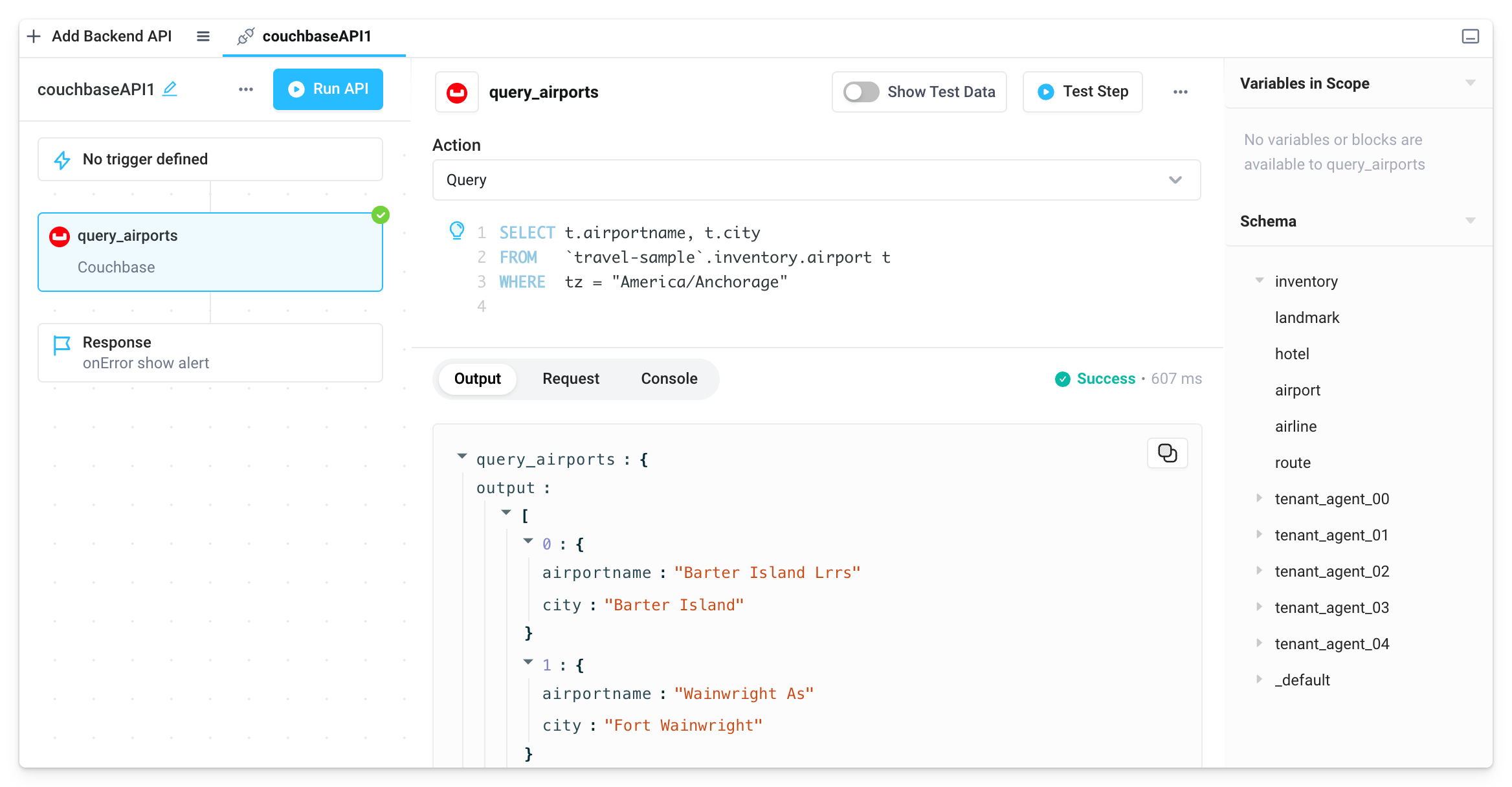
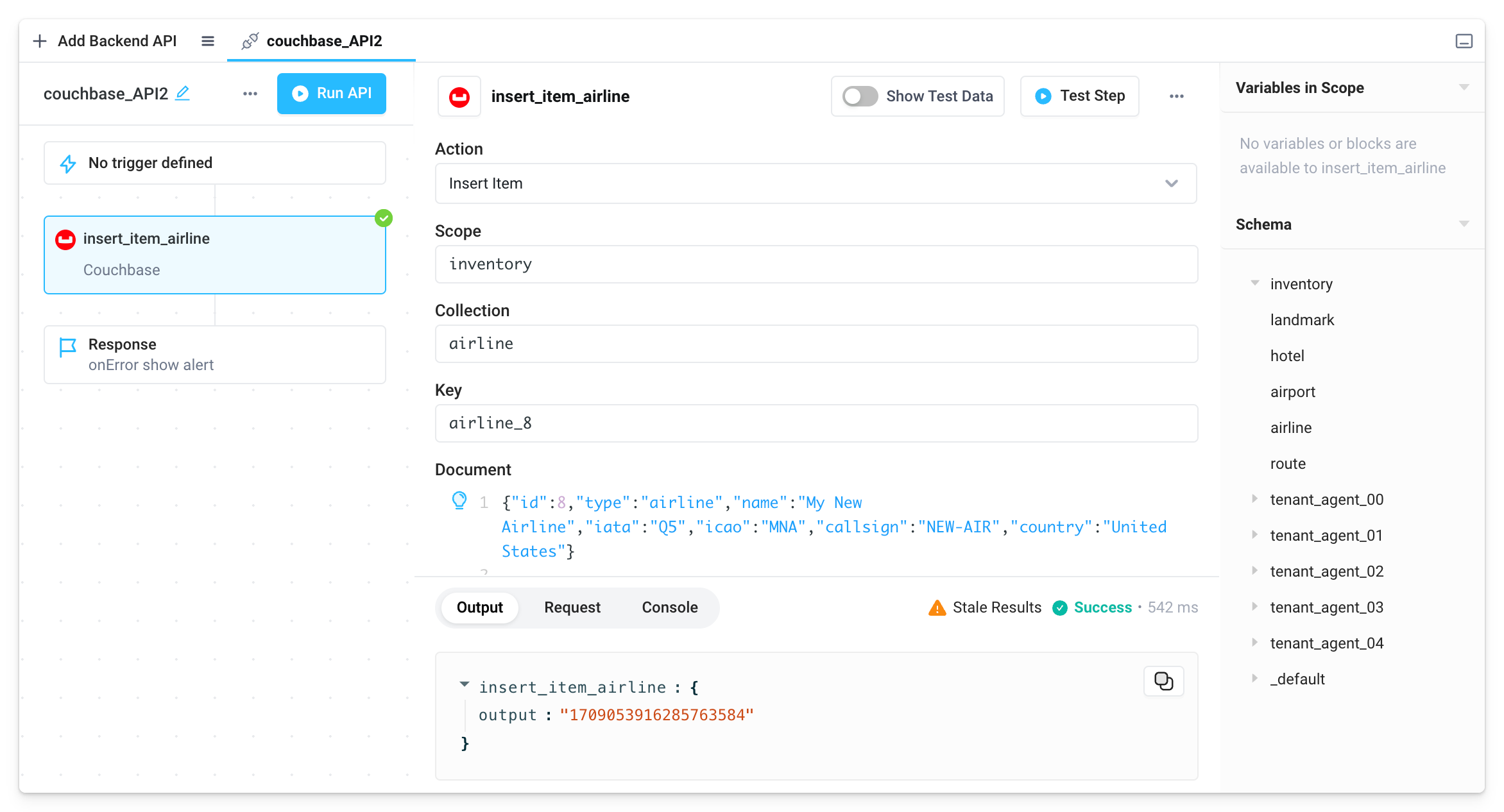
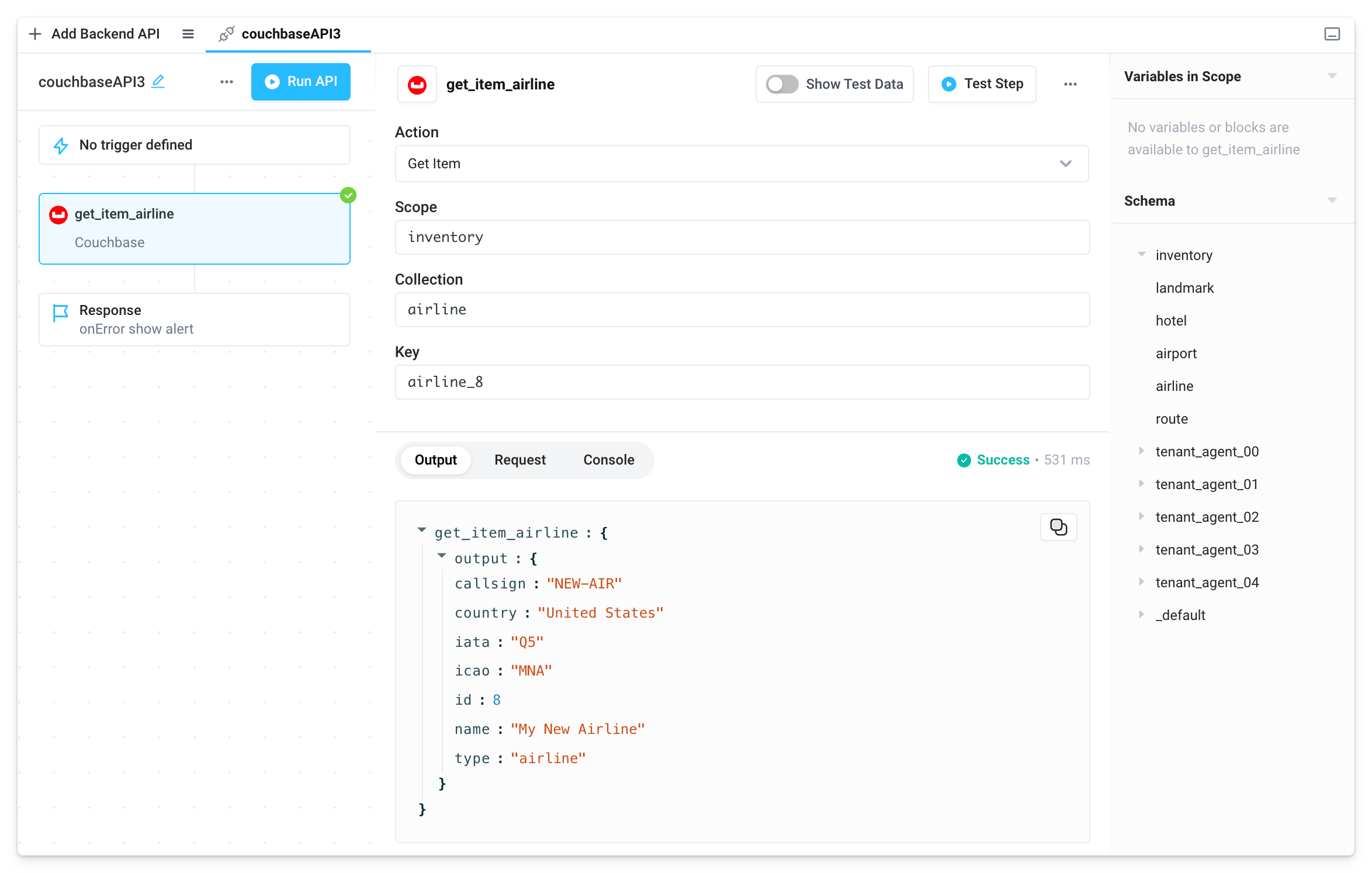
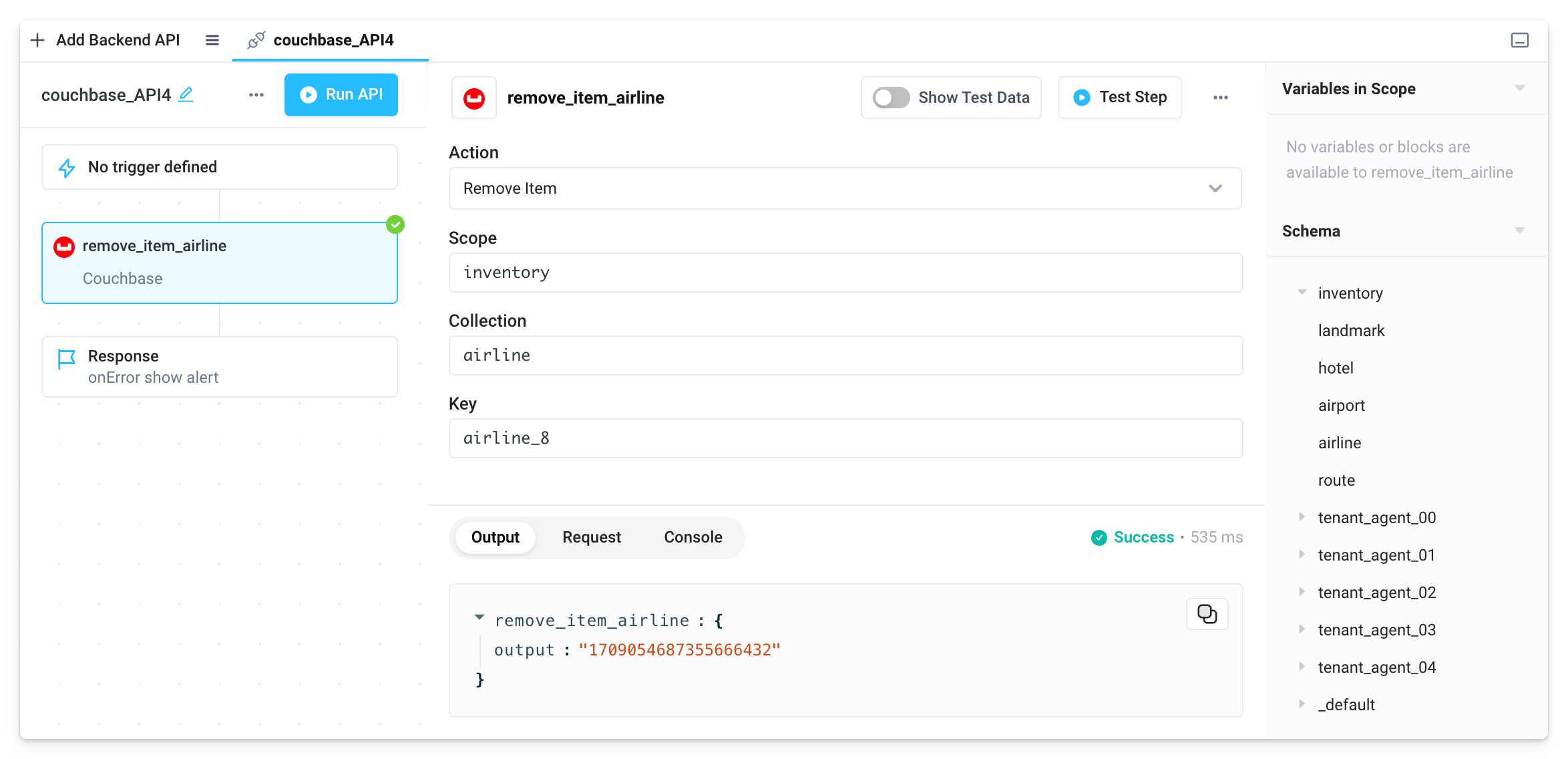
Once your Couchbase integration is created, you can start using Couchbase actions in Superblocks APIs.- Raw query
- Insert Item
- Get Item
- Remove Item
Write SQL++ queries to issue queries to Couchbase.