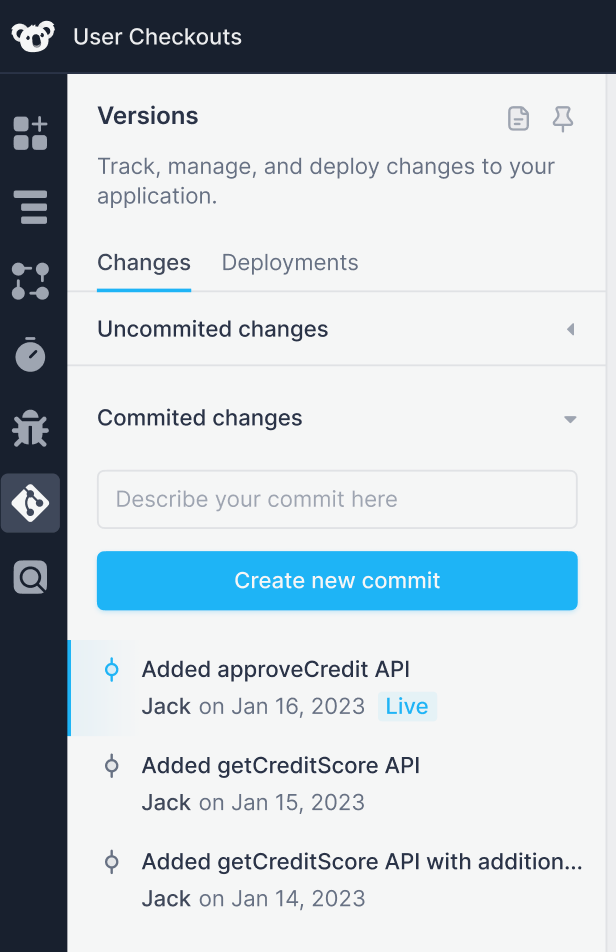
Superblocks Version Control makes it easy to track, manage, and deploy changes to your Superblocks Applications, Workflows, and Scheduled Jobs, all from one place. Using Version Control you can:

Compare changes

A list of committed changes is displayed in the Version Control Panel. Superblocks Edit mode is where you build and iterate on your Application, Workflow, or Scheduled Job. Edits can be reviewed before committing, helping you understand what changes will be introduced in your next commit. To review what’s changed, click on the Versions icon and find the Uncommitted changes section. Changes are captured in incremental snapshots shown in chronological order. Click into a snapshot to view edits made by builders during that time period. Made changes you want to undo? You can reset to any snapshot by hovering over the snapshot and clicking Reset editor.

Commit

Create a new commit Once you’ve made all the updates you want, commit your changes to create a named version of your Application, Workflow, or Job. To create a commit:
  1. Click on the Versions icon
  2. Scroll down to Committed changes
  3. Enter your commit message
  4. Click Create new commit
Creating a commit will clear out any uncommitted changes and create a named commit that can be previewed and deployed. Committing often makes it easy to share and get feedback on changes as you iterate on tools you build in Superblocks.

Commit previews

Every commit in Superblocks triggers the build of a dedicated Commit Preview. Commit Previews let you test and review changes using a live interactive environment without deploying and impacting your end-users. To open a Commit Preview for a commit:
  1. Click the Versions icon
  2. Scroll down to Committed changes
  3. Click the menu icon for the commit you want to view
  4. Click Preview
This will open that commit’s preview environment at a dedicated URL that you can share with your team to review and get sign-off before changes are deployed.

Deploy

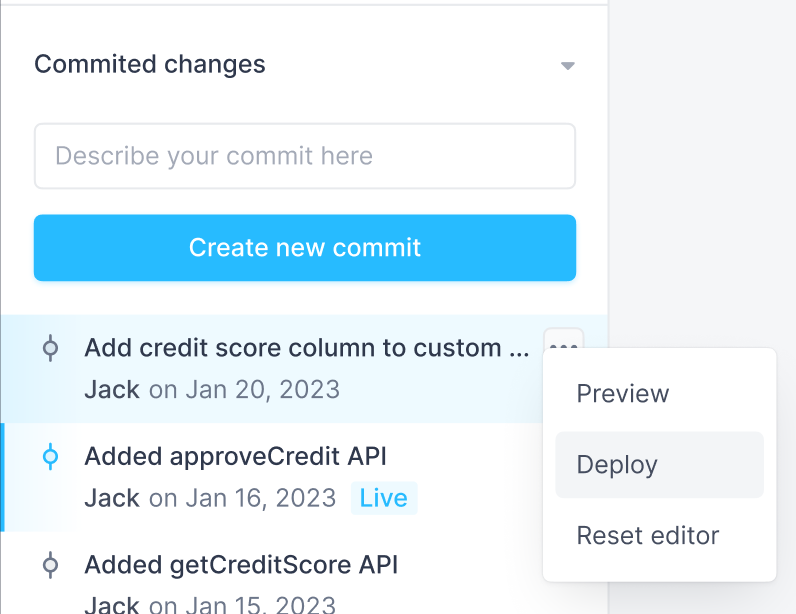
Once you and your team are happy with your changes, make them live for all users by deploying. Deploy committed changes To deploy:
  1. Click the Versions icon
  2. Scroll down to Committed changes
  3. Click the menu icon for the desired commit
  4. Click Deploy to Production
To see the currently deployed commit, just look for the commit with the Live badge.

Reset editor

If you ever find yourself in a situation where you want to completely discard changes you’ve made to your Application, Workflow, or Scheduled Job, you can discard changes by resetting the editor. To reset your editor:
  1. Navigate to the Version Control panel
  2. Find the commit you want to reset the editor to. This can be your last commit, this will discard all uncommitted changes, or an older commit
  3. Click Reset Editor
The Superblocks editor will reload to the state of your Application, Workflow, or Scheduled Job at that specific commit.
Note: changes via Reset Editor will only impact the Application in edit mode. The deployed version of the Application will be unaffected. If you need to change the deployed version, see Redeploy