

Overview
This guide describes how to connect the Superblocks data plane running on Azure Container Apps (ACA) to a Microsoft Fabric SQL Database using the ACA’s system-assigned managed identity and Microsoft Entra authentication.Authentication flow
- The Superblocks data plane container app has a system-assigned managed identity enabled.
- When a query runs, the container obtains an Entra access token from Azure’s managed identity endpoint.
- The token is supplied to the Microsoft SQL Server connector via the connection string (no SQL username or password).
- Microsoft Fabric validates the token and authorizes the request based on workspace and database permissions granted to the identity.
Prerequisites
- An Azure Container App running the Superblocks data plane.
- Owner or Contributor on the resource group containing the container app.
- A Microsoft Fabric SQL Database in a workspace you can administer.
- A Fabric / Power BI tenant administrator available if service principal access is not yet enabled at the tenant level.
Setup
1
Set managed identity variables on the container app
If not previously configured, add the following environment variable to the container app:
2
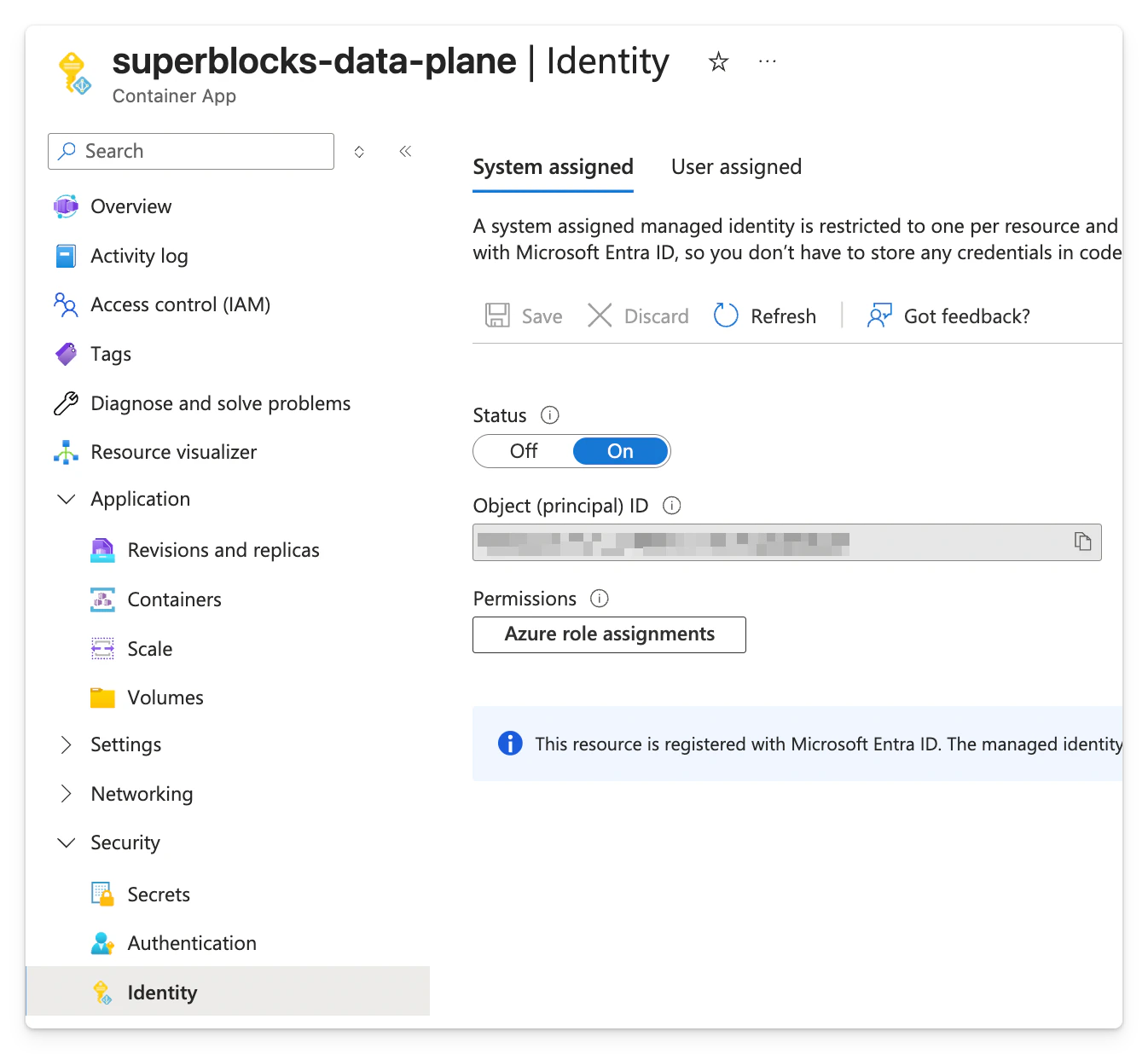
Enable system-assigned managed identity on the container app
- In the Azure portal, open your Container App.
- Go to Security → Identity.
- Open the System assigned tab.
- Set Status to On and click Save.
- Redeploy the container app revision if prompted.
3
Confirm Fabric tenant settings
A Fabric / Power BI tenant administrator must enable service principal access before managed identities can use the Fabric APIs. Fabric gates this behind a Microsoft Entra security group: only identities that are members of an allowed group can use the APIs. Follow Microsoft’s Enable service principal authentication for admin APIs guide for the authoritative reference; the steps below summarize what is required for this setup.
-
Create (or reuse) a Microsoft Entra security group
In the Azure portal, go to Microsoft Entra ID → Groups → New group. Set Group type to Security, give it a name (for example,
superblocks-fabric-access), and create it. - Add the managed identity to the security group Open the security group → Members → Add members and add the container app’s system-assigned identity. You can search by the container app’s name — the identity’s display name matches the container app’s resource name.
-
Enable the tenant setting in the Fabric admin portal
Sign in to the Fabric admin portal as a Fabric admin, go to Tenant settings, and enable Service principals can use Fabric APIs:
- Set the toggle to Enabled.
- Select Specific security groups.
- Add the security group from the previous sub-step.
- Click Apply.
4
Grant Fabric SQL Database permissions
In the Fabric workspace that contains your SQL Database: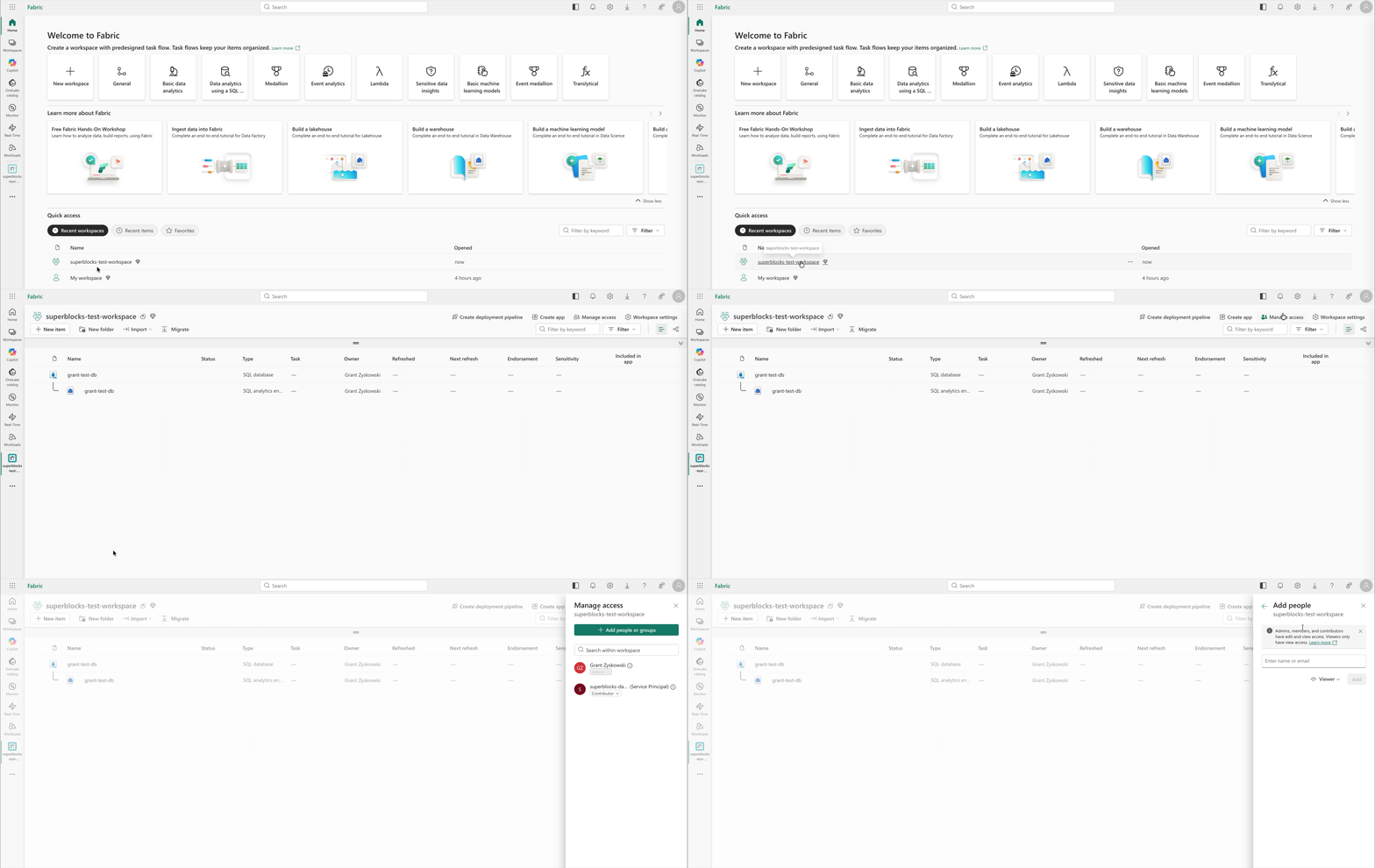
- Click Manage access → Add people or group.
- Add the ACA’s system-assigned identity (search by the container app’s name).
- Grant at minimum Viewer permissions for reading data, or Contributor for reading / writing data. More on roles and permissions here.
5
Create the identity as a database user
Connect to the Fabric SQL Database from VS Code, Azure Data Studio, or another SQL client as yourself (an admin), then run:Replace
<YOUR_CONTAINER_APP_NAME> with the name of the container app whose system-assigned identity you enabled in the first step. The system-assigned identity’s display name matches the container app’s resource name.CREATE USER ... FROM EXTERNAL PROVIDER maps the Entra identity to a database user so token-based logins are allowed. Adjust the roles to your least-privilege needs.6
Create the integration in Superblocks
Create a Microsoft SQL Server integration in Superblocks using a connection string that targets the SQL Database endpoint (not the SQL analytics endpoint):You can find connection string details like
<YOUR_SERVER_ID> and <YOUR_DATABASE_NAME> under the Fabric SQL Database item’s Settings → Connection strings.Related documentation
- Azure managed identity authentication to SQL Server — equivalent guide for SQL Server on an Azure VM using a user-assigned identity
- Database connections — networking and connection strings
- Microsoft SQL Server integration — Superblocks UI setup