

Amazon Web Services (AWS)
- Log in to the AWS Console
- Navigate to the resource that you would like Superblocks to connect to
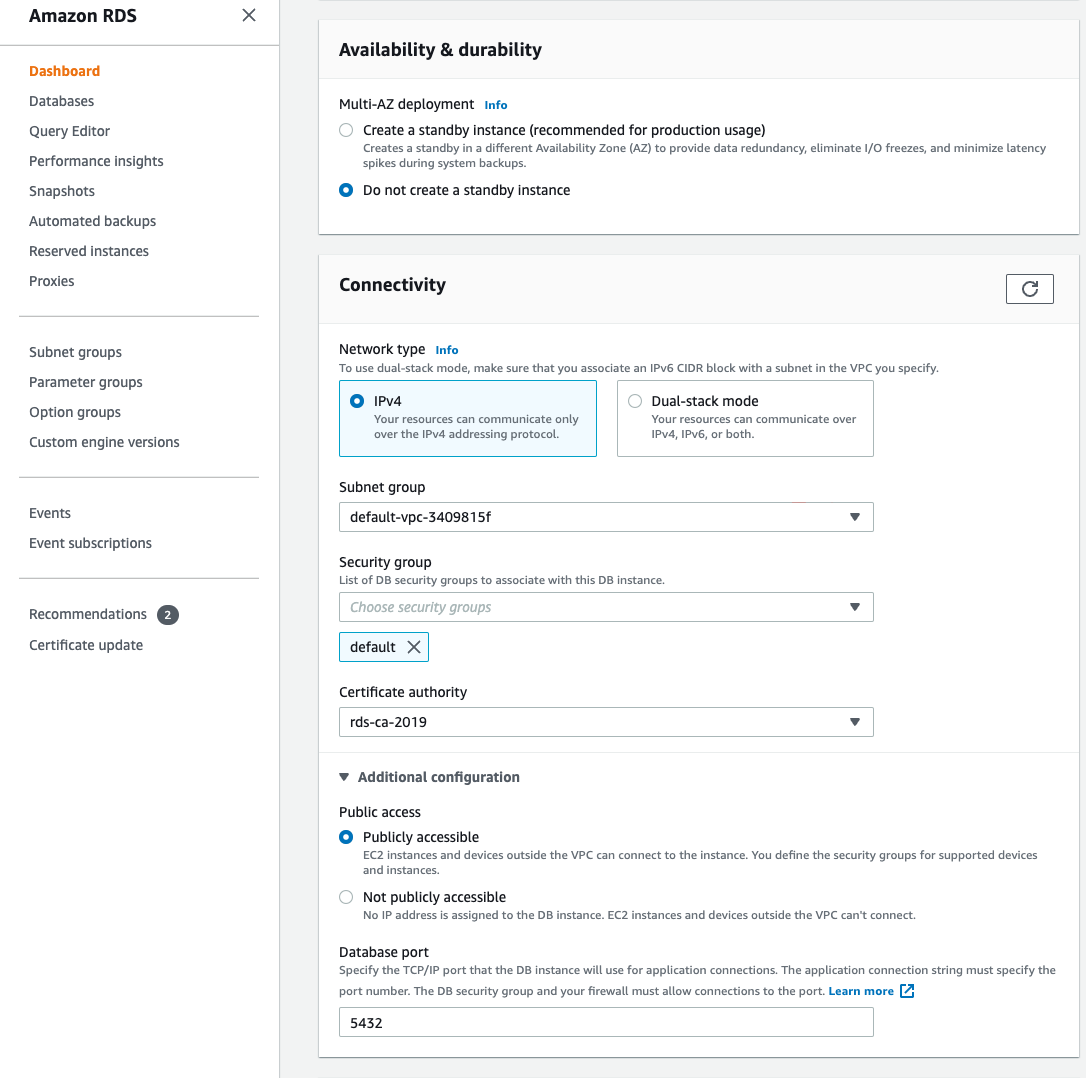
- If you are applying an allowlist to an RDS instance, the instance must be set to
Publicly accessible(this is found under Connectivity -> Additional configuration)
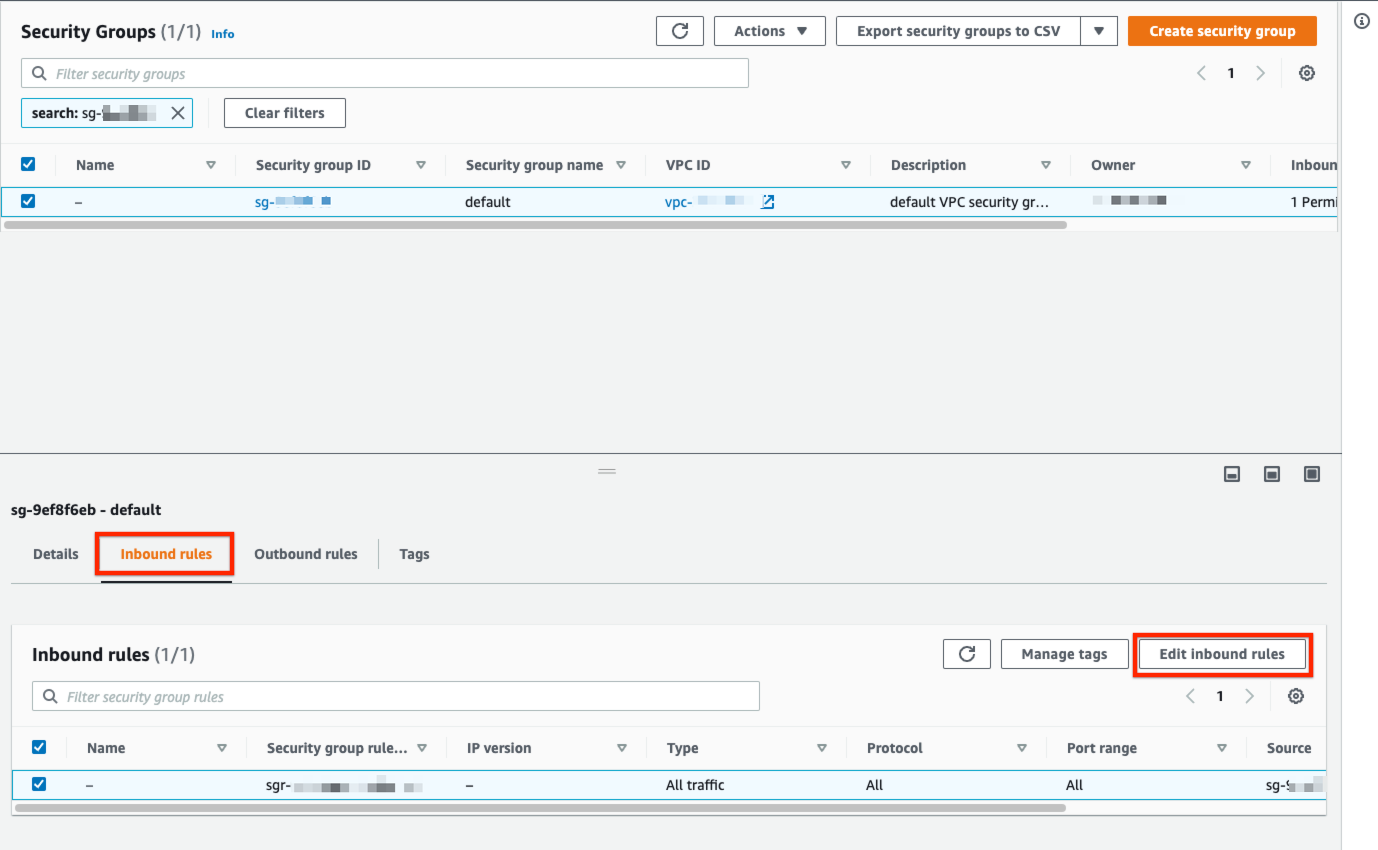
- Select an existing Security Group or create a new one
- Select the Inbound rules tab at the bottom and click Edit inbound rules
- Choose the port (defaults: Postgres: 5432, MySQL: 3306, MSSQL: 1433)
- Set Source to “Custom” and enter the following IP addresses:
107.22.228.244/32, 3.93.101.124/32, 34.209.17.50/32, 34.227.169.51/32, 35.155.119.178/32, 35.171.116.214/32, 35.86.18.137/32, 44.232.244.93/32, 54.148.33.216/32
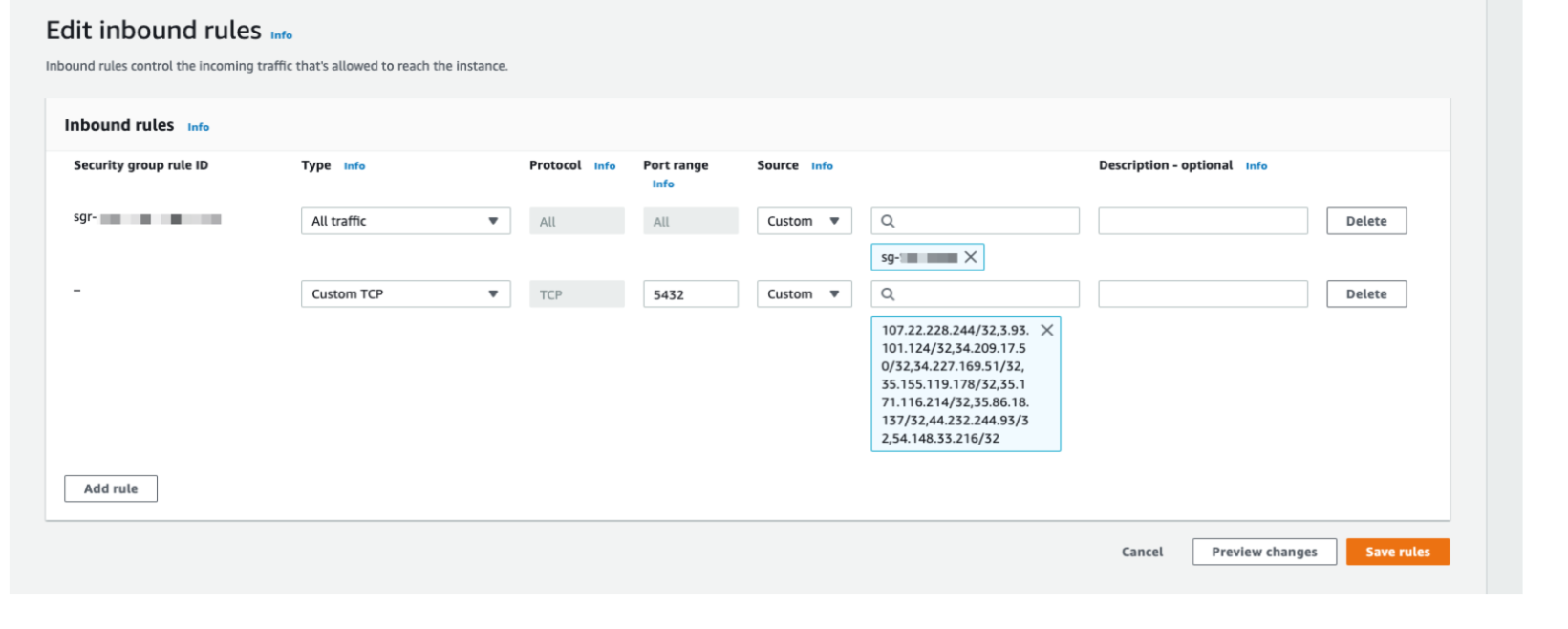
- Click Save rules
Google Cloud Platform (GCP)
Self hosted database
- Log in to the GCP Console
- Navigate to VPC Network -> Firewall
- Select an existing Firewall Rule or create a new one
- Set the following:
- Direction of traffic: Ingress
- Action on match: Allow
- Targets: All instances on network
- Source filter: IPv4 ranges
- Source IPv4 ranges: Add the following IP addresses:
107.22.228.244/32, 3.93.101.124/32, 34.209.17.50/32, 34.227.169.51/32, 35.155.119.178/32, 35.171.116.214/32, 35.86.18.137/32, 44.232.244.93/32, 54.148.33.216/32 - Protocols and ports: Specified protocols and ports, TCP Ports (defaults: Postgres: 5432, MySQL: 3306, MSSQL: 1433)
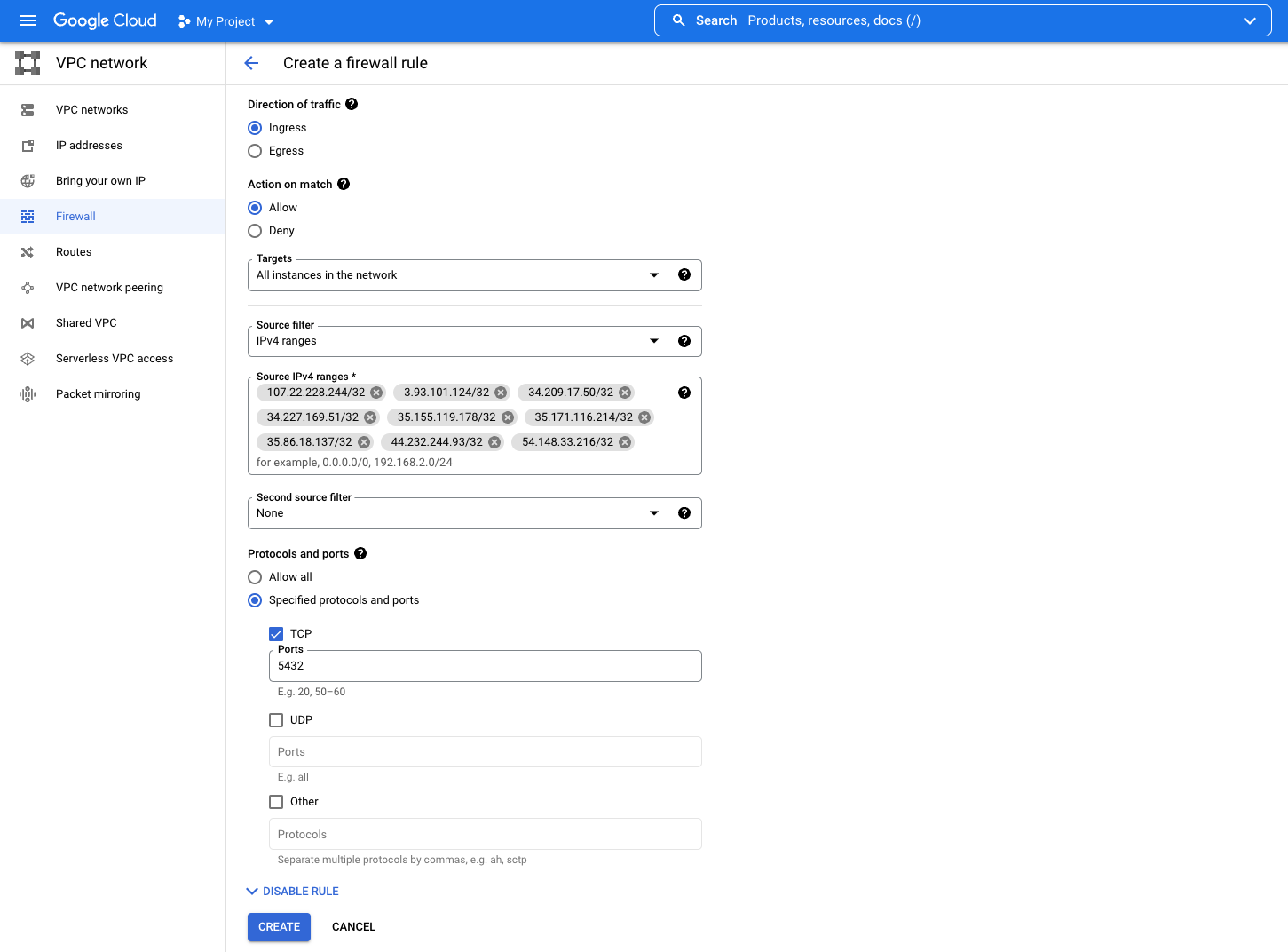
- Click Create/Save
Cloud SQL
- Select a GCP SQL instance
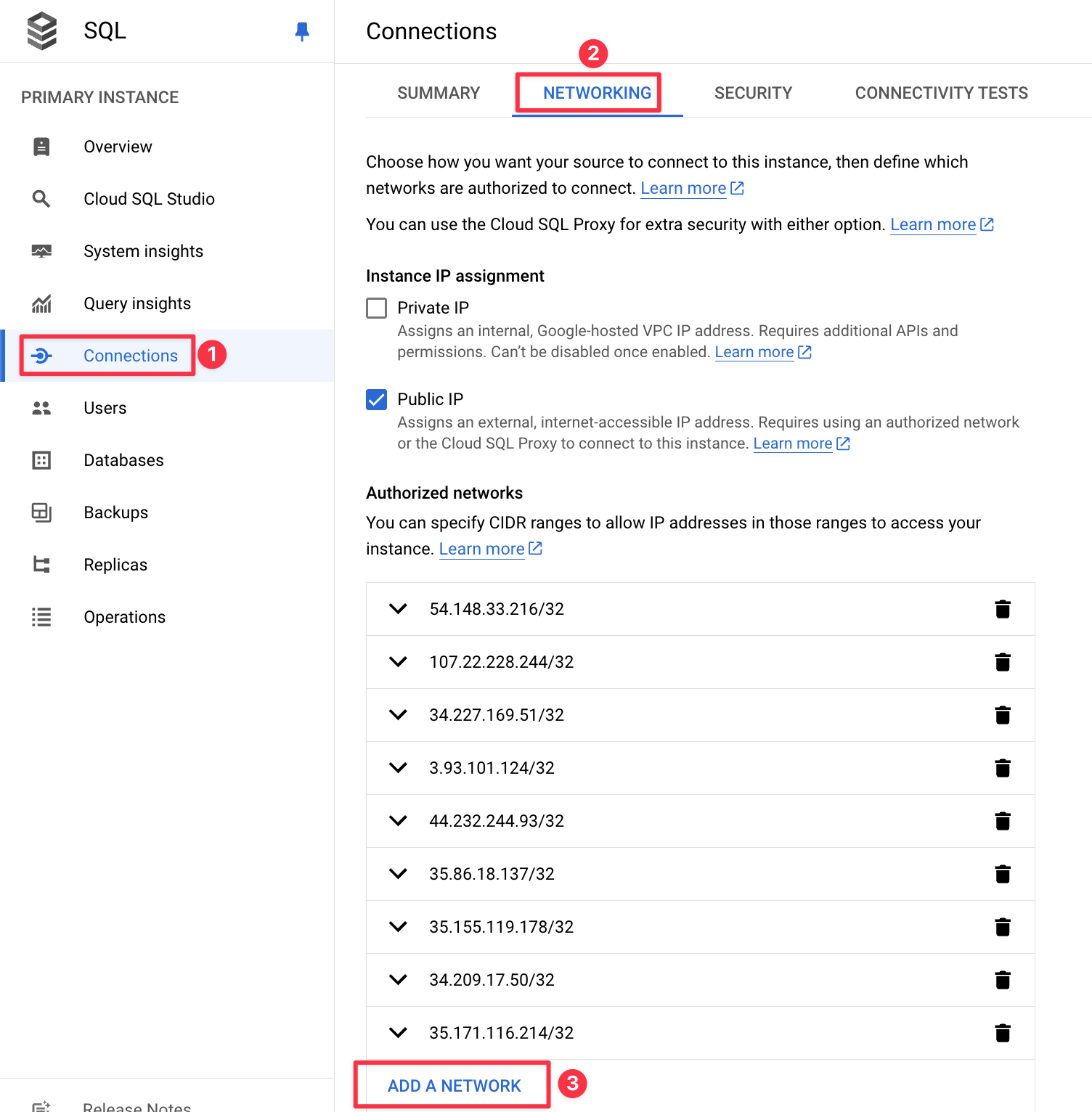
- Navigate to Connections -> Networking
- In the Networking tab, make sure to add all IP addresses in the “Authorized Network” section found in the IP Allowlist by clicking “Add a Network”
- Click Done/Save