

Using Firebase authentication
Use the following instructions to set up Firebase authentication.Get Firebase auth config
- Navigate to your project in the Firebase console
- In the console, go to the Authentication section
- Click on the Settings tab followed by Authorized domains
-
Click Add domain and add your instance’s domain,
{tenant}.superblocks.com. Replace{tenant}with the value for your instance from Instance URLs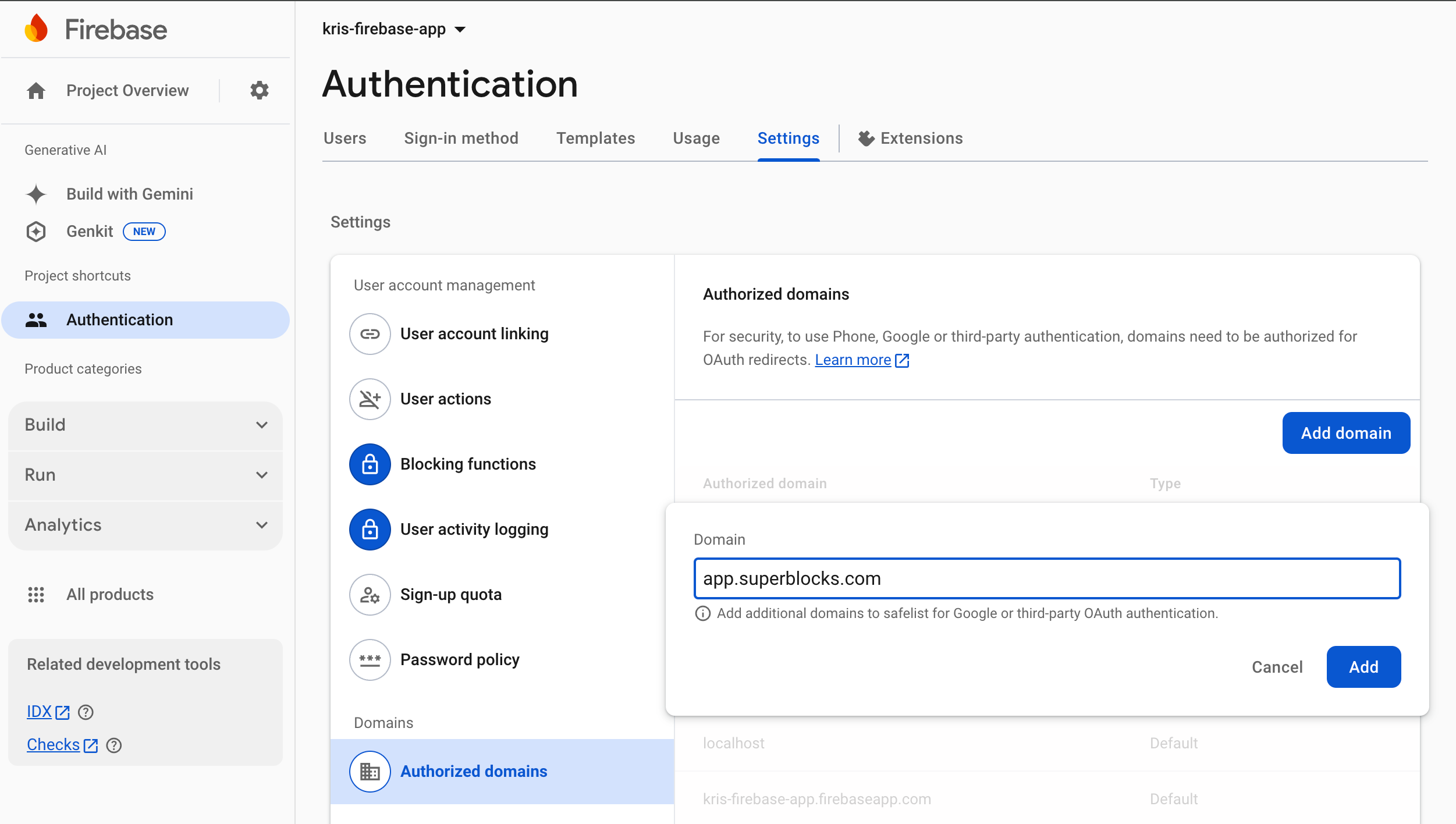
-
From the Project overview page, click Add app and select Web as your app’s platform
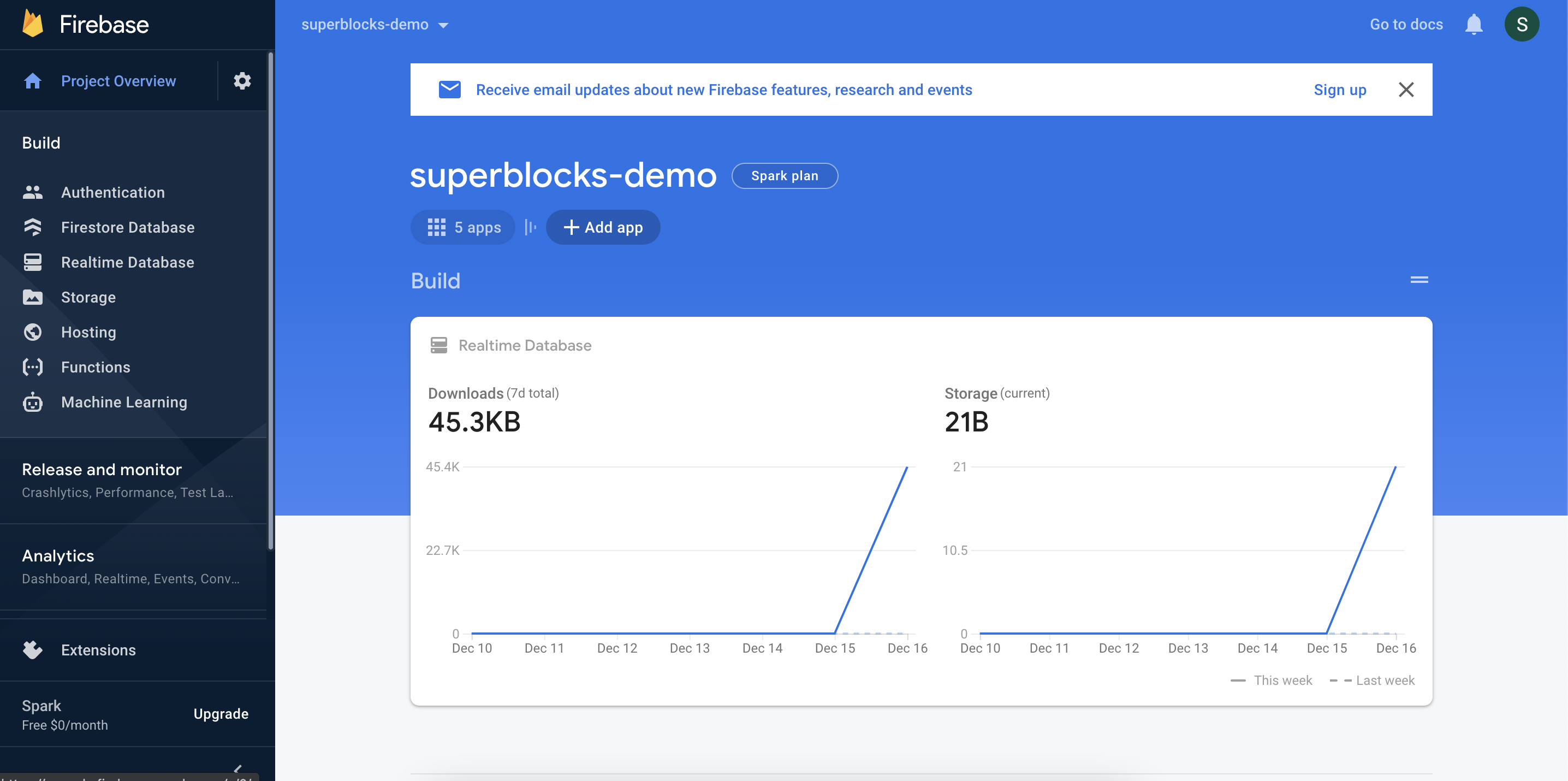
- Name your new web app and click Register app
-
Copy the
firebaseConfigobject in the SDK code snippet. Make sure you don’t copy the semicolon at the end of the line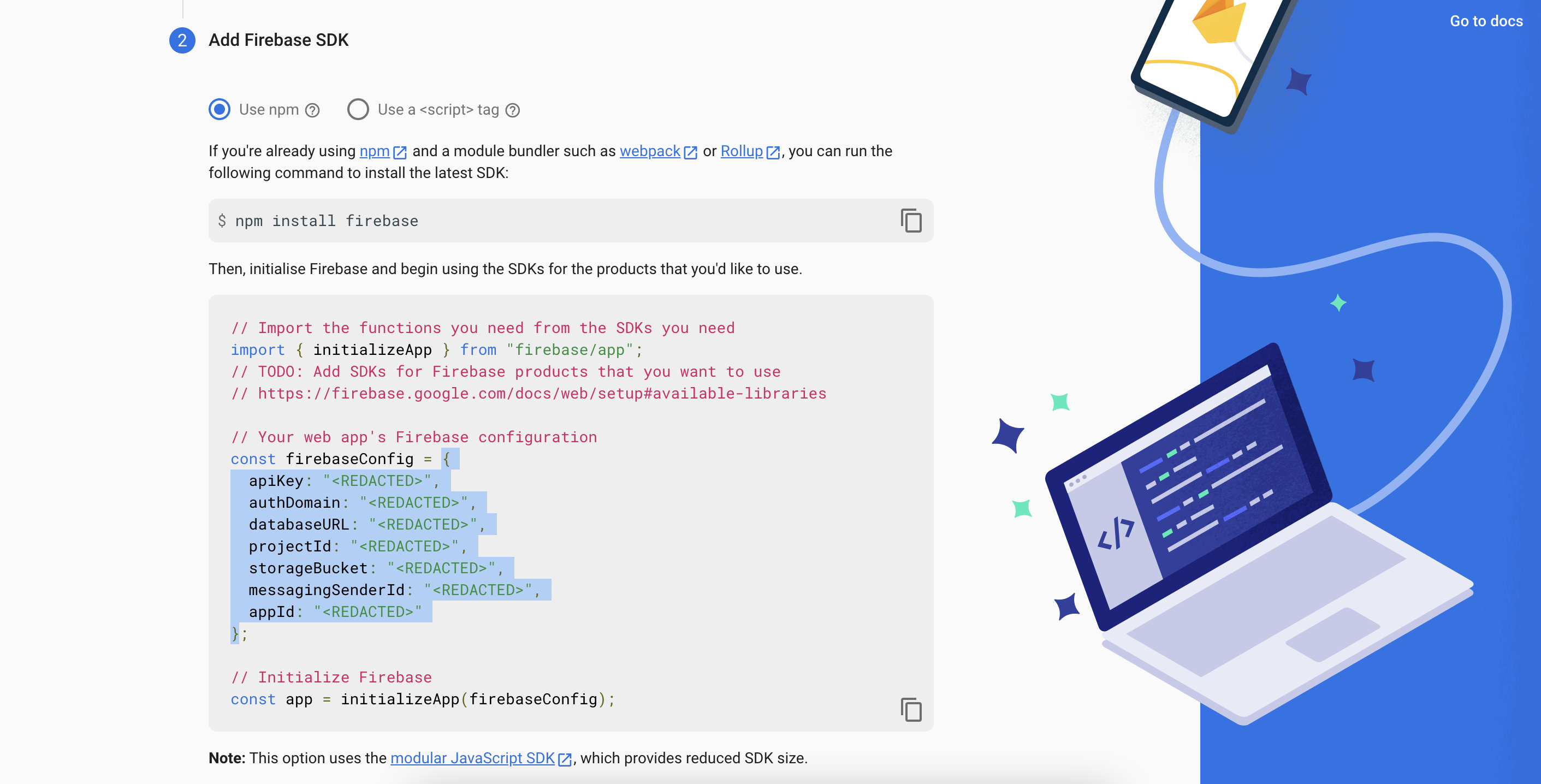
Configure Integration
- In the web app, navigate to the Integrations page
- Click into an existing REST integration, or create a new one
- Select Firebase in the Authentication method dropdown
- Paste the
firebaseConfigobject you copied previously into the API config field - Choose the sign-in methods you want to support
- Use the
firebaseobject in Headers or Params to define how the firebase token will be used when calling your API. For example, to send the access token as an Authorization header, set:
The firebase object
The results of a Firebase exchange can be referenced in your integration configuration using the firebase object. The firebase object has the following properties.