- Use non-production data tags in Edit mode so developers (and Clark) can safely build and test without touching production data.
- Assign production data tags to the Production environment to keep production data isolated.
- Add multiple data tags to an environment (e.g.,
us-east,us-west,eu-west) to let users switch between regions in deployed apps.
Set up data tags for an application
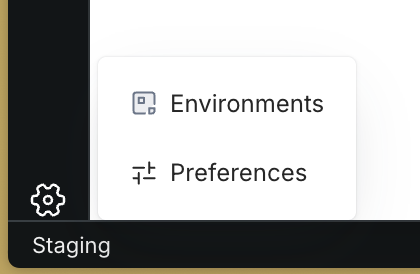
Each environment (Edit, Preview, Production) in your app can have one or more data tags assigned. The available data tags are restricted by the admin — only data tags that the admin has allowed for a given environment will appear as options. To configure data tags for your app:- Open the Settings icon on the lower left corner of any App
- Click Environments
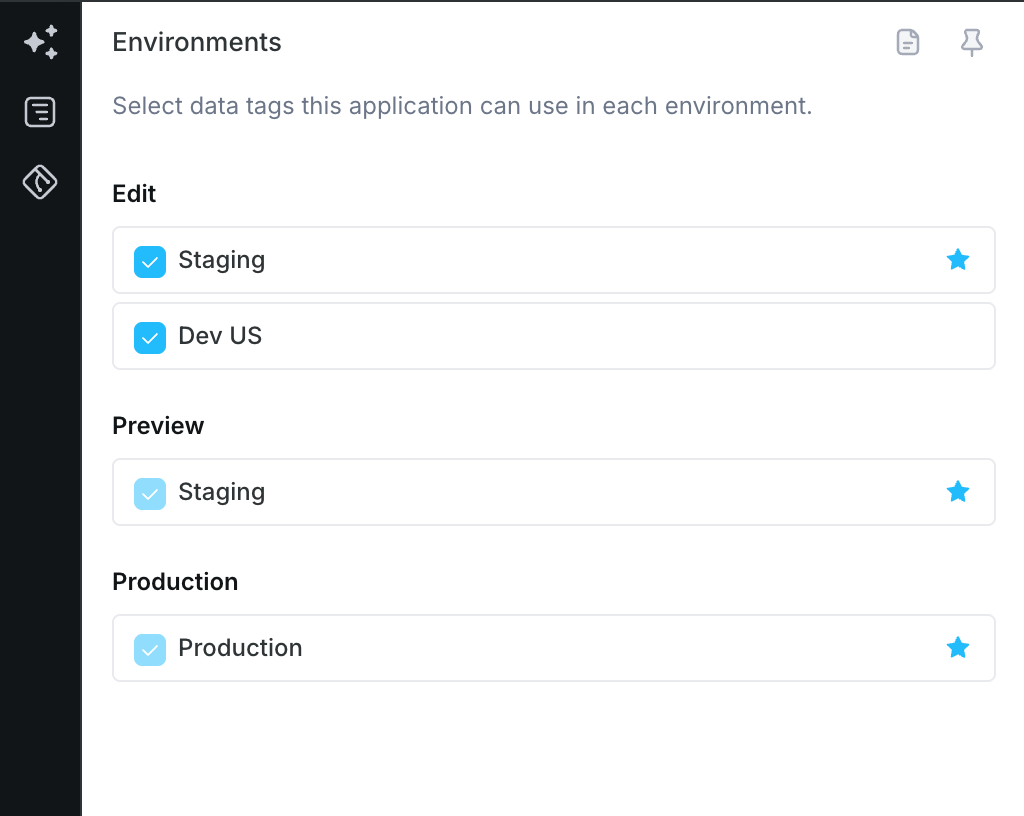
- For each environment, select the data tags you want to use from the allowed options
- Choose a default data tag for each environment
Change the default data tag
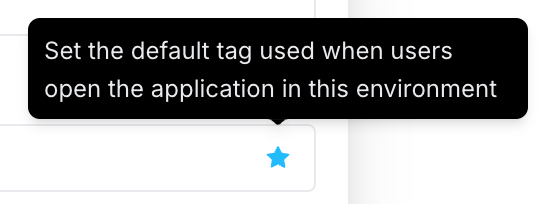
When multiple data tags are available in an environment, you can set a default. This is the data tag used to execute APIs in this environment by default. To change the default, select the radio button next to the data tag you want to use by default: