

Targeting frontend elements
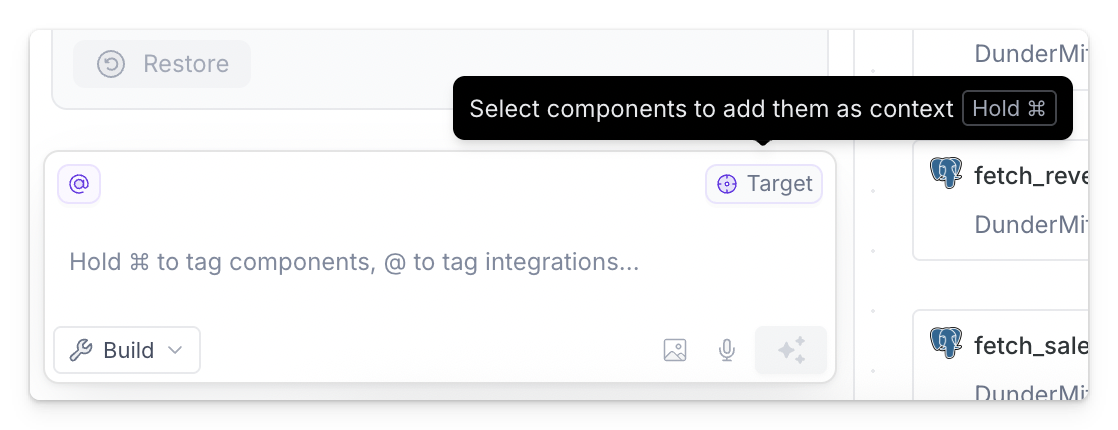
To focus Clark on any specific parts of the UI, select the Target icon in the chat or use keyboard shortcuts (hold⌘ on Mac or Ctrl on PC).
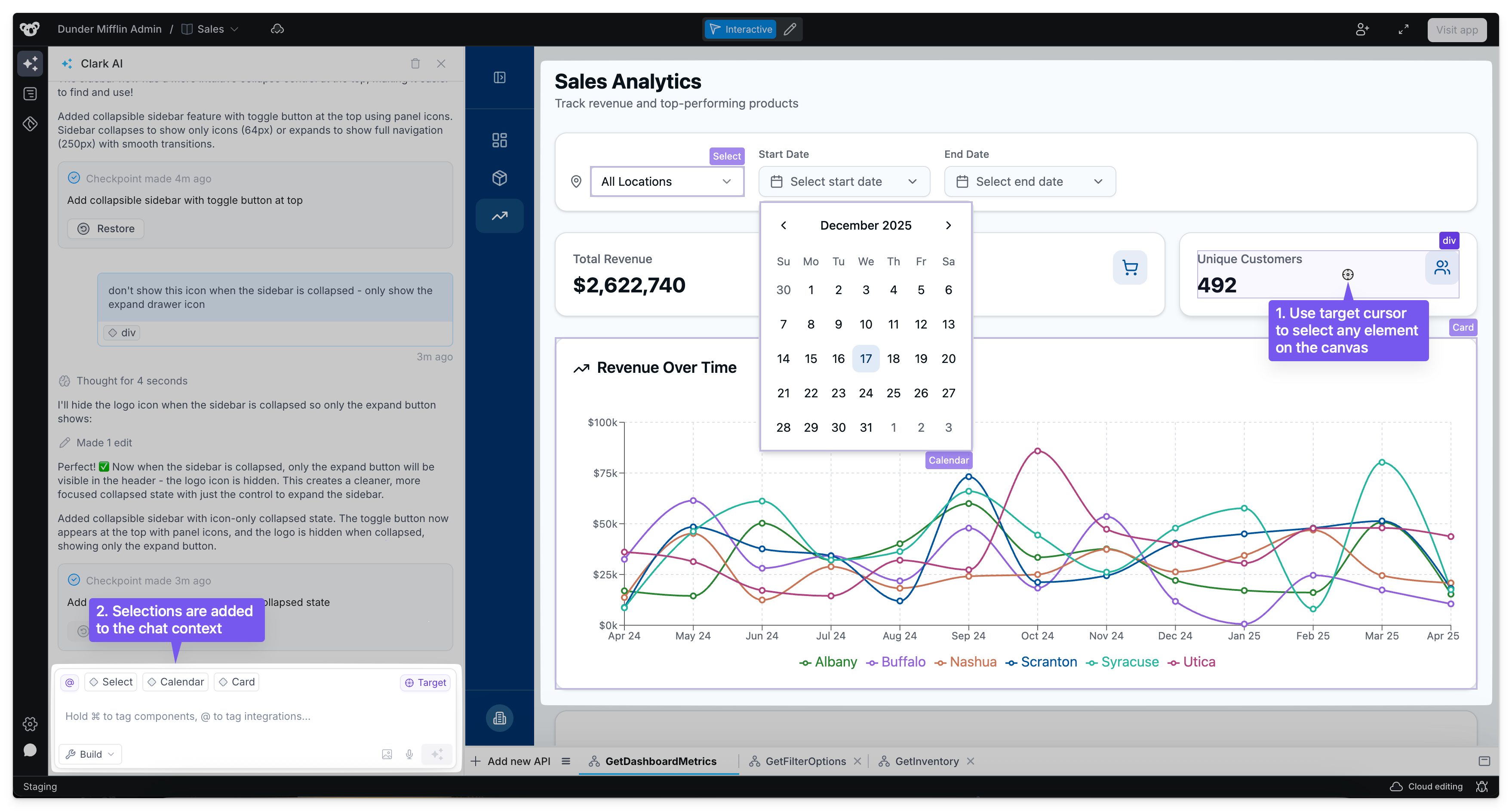
Tagging backend APIs
Similar to integrations, you can focus Clark on specific APIs by @mentioning them in chat.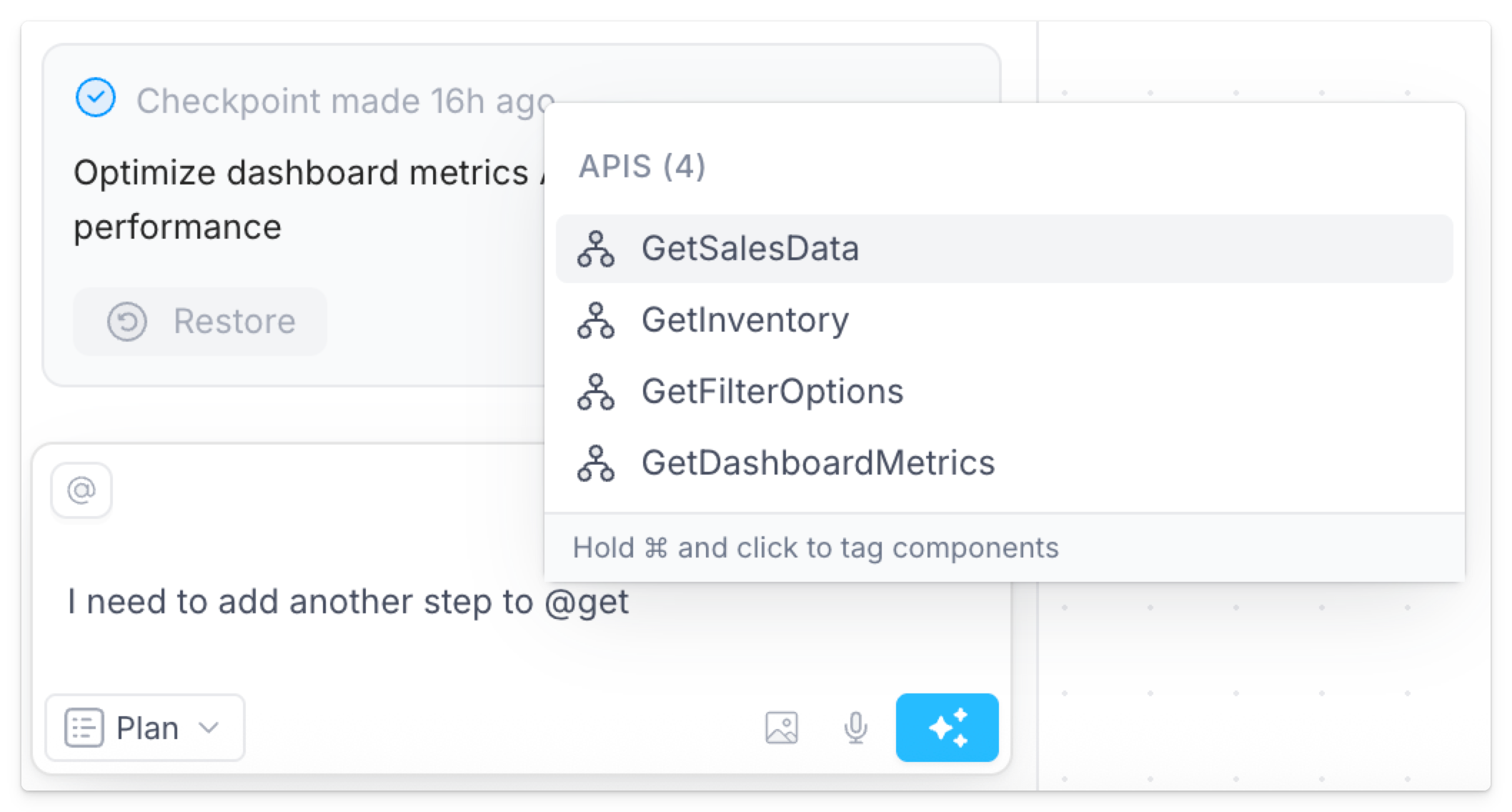
Uploading files
To add more detail to your prompts, upload files like images, JSON, CSVs, and more. For example, include a screenshot or wireframe to convey layout, hierarchy, and component states. You can attach files from the Clark chat in the editor and from the Clark prompt on the homepage.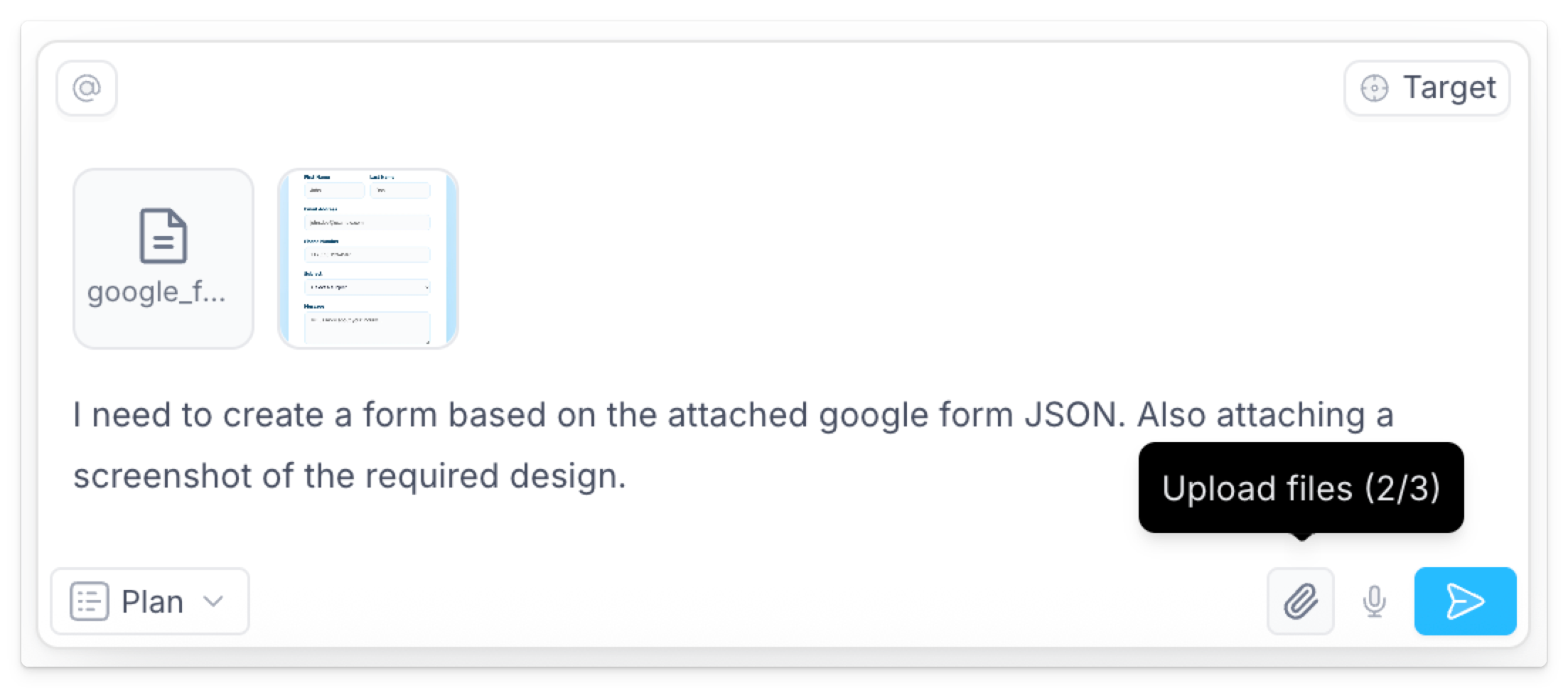
File size limits
- Images: up to 50 MB raw. Large images are automatically resized so the longest edge is at most 1568 pixels before Clark receives them.
- Text files (for example JSON, CSV, Markdown): up to 1 MB.