

Version history in Clark
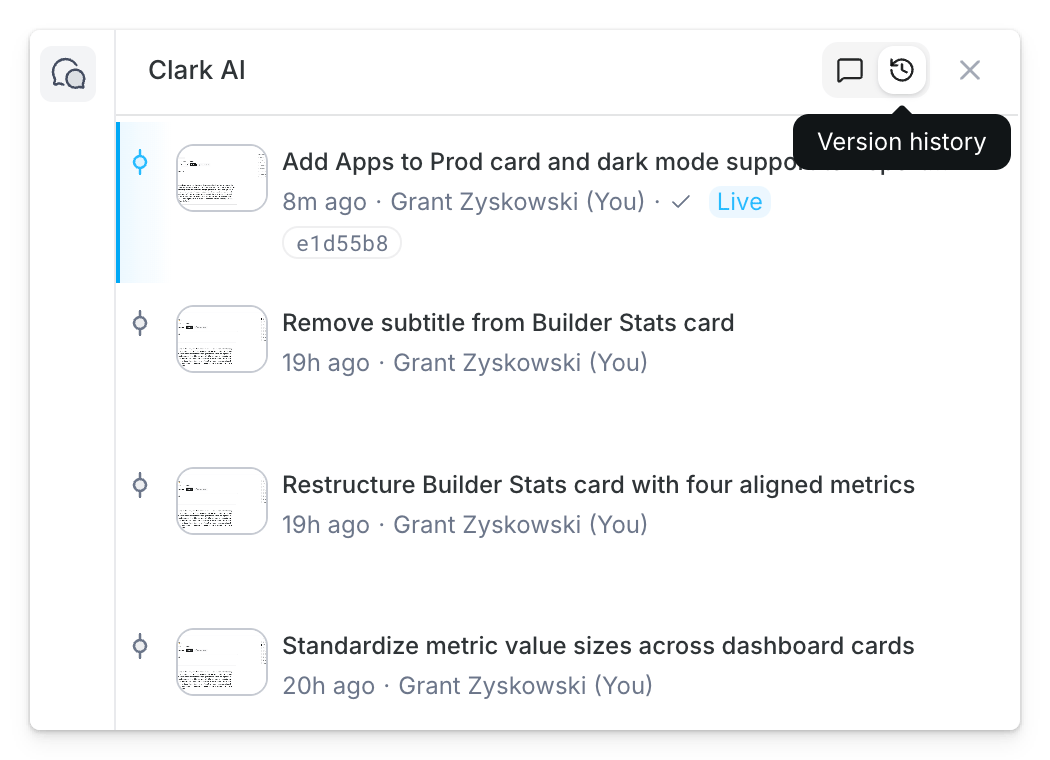
Version history lives in the Clark AI panel. To navigate to version history:- Open Clark in the editor
- In the Clark header, click the Version history icon (next to Chat)
Preview from a checkpoint
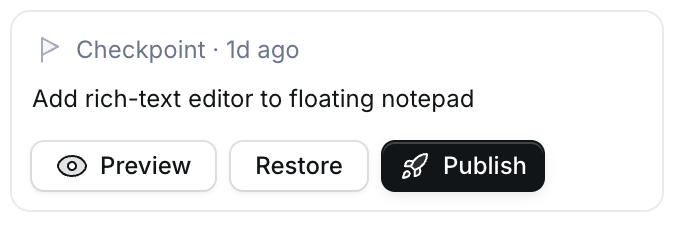
From a checkpoint in chat or version history, click Preview to build a preview of that version. When the build is ready, open the preview from the notification (Your checkpoint preview is ready. Open preview) or from the Publish detail view when available.Publish from a checkpoint
From a checkpoint in chat or version history, click Publish to promote that version to production. Superblocks builds, runs pre-publish checks, and deploys in one flow.Publish detail view
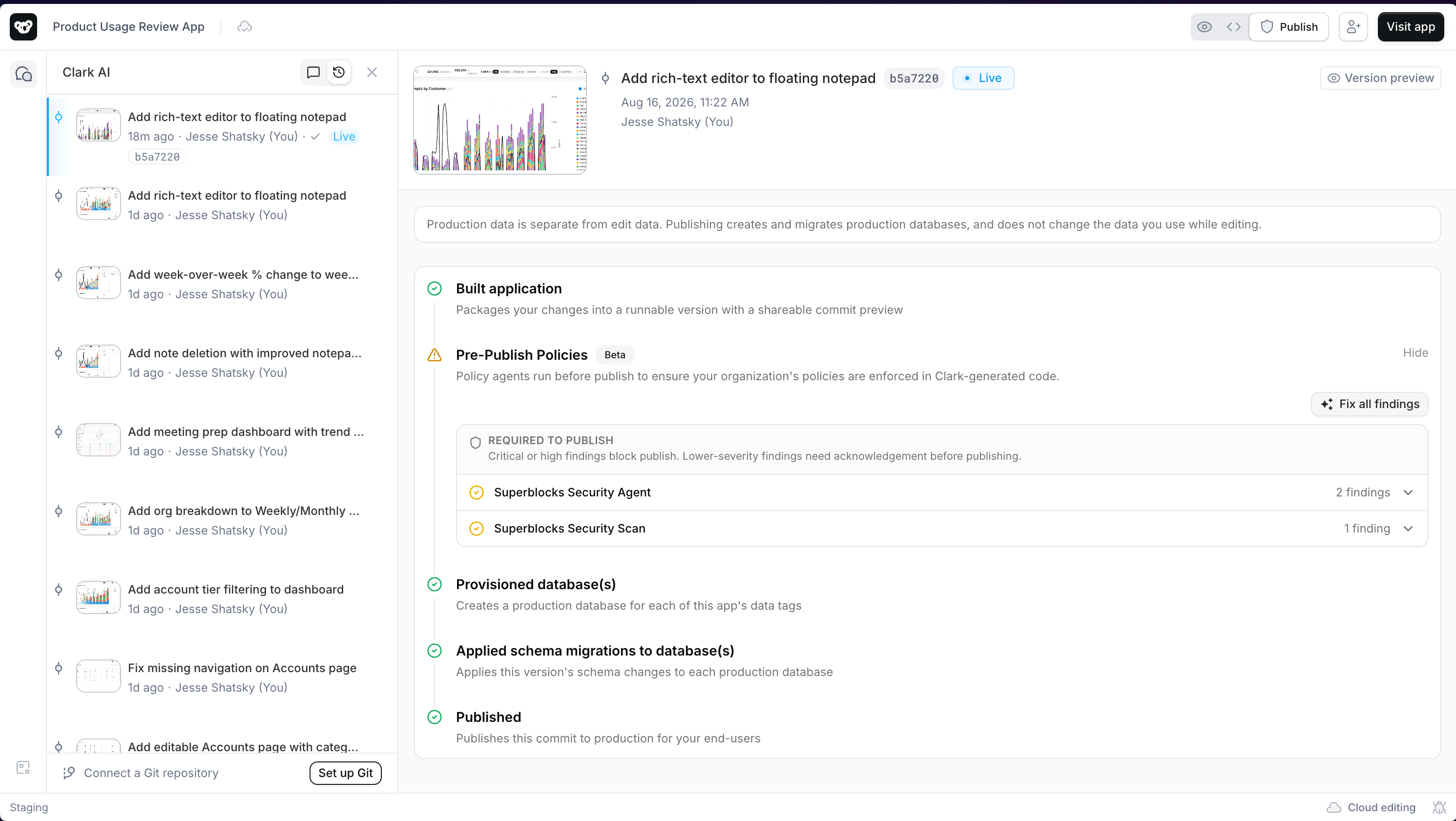
To open the publish details tab, click View publish details from a previewed / published checkpoint card, or click any previewed / published version in history. The Publish tab shows:- Progress through the pipeline (build, pre-publish policies, database steps when applicable, publish status)
- Errors and retries when a step fails
- Pre-publish security and policy findings (fix with Clark, acknowledge advisory findings, or Publish anyway when allowed)
- Database actions such as provisioning, schema migrations, and acknowledgement of destructive migrations before they run in production
Git-connected apps
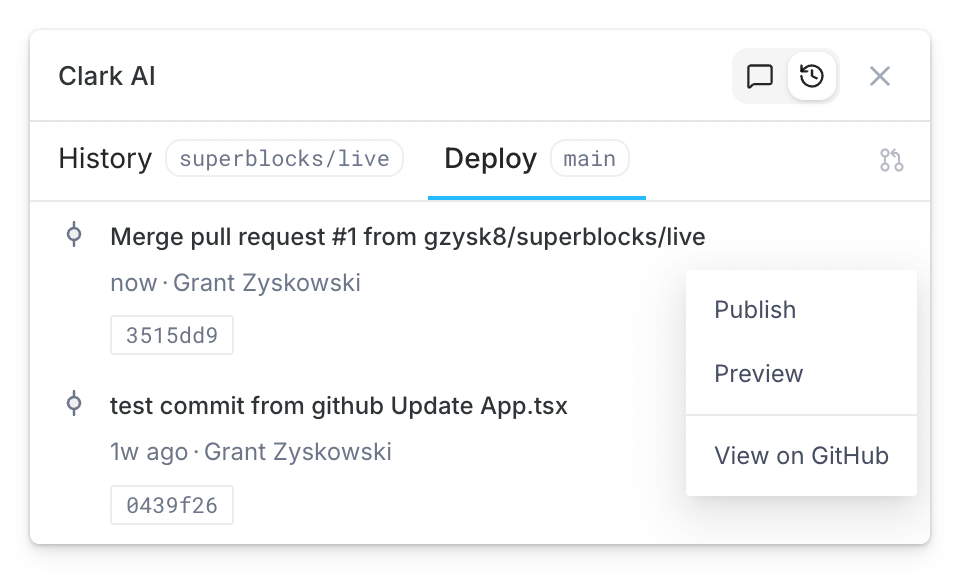
For apps connected to Git, publish using the Deploy tab (default branch, e.g.main). Publishing is disabled on the History tab which displays checkpoints for the superblocks/live branch.
Restore a checkpoint
Restoring resets the app edit state and Clark’s chat memory to that checkpoint. Messages and checkpoints after the restore point are permanently archived. To restore a checkpoint:- Open the checkpoint in chat or find it in Version history
- Choose Restore
- Confirm in Restore to checkpoint