

Prerequisites
To setup SSO for your organization, you’ll need:- An Entra tenant
- A user account with, at a minimum, Cloud application administrator access
- A Superblocks organization on the Enterprise plan
- Your instance’s
{tenant}value. See Instance URLs
Setup
Set up single sign-on for Entra by registering an application in the Entra portal. See Microsoft’s Quickstart: Register an application with the Microsoft identity platform for full details.Register an application
- Sign in to the Microsoft Entra admin center
- Navigate to Identity → Applications → Enterprise applications
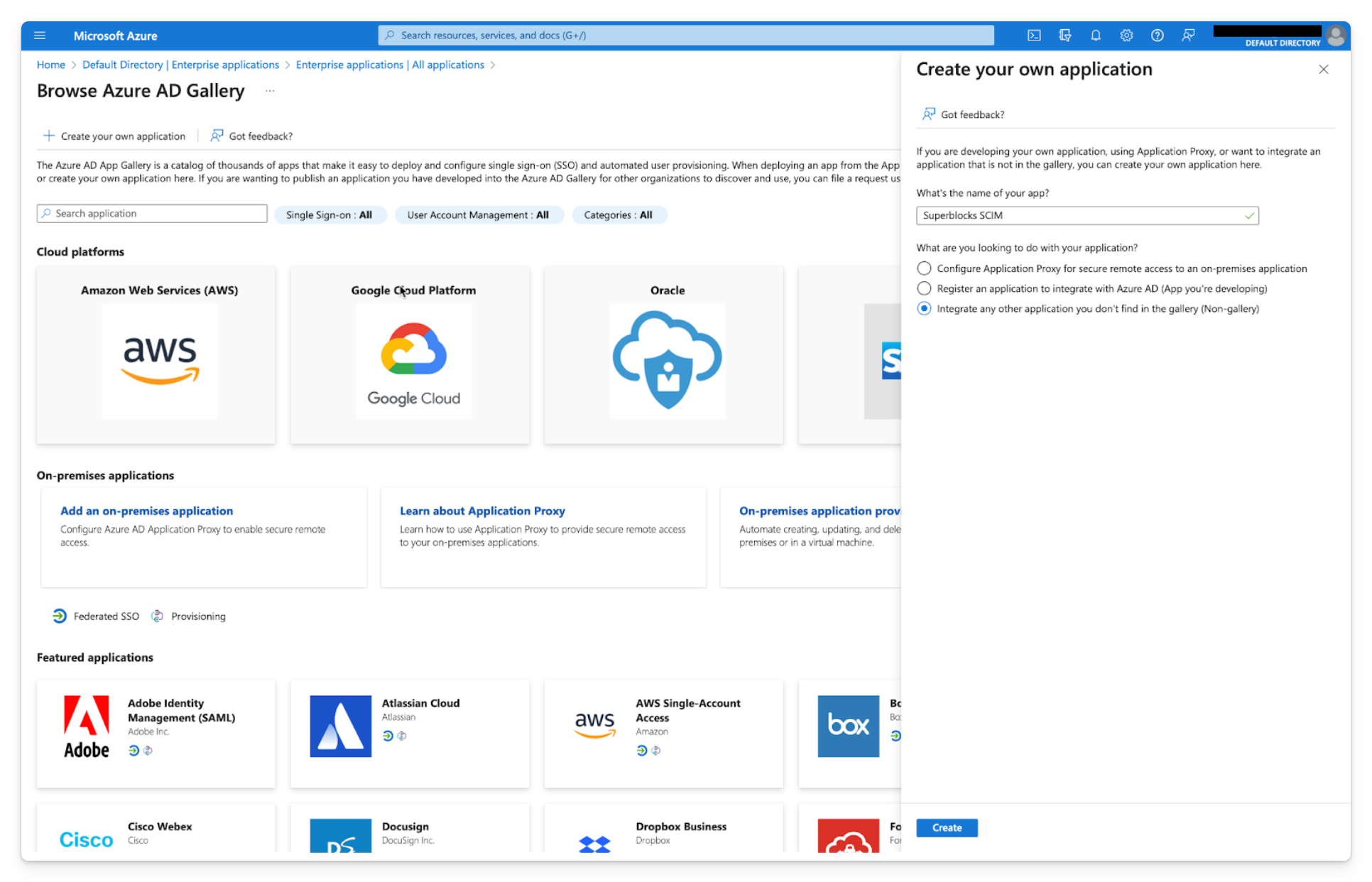
- Click + New application
- Select + Create your own application
- Name the application
- Set Supported account types to Accounts in this organizational directory only
- Under Redirect URI select Web and enter
https://login.superblocks.com/login/callback - Click Register
Setup authentication
After your app has been registered, configure authentication for the application.- In App registrations select your new application
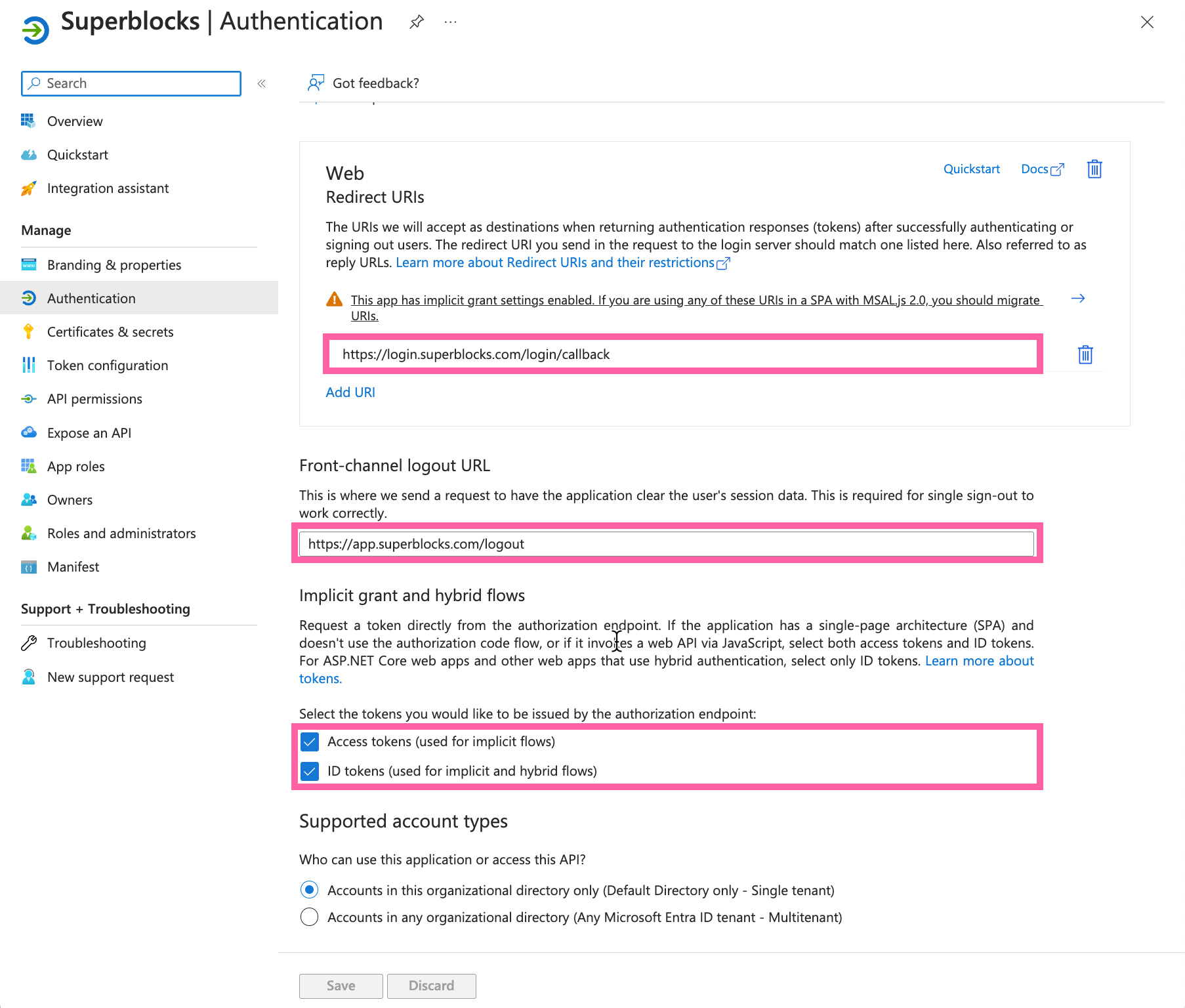
- Under Manage, select Authentication
- Set the Front-channel logout URL to
https://{tenant}.superblocks.com/logout - Under Implicit grant and hybrid flows check the boxes for both Access tokens and ID tokens
- Save your configuration
Add a client secret
Superblocks uses a client secret to authenticate with Entra when requesting user access tokens. To create a client secret for your application:- Under Manage, select Certificates & secrets
- On the Client secrets tab, click + New client secret
- Enter a description and select an expiration date for your secret
- Click Add
- Copy the secret value
Configure IdP-initiated login (optional)
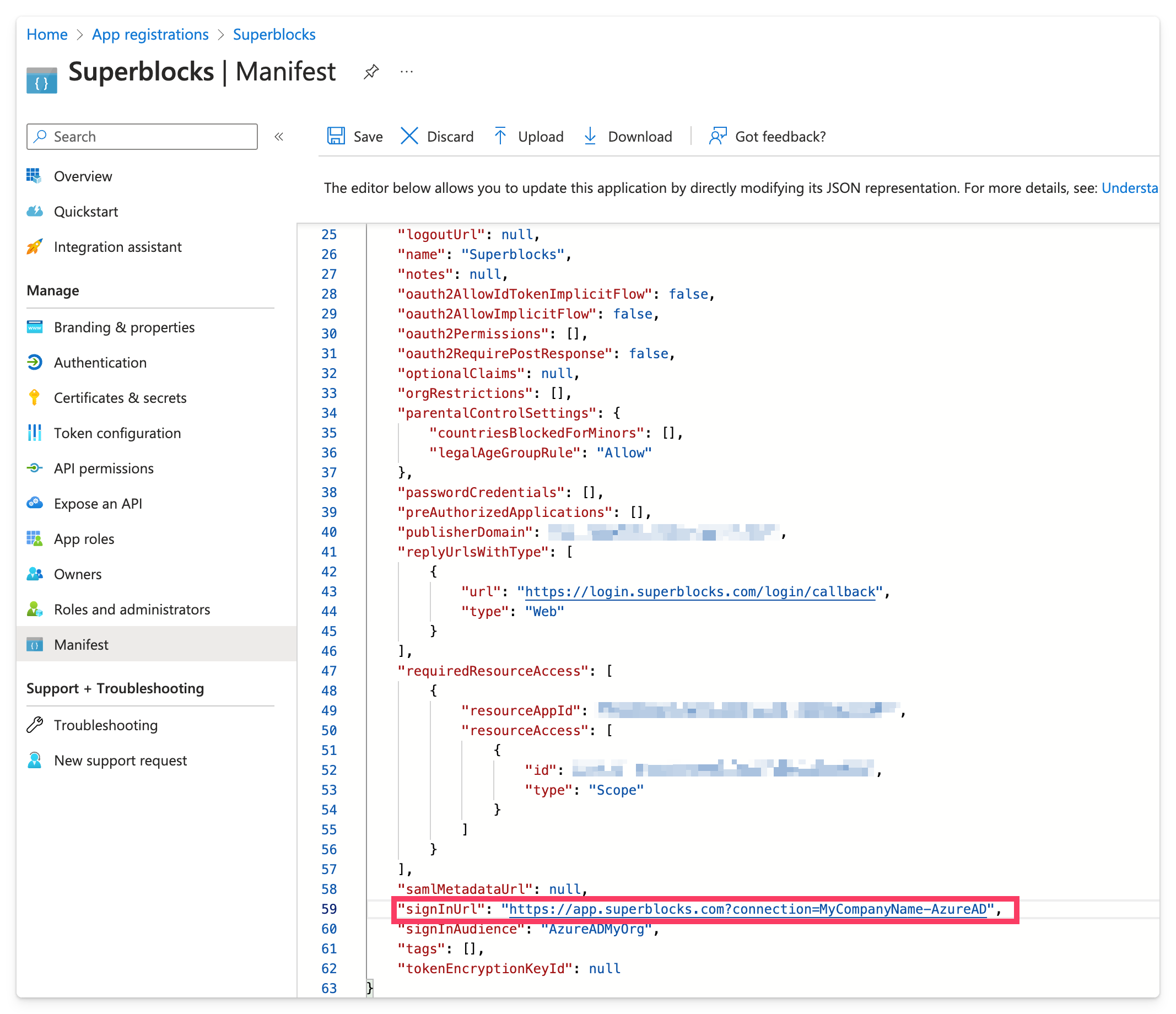
To allow users to log in to Superblocks directly from Entra instead of initiating the login from Superblocks, follow the steps below to update the login URL for the Entra application.- Under Manage, select Manifest
- Scroll down to the
signInURLproperty and set its value tohttps://{tenant}.superblocks.com?connection={MyCompanyName}-AzureAD
- Click Save
Send IdP info to Superblocks
Once you’ve configured your Entra application, send the following information to support@superblocks.com. On Cloud-Prem, send it to your Superblocks deployment team instead.| Client ID | The Application (client) ID for your Entra tenant. You can find this value on your app’s Overview screen. |
|---|---|
| Client Secret | The secret value you copied when you
added a client secret. Note: we
recommend using a secure transfer mechanism such as
https://onetimesecret.com or similar to send the secret. |
| Entra Tenant Domain | Your Entra domain name. You can find this on your Entra tenant overview page in the Microsoft portal. |
| Other domains | The list of domain and domain aliases your employees should be able to use when logging into Superblocks. |