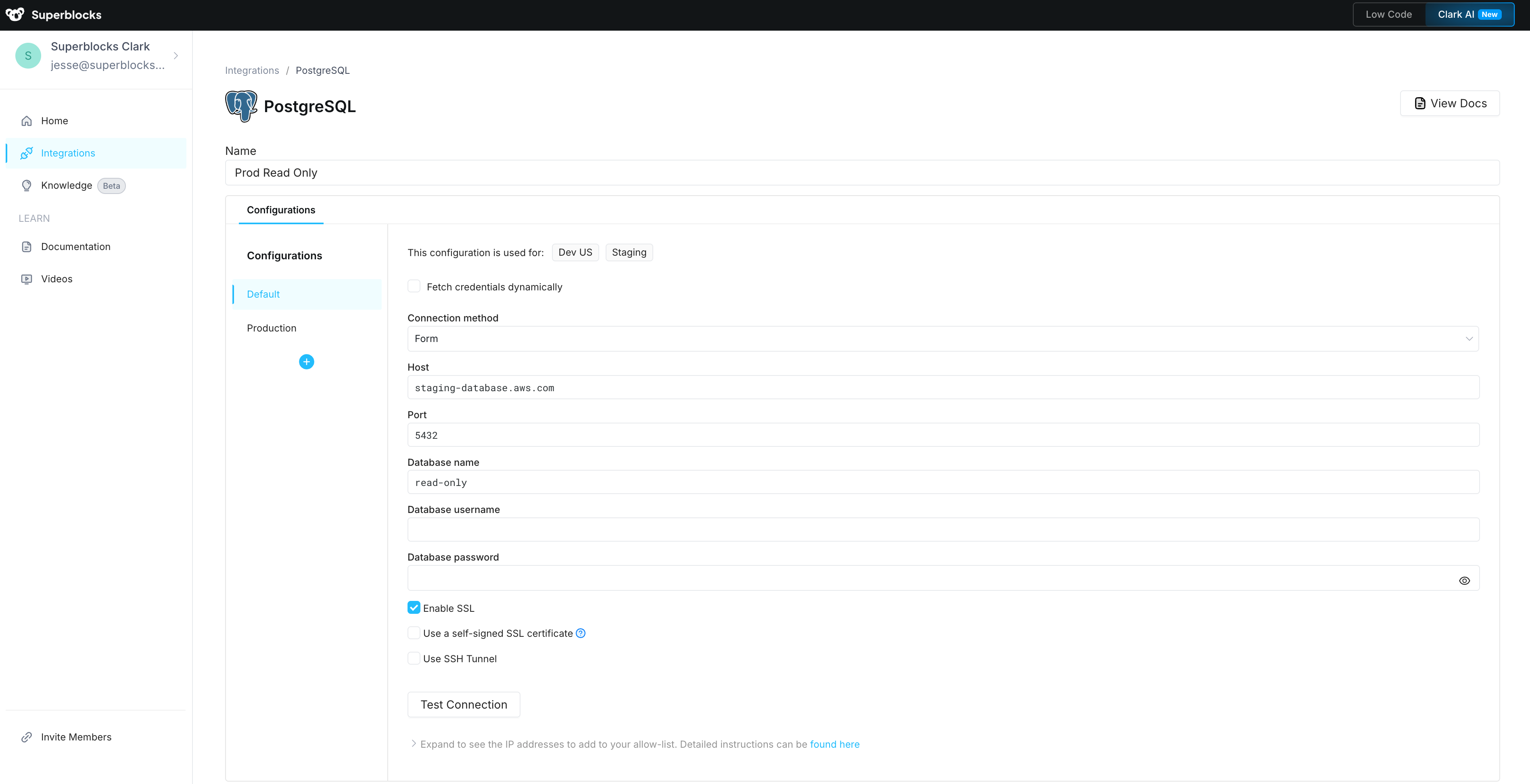
Data tags let you tag different data segments — such as Staging, Production, or us-east — and control which environments each tag is allowed in.
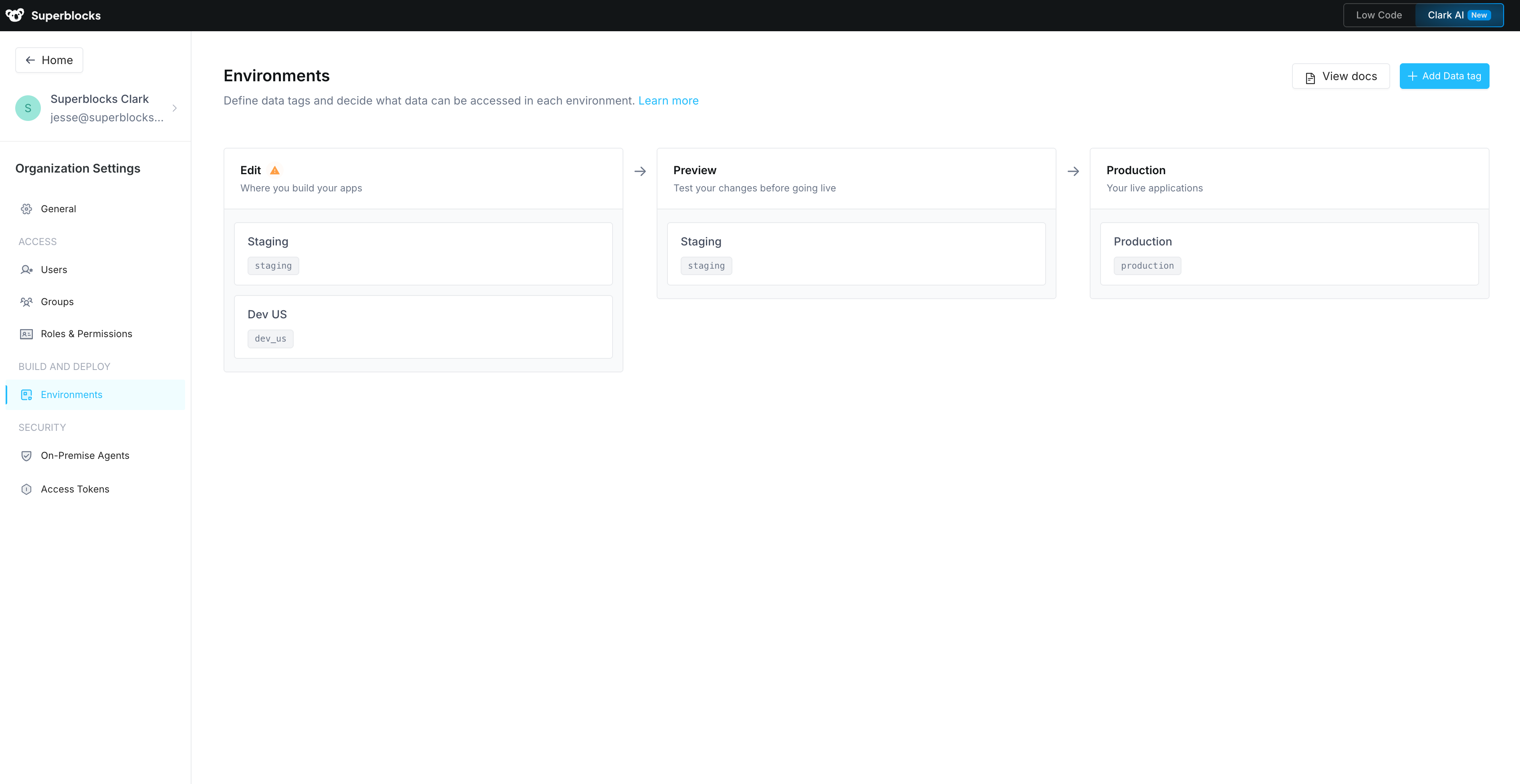
Create a data tag
Admins can create new data tags to represent different data environments, regions, or stages. To add a data tag:- Navigate to the Environments page under Organization Settings
- Click Add Data Tag
- Provide a unique name and key for your data tag
- Select which environments (Edit, Preview, Production) this data tag is allowed in
- Click Create
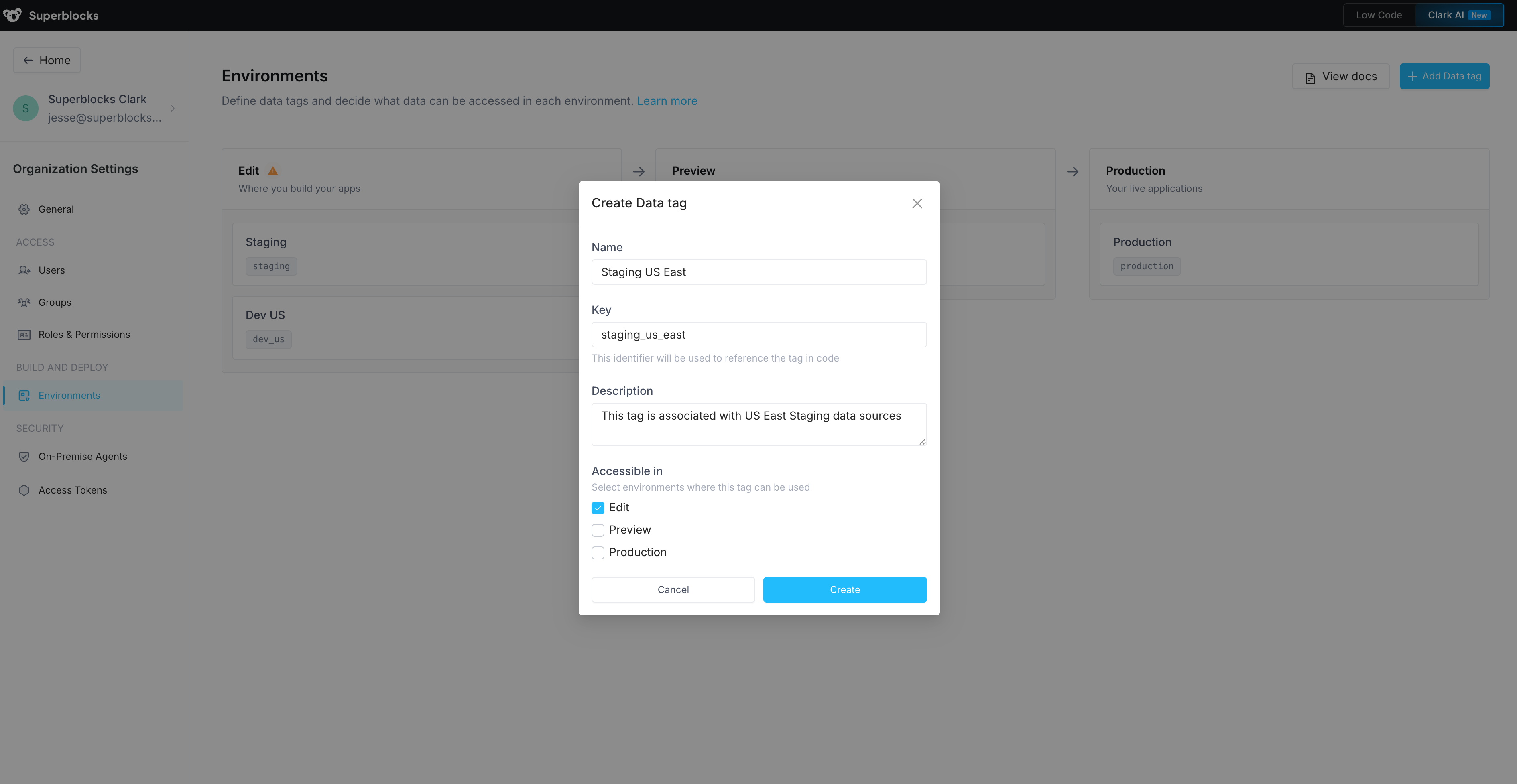
Environment assignment
When creating or editing a data tag, you decide which environments it can be used in. This gives admins control over data access:- A tag allowed only in Edit and Preview keeps that data source out of production
- A tag allowed only in Production ensures production credentials are never used during development
- A tag allowed in all three environments can be used anywhere
- Configuring integration credentials
- Using data tags in Applications
- Setting agent tags on a data plane
Configure integration credentials
In Superblocks, integrations can have multiple configurations to connect to different database instances or API servers. Each configuration is linked to one or more data tags. When you create a new integration, Superblocks automatically generates two configurations:
You can add additional configurations as needed.
To update or add configurations:
- Navigate to Integrations and search for your integration or create a new one
- To add a configuration, click the ➕ icon for “Add new configuration” and select the data tag(s)
- Fill out the configuration form with values specific to the selected data tags
- Click Test Connection to verify connectivity
- Create or Save your changes