

- Control what gets installed by resolving dependencies from an allowlist-gated or scanned registry (e.g. Artifactory, Nexus, Verdaccio) instead of the open ecosystem
- Reuse your own packages, such as a shared design system, component library, or internal utilities published under your own npm scope (e.g.
@mycompany) - Fit your network model in egress-restricted environments where package traffic must flow through an internal registry
How registries are matched
Superblocks lets you configure two kinds of registry, mirroring how npm resolves packages through an.npmrc file:
- A default registry (unscoped): the fallback for every package that isn’t matched by a scoped registry.
- Any number of scoped registries, each pinned to a single npm scope (e.g.
@mycompany). Packages under that scope resolve from the scoped registry; everything else falls through to the default.
@mycompany scoped registry, @mycompany/design-system will resolve from https://npm.internal.mycompany.com/, while an unscoped package like lodash (or a public-scope package) resolves from the default registry. If no default registry is configured, packages with no matching scoped registry resolve from the public npm registry (registry.npmjs.org).
Configure the default registry
The Package Registry page has three parts: the install policy at the top, the default registry row, and any scoped registries you add below it.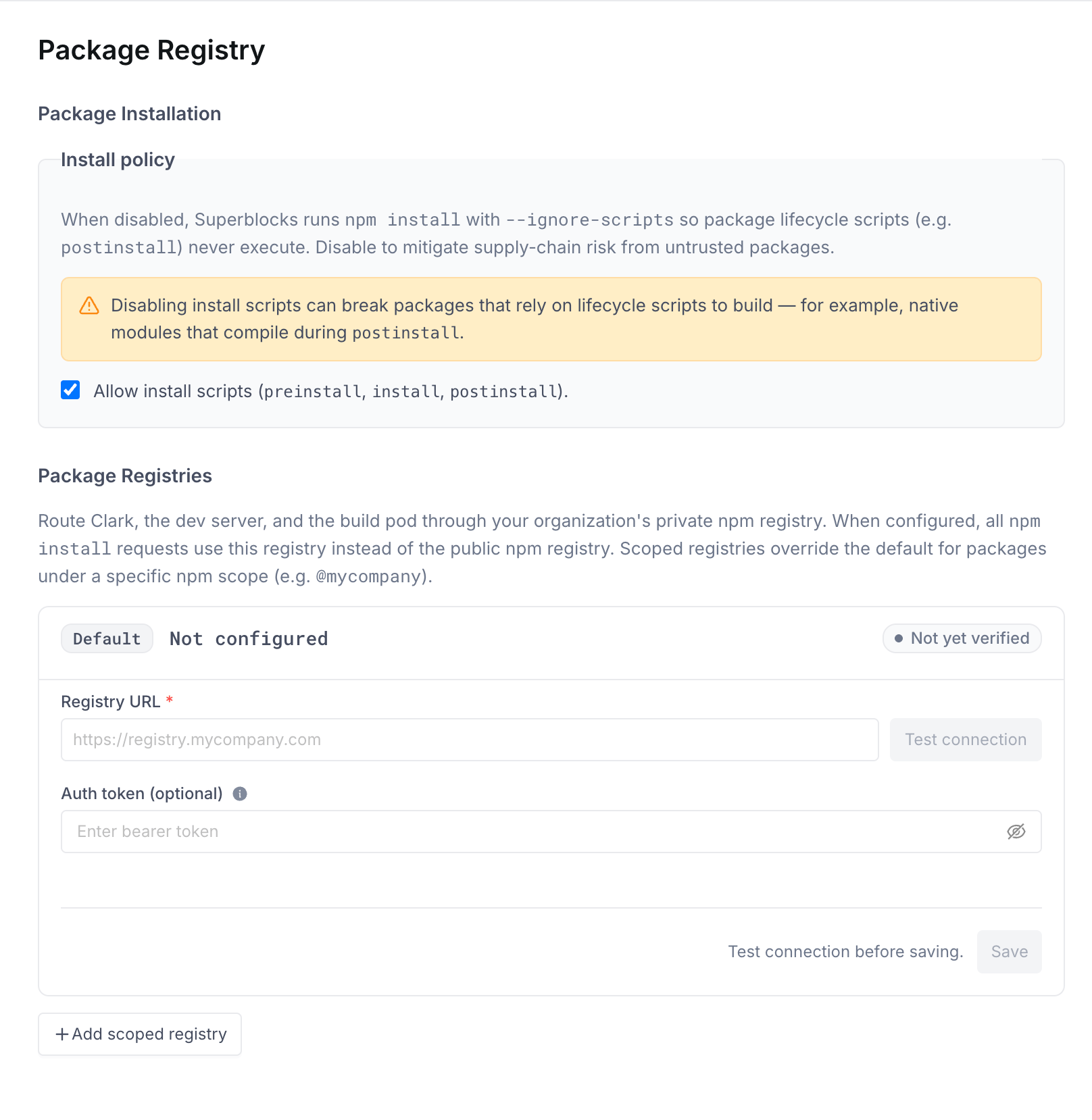
- Navigate to Organization Settings > Package Registry
- In the Default row under Package Registries, enter your Registry URL, the full URL of your npm-compatible registry (e.g.
https://artifactory.example.com/api/npm/npm-virtual/) - Optionally enter an Auth token, a bearer token with read access to your registry (see Manage auth tokens). The token is encrypted at rest and never exposed in the UI after saving
- Click Test connection. Save stays disabled until the probe succeeds (see Verify a registry)
- Click Save
Add a scoped registry
Scoped registries route packages under a specific npm scope to a dedicated registry, while all other packages continue to use the default registry.- On the Package Registry page, click Add scoped registry
- Enter the Scope the registry serves, e.g.
@mycompany(see Scope format) - Enter the Registry URL and, optionally, an Auth token, using the same rules as the default registry
- Click Test connection to verify the registry
- Click Save
Scope format
A scope must:- Start with
@ - Use only lowercase letters, digits,
.,_, and-, beginning with a letter or digit after the@(e.g.@my-company,@team.internal) - Be unique within your organization; you can configure at most one registry per scope
@MyCompany) is lowercased automatically.
Supported registries
Superblocks works with any npm-compatible registry. The tabs below show how to get the auth token and registry URL for the most common ones, assuming your registry already exists and serves the packages you need. Not every registry can be your default. A default registry has to resolve every package a Superblocks app needs, including the ~780 packages in the core dependency closure, so it must proxy or mirror public npm. Registries that only host your organization’s own packages must be added as scoped registries instead.- Verdaccio
- JFrog Artifactory
- Sonatype Nexus
- AWS CodeArtifact
- GitHub Package Registry
- GitLab Package Registry
Verdaccio can be used as a default or scoped registry: as the default when its Copy the token value from the command output. If your Verdaccio config grants
** package group proxies an npm uplink, or as a scoped registry when it only hosts your internal packages.Verdaccio issues npm tokens through the npm CLI. Log in as a user with read access to the packages Superblocks will install, then mint a read-only token:access: $all, reads are anonymous and you can leave Auth token blank.Registry URL: your Verdaccio base URL, e.g. https://npm.example.com/Verify a registry
Click Test connection next to any Registry URL to probe the registry before (or after) saving. Superblocks resolves the host, opens a connection, and reports a status badge on the row:
Common failure reasons:
Manage auth tokens
The Auth token must be a bearer token. Superblocks always sends it as the npm_authToken, which reaches your registry as an Authorization: Bearer <token> header. That is true on every path: the Test connection probe, and every install forwarded through the Superblocks proxy. Leave the field blank for registries that serve anonymous reads.
Once saved, a token is write-only:
- It is encrypted at rest and never retrievable from the dashboard; the field shows only a redacted preview.
- To rotate it, enter a new value and save.
- To remove it, click Clear token and save.
Rotate tokens with the API
Registries that issue short-lived tokens, such as AWS CodeArtifact with its 12 hour maximum lifetime, need the stored token refreshed regularly. Rather than pasting a new value by hand, rotate it programmatically on a schedule (for example a cron job in CI, or an EventBridge-triggered Lambda) using the Superblocks npm registry API. Authenticate the calls with the personal API key of a user who has permission to update package registries, sent as a bearer token. Copy it from Personal Settings > API Key (see Access tokens). Org-level access tokens don’t work for these endpoints. For automation, use the key of a dedicated service user rather than an individual’s, so rotation keeps working when someone’s permissions or employment change. First list your registries to find the ID of the one to update:PUT the new token, passing the registry URL along with it:
Network requirements
For Superblocks Cloud (SaaS) organizations, your registry must be reachable from Superblocks’ infrastructure. The Network requirements section on the Package Registry page lists the source egress IPs Superblocks connects from; your registry must accept TCP/443 from these addresses. Use Copy or Copy all to add them to your registry’s or firewall’s allowlist.Install policy
Separately from registry configuration, an organization Owner controls whether npm packages may run lifecycle scripts. The setting is organization-wide and applies to every install, whichever registry serves the package. Admins who can manage registries still see the control, but it is read-only for them. Some npm packages run lifecycle scripts during installation. For example,sharp and better-sqlite3 compile native binaries. Disabling the scripts prevents arbitrary code execution at install time, but packages that depend on them fail to build.
Toggle Allow install scripts in the Install policy section of the Package Registry page:
How installs work
Superblocks synthesizes an.npmrc for every install surface: Clark, the dev server, and the build pod. It carries a top-level registry= line for the default registry, plus one @scope:registry= line per scoped registry. A package resolves the same way whichever surface installs it.
Those lines point at the Superblocks npm proxy, not at your registry URL. The install authenticates to the proxy with the machine’s own Superblocks token. The proxy decrypts your stored auth token server-side and forwards the request upstream. Your registry credential never lands in an .npmrc on a pod or a laptop, and your registry sees the connection arrive from the Superblocks egress IPs.
Before it installs a package, Clark checks the registry that would serve it. If the package is missing, Clark stops and says an admin may need to mirror it, instead of quietly substituting something else. Clark also never refactors an app away from a core dependency that fails to install.
When an install does fail, Clark names one of three causes: the registry returned 404, the registry rejected the auth token, or the registry could not be reached. Troubleshooting covers each one.
For cloud-prem customers who own their network infrastructure, pair this configuration with network-level controls (e.g. VPC egress rules, NetworkPolicy) that block traffic to registry.npmjs.org.
Core required packages
Every Superblocks application ships with a fixed set of npm dependencies. All of these must be resolvable from your registry, or the editor will not start. There are two tiers:- Platform-critical: the editor, dev server, and build pipeline require these to function. Clark will never suggest removing them; the only fix for a missing one is for an admin to mirror it into the registry.
- Template defaults: included in new apps (e.g. Radix UI, Lucide, Recharts). Clark can refactor these away if a builder asks, but they must be available when an app is first created.
Platform-critical packages
These packages cannot be removed or replaced. If any are missing from your registry, the editor will fail to start and Clark cannot work around it.@superblocksteam/* scoped packages
All packages under the @superblocksteam scope are platform-owned and protected. These are published to the public npm registry (registry.npmjs.org). They resolve through your default registry unless you add a scoped registry for @superblocksteam. If you do, that registry must serve every package below, or the editor will not start.
Unscoped platform packages
Full dependency closure
A newly created app installs approximately 780 npm packages (direct + transitive). The exact set depends on your Superblocks version.- Pull-through cache (Artifactory, Nexus, Verdaccio proxy)
- Curated allowlist
If your registry is configured as a remote proxy, it will automatically fetch transitive dependencies on cache miss. Ensure the platform-critical packages listed above are reachable through your proxy, and the rest will resolve automatically.The first app creation may be slower than usual while the cache warms.
Package inventory
Admins can list the distinct npm packages in use across all applications using the Admin MCP toollist_distinct_packages_in_org. This requires the policies:manage permission (included for Admin and Owner roles by default; assignable to other roles).
- Registry reconciliation: compare installed packages against what your private registry serves to find gaps before they cause install failures
- Audit and compliance: maintain visibility into your organization’s npm dependency footprint
- Migration planning: identify which apps need attention when tightening registry policies
Troubleshooting
The registry returned 404 for a package
The registry returned 404 for a package
The requested package exists on public npm but has not been added to your private registry. If your registry is a pull-through cache (e.g. Artifactory configured as a remote proxy), the package should appear automatically on first request. If your registry uses a curated allowlist, your security team needs to approve and mirror the package before it can be installed.
The registry rejected the auth token
The registry rejected the auth token
The auth token saved in Package Registry settings is invalid or expired. Navigate to Organization Settings > Package Registry, enter a fresh token, and save. Tokens from registries like Artifactory and Nexus may have expiration policies. Coordinate with your registry administrator on rotation schedules.
The registry could not be reached
The registry could not be reached
Superblocks could not reach your registry. Common causes:
- The registry URL is incorrect or has a typo
- The registry is behind a firewall that does not allow traffic from Superblocks infrastructure
- The registry service is temporarily down
Editor fails to start after configuring a private registry
Editor fails to start after configuring a private registry
The editor requires approximately 780 npm packages (direct + transitive) to boot a new 3.0 app. If any are missing from your registry, the dev server will fail to start. Check the core required packages section and ensure all platform-critical packages and their transitive dependencies are available. For pull-through caches, the first app creation may be slower than usual while packages are fetched on cache miss.
Scoped packages resolve from the wrong registry
Scoped packages resolve from the wrong registry
Package resolution is matched by npm scope. Confirm the package name’s scope exactly matches a configured scoped registry (e.g.
@mycompany/utils requires a @mycompany scoped registry). Packages whose scope has no dedicated registry (and all unscoped packages) resolve from the default registry. Scopes are case-insensitive and stored lowercase, so @MyCompany and @mycompany are treated as the same scope.Can't change a scoped registry's scope
Can't change a scoped registry's scope
A scope is fixed once a scoped registry is saved. To move a registry to a different scope, delete the existing row and add a new scoped registry with the correct scope.
Native packages fail to build after disabling install scripts
Native packages fail to build after disabling install scripts
Packages like
sharp, better-sqlite3, and node-canvas require lifecycle scripts to compile native binaries. If an Owner disabled Allow install scripts, these packages fail to build.Either re-enable install scripts, or work with your security team to pre-build and publish these native packages as pre-compiled binaries in your registry.