

Severity
Every finding carries a severity that reflects how serious the issue is and how likely it is to be exploited:
Critical and High findings are the only ones that can block a publish. Whether they do depends on the scan mode your admins set. Everything below High is always reported and never blocks.
Severity reflects exploitability in context, not just pattern match. A mitigation such as input validation, output escaping, or platform-level access control lowers the severity of a finding rather than leaving it at its theoretical worst case.
Scan modes
The mode decides what happens when a policy produces a critical or high finding. It is set per policy, not per organization, so static analysis and the Security Agent each carry their own.
New policies default to Advisory.
Advisory
The policy runs and reports what it found. Critical and high findings do not stop the publish. Use this mode to measure finding volume before you enforce a policy.Blocking with exceptions
The publish checklist surfaces critical and high findings and points the builder at a fix, usually Fix with Clark. If the builder still wants to ship, they click Publish anyway. Anyone with deploy access on the application can do this, and it is the path for a false positive or an accepted risk. This is the right mode for most teams. It makes findings hard to miss and still leaves an escape hatch.Blocking
Same guidance as Blocking with exceptions, with Publish anyway removed. Critical and high findings stop the publish until they are gone. There is no override. Use it where a critical or high finding must never reach production.Scope
Some policies apply to every app. Others can be limited to a subset.
Use a limited scope when one app needs a stricter mode than the rest of the fleet. For example, keep the Security Agent on Advisory for most apps, and set it to Blocking on the apps that handle sensitive data.
Configure a mode and scope
- Open Policy Agents in the dashboard
- Select the policy and click Edit
- Set Mode
- Set Scope to All apps, or Limited and pick the apps
- Save
What builders see
Every publish-time policy reports into Pre-Publish Policies on the publish detail, so builders get one view of what passed, what is running, and what is blocking the deploy.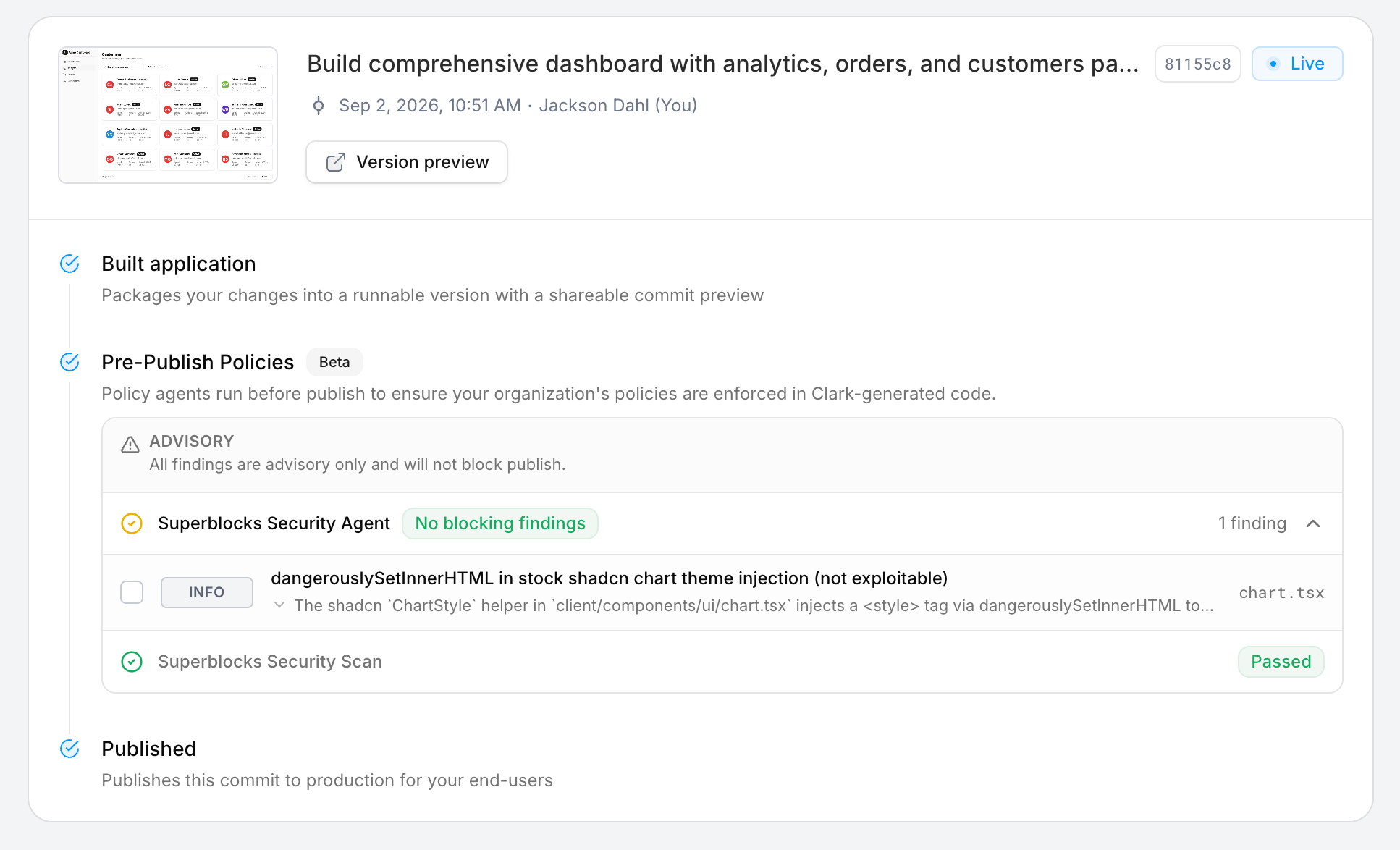
- What was found: a clear description of the issue
- Where: the file path and location in the application
- Severity: critical, high, medium, low, or info
- Evidence: the code that triggered the finding, with secrets redacted
- Fix with Clark: one-click remediation for eligible findings
Remediation
- The builder selects the finding they want to fix, and then clicks Fix with Clark
- Clark edits the application to resolve it, for example by removing a hardcoded secret and referencing an environment variable instead
- A fresh run evaluates the updated application
- If the finding is resolved, the publish unblocks
Run states and errors
Every publish-time run is listed on the Security runs tab in Security Center. Filter by app, policy, status, who triggered it, and date.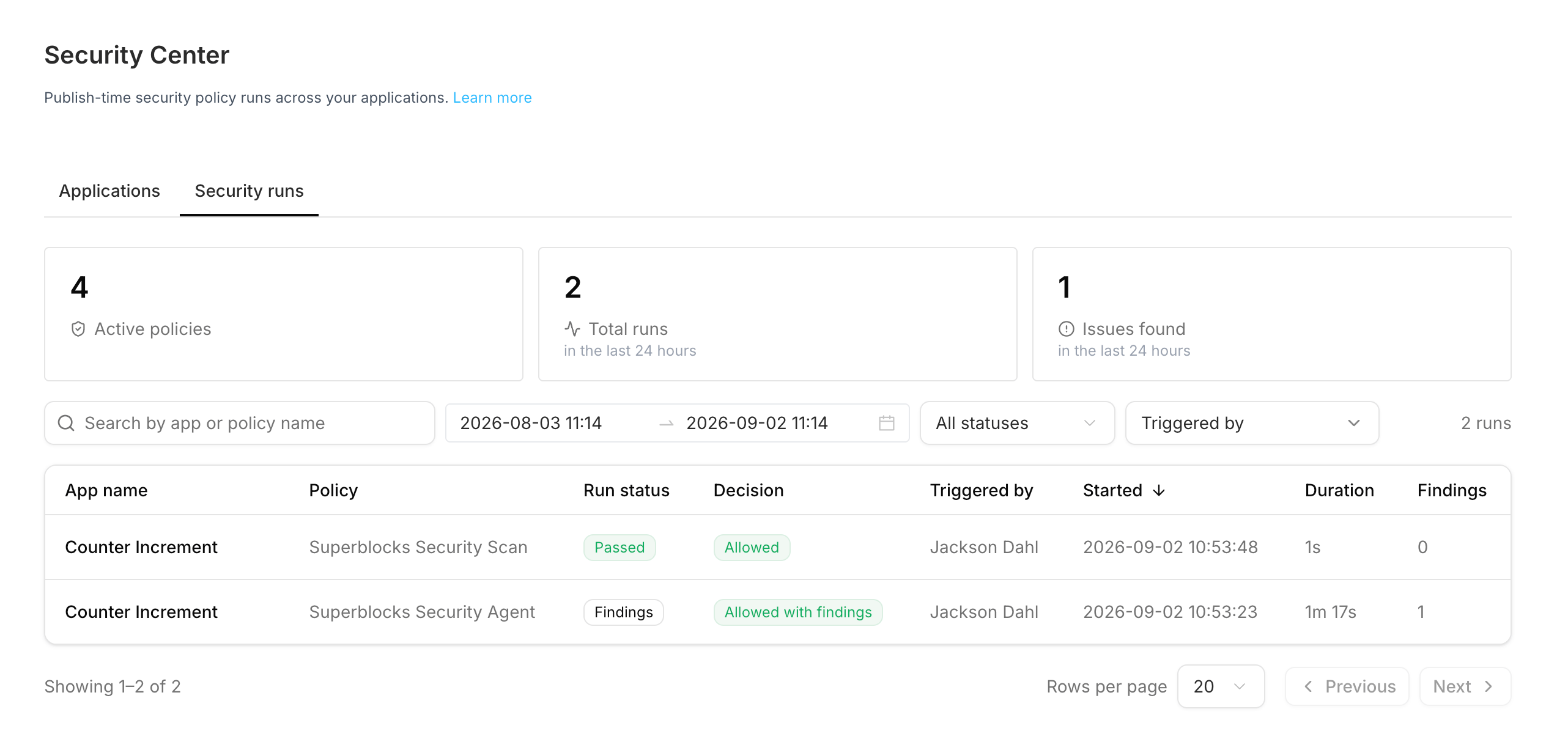
An errored or timed out run is not a pass. Because the policy never reached a verdict, a blocking policy holds the publish rather than letting an unreviewed app through. Retry the publish to start a fresh run.
A stale result appears when the application changes after a run completes. The next publish re-runs the policy against the new snapshot.
Audit trail
Every run, finding, remediation attempt, escalation, and Publish anyway is recorded as an audit log event. Admins can see what was scanned and when, what findings were produced, what action was taken, and which apps have outstanding advisory findings. The same data is available programmatically through the Superblocks MCP server, so you can query findings from agents, scripts, or dashboards.Permissions
Admin and Owner get both
policies actions by default. Developers and end users get neither.