This guide covers the Git feature in Superblocks: first-time connection to an empty GitHub repo, connecting to an app that is already linked to Git, branch model, workflows, deployments, and using Clark for Git operations.Documentation Index
Fetch the complete documentation index at: https://docs.superblocks.com/llms.txt
Use this file to discover all available pages before exploring further.
Supported provider
- GitHub only (for now)
Before you connect for the first time
Your target repository must be empty.First-time connection steps
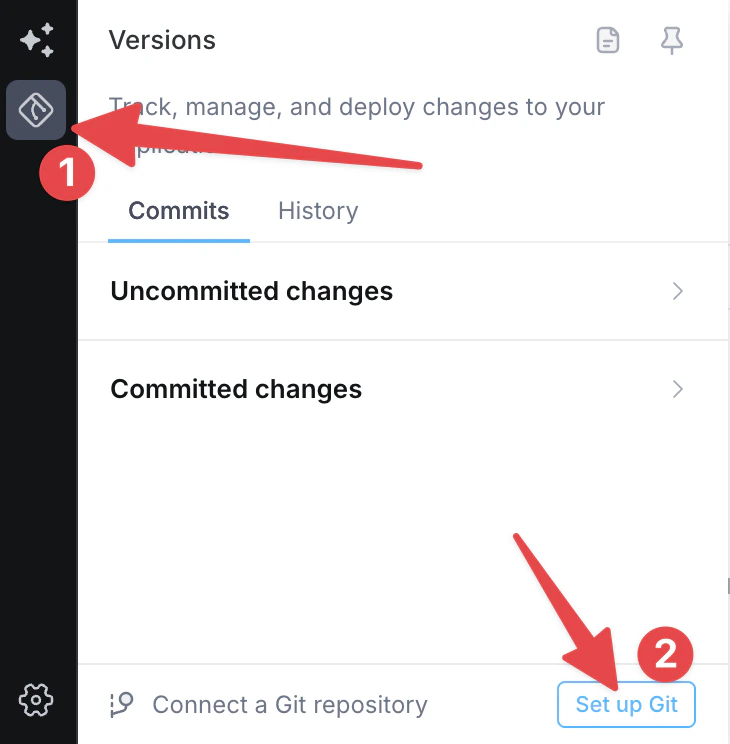
Use these steps the first time you connect a Superblocks app to GitHub. You can also use Clark to connect and manage Git.-
Open Git Settings.
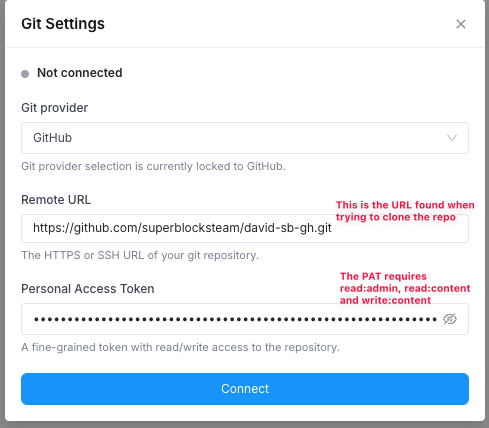
- Keep the provider set to GitHub.
- Enter the remote URL.
- Enter a PAT (Personal Access Token) with repo read/write access. See how to generate a PAT in GitHub.
-
Click Connect.
Connect to an existing app
If the app is already connected to Git, you must have access to the repository before you can modify it from Superblocks.-
Ask a repo admin to add you as a collaborator in GitHub under Settings → Collaborators and teams:
https://github.com/OWNER/REPO/settings/access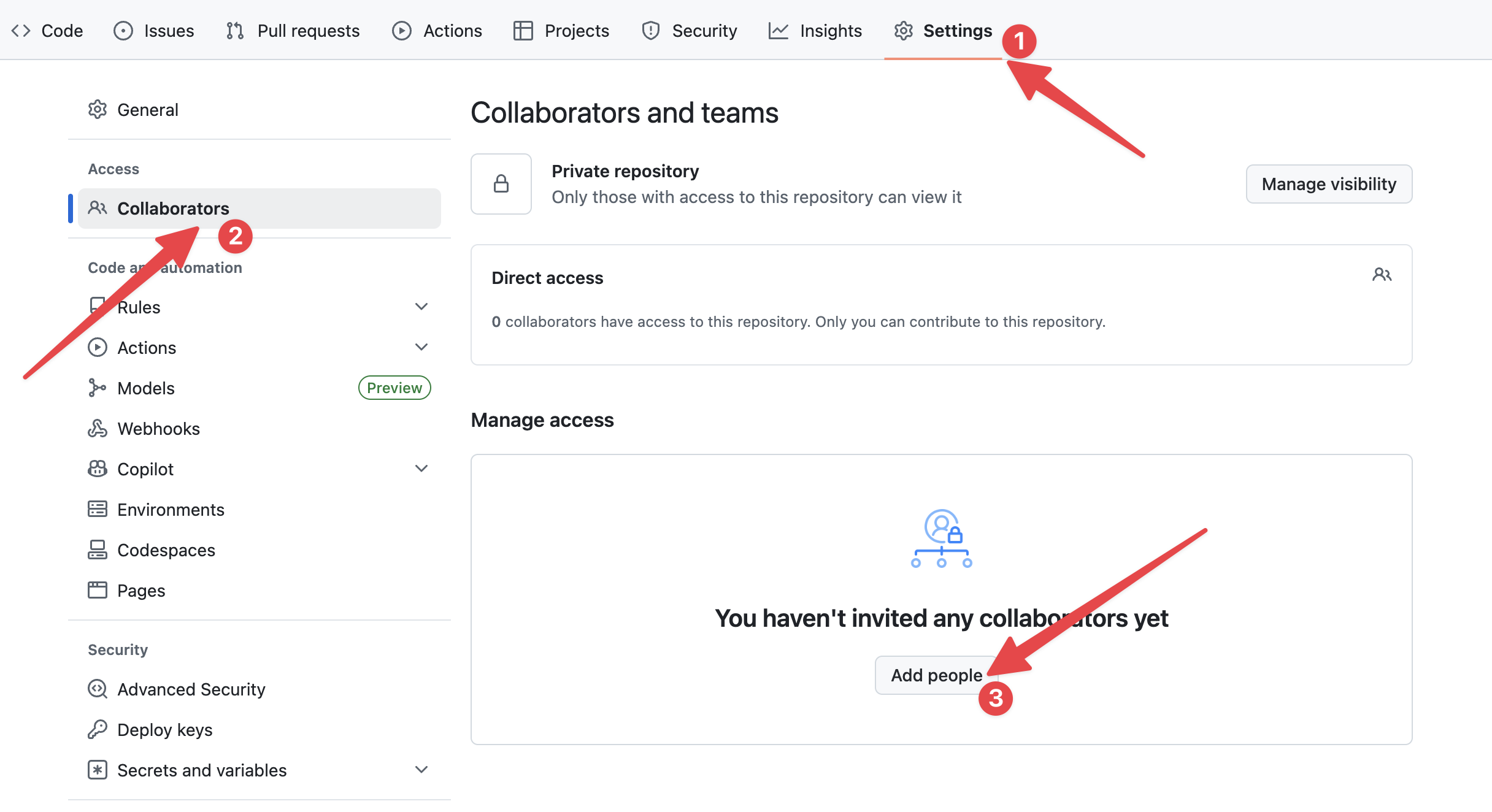
-
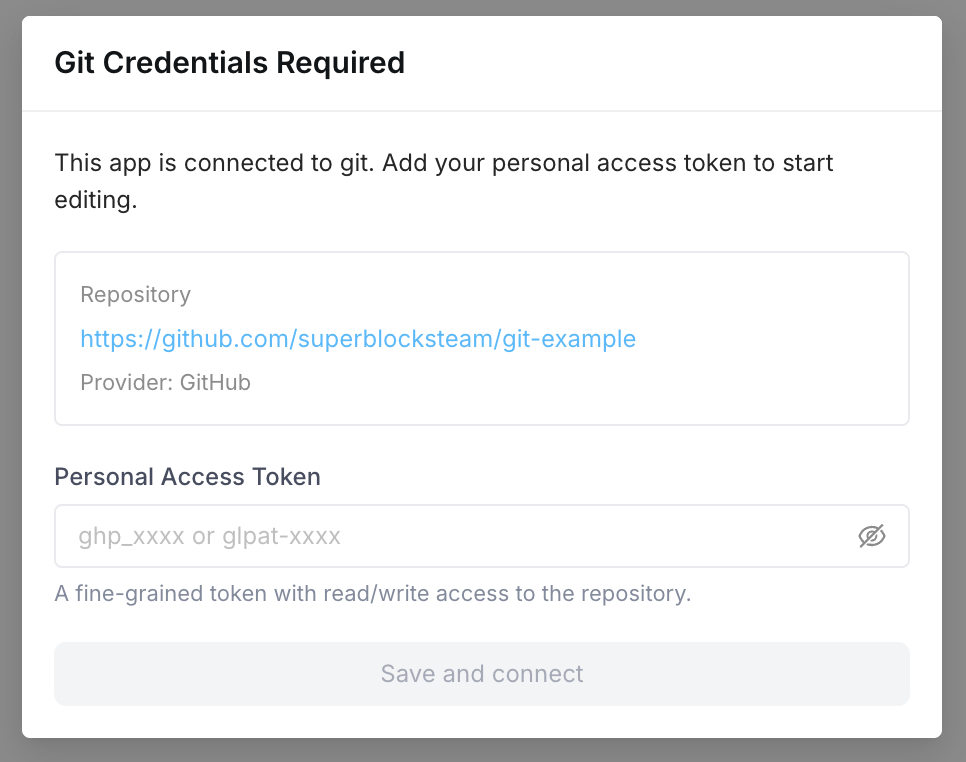
When you open an app that is already connected to Git, Superblocks will show a modal asking you to connect your Git credentials.
-
To modify the app, you must:
- have access to the repository
- provide a PAT
Branch model
- Superblocks works on
superblocks/live. - PRs are typically
superblocks/live→main. - When
superblocks/liveis first created and missing on remote, it is based on the remote default branch tip when available.
GitHub workflow and secrets
On initial setup, Superblocks may add:.github/workflows/superblocks-sync.yml
| Secret | Description |
|---|---|
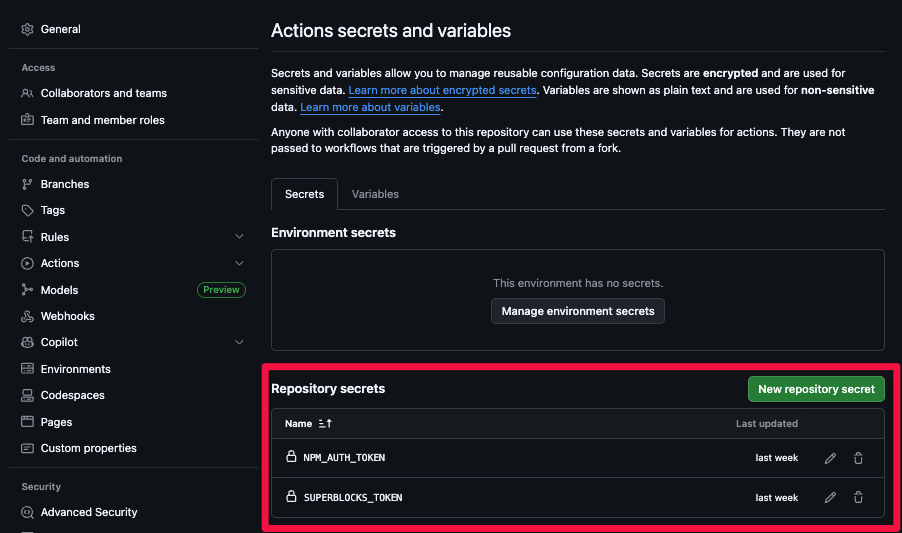
SUPERBLOCKS_TOKEN | Your Superblocks API key. Find it at Personal settings. |
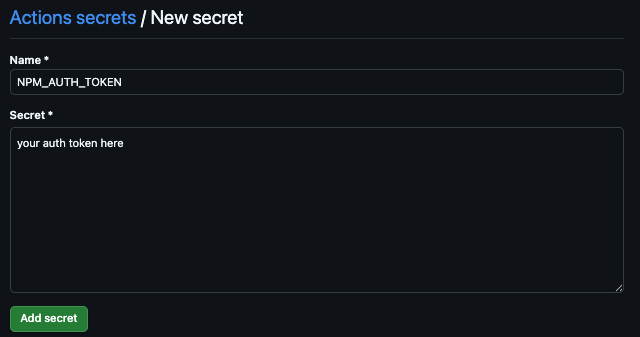
NPM_AUTH_TOKEN (optional) | Enables GitHub to automatically sync back to Superblocks when code is merged to main. Add under Settings → Secrets and variables → Actions → New repository secret, or at https://github.com/USERNAME/REPO/settings/secrets/actions. |
Deployments
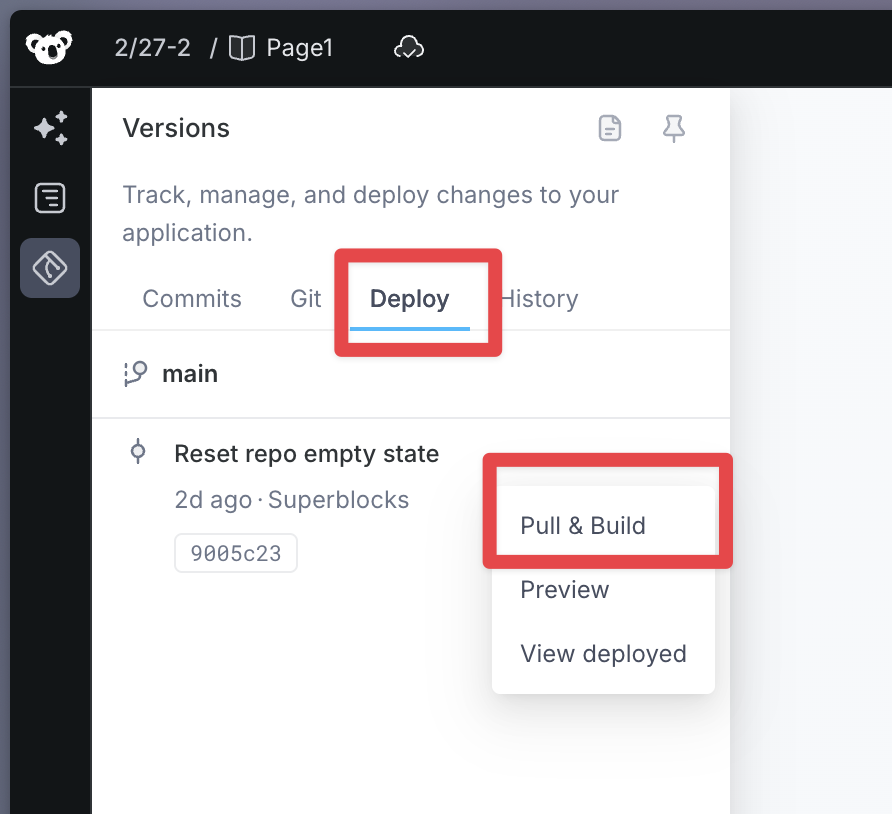
When a change is merged tomain, CI syncs that commit back to Superblocks. You can then see that exact commit and deploy from the main branch in Version → Deploy.
A build is created from that commit, which you can preview and deploy.
Using Clark for Git
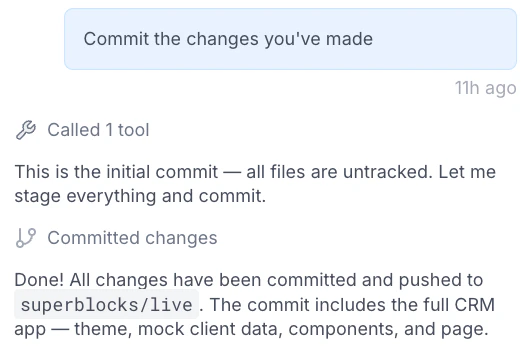
You can also use Clark to perform Git operations directly from the editor. If the app is not yet connected to Git, asking Clark to run a Git operation will trigger the Git setup flow automatically — you’ll be prompted to connect just as you would through the UI. Once connected, you can ask Clark things like:- “What’s the current git status?”
- “Show me the recent commits”
- “Commit my changes with the message ‘fix: update button styles’”
- “Pull the latest changes from remote”
Common errors
”Cannot set up git for this app…”
The repo is not empty and does not contain a valid.superblocks/superblocks.json for this app id.
”Invalid or insufficient permissions for this token”
The PAT cannot access the repo or has missing scopes.”Repository not found”
The remote URL is wrong, the repo does not exist, or the token cannot read it.Appendix
To generate a PAT in GitHub
-
Click your profile icon in the top right, then select:
Settings → Developer settings → Personal access tokens → Fine-grained tokens → Generate new token (see personal access tokens) -
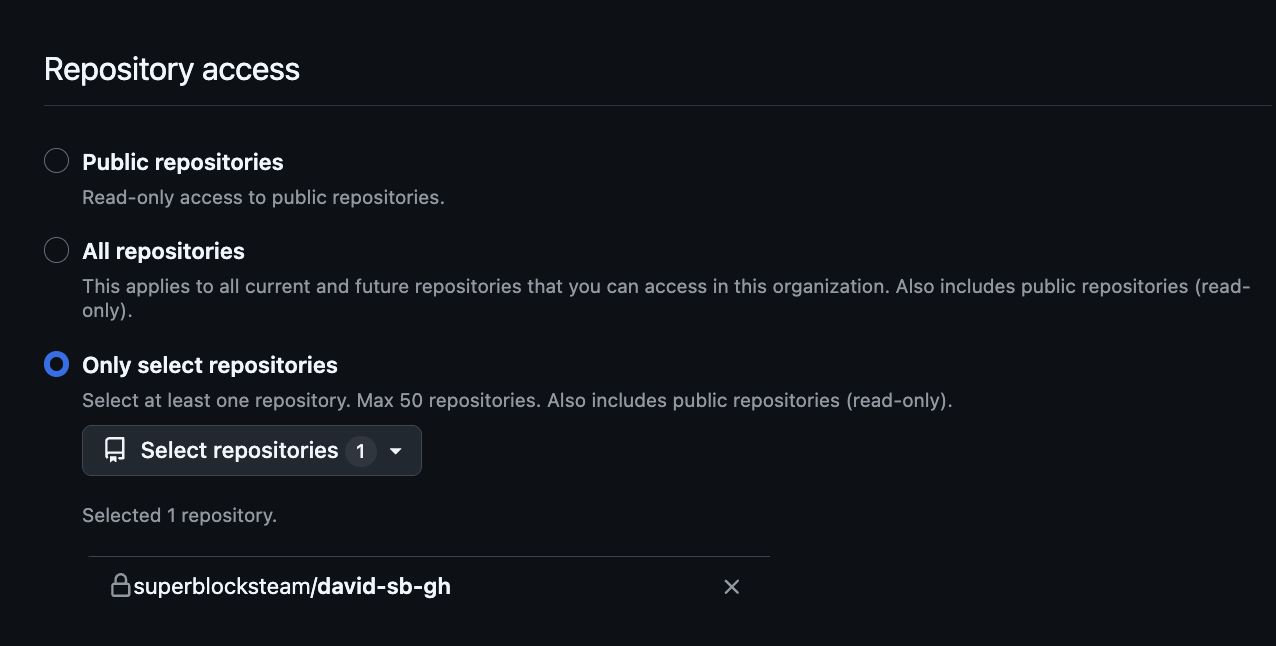
Under Repository access, you can restrict the token to a single repository.
-
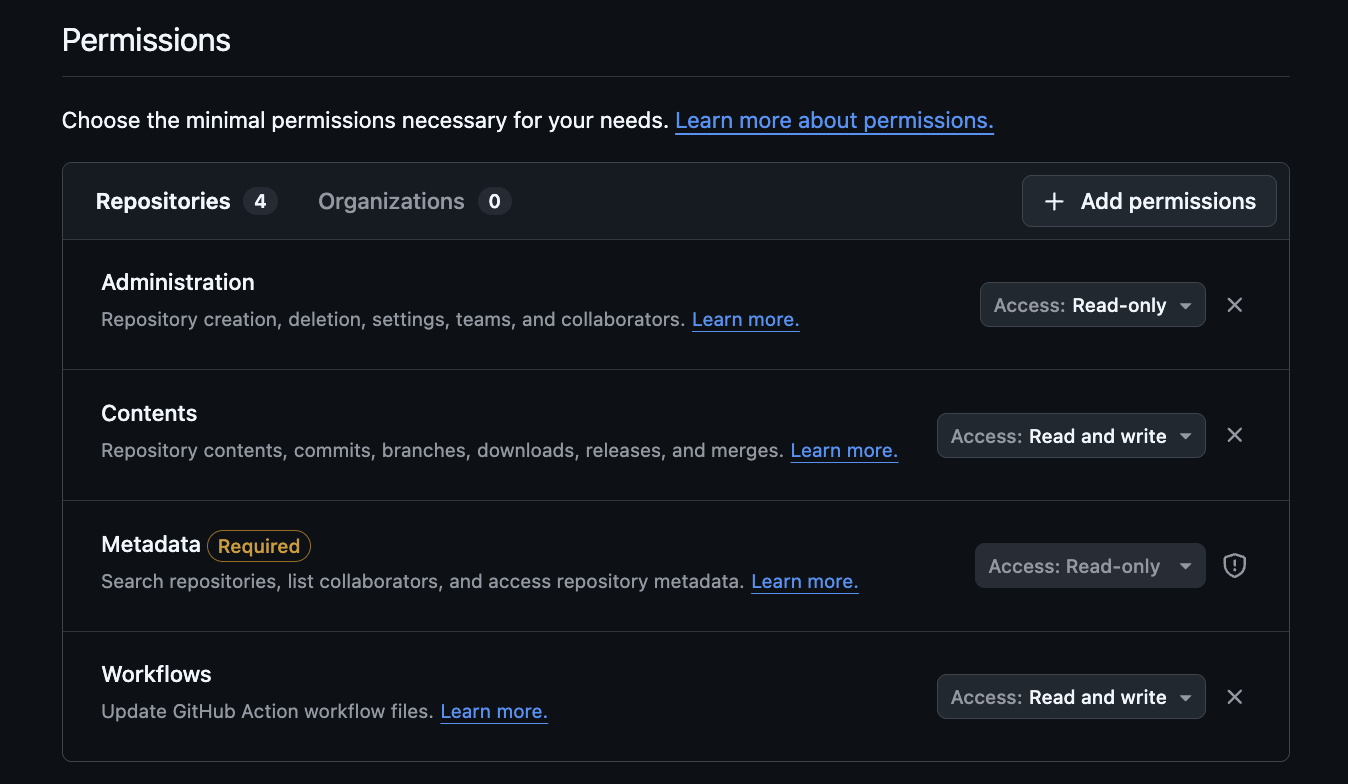
Ensure the token has:
- Contents: Read and write
- Administration: Read-only
- Workflows: Read and write
If you cannot scope Repository access to the repo
If you have access to the repository but GitHub does not let you scope Repository access to that repo when creating a fine-grained token, create a Personal access token (classic) instead.-
Click your profile icon in the top right, then select:
Settings → Developer settings → Personal access tokens → Tokens (classic) → Generate new token (classic) (see classic tokens)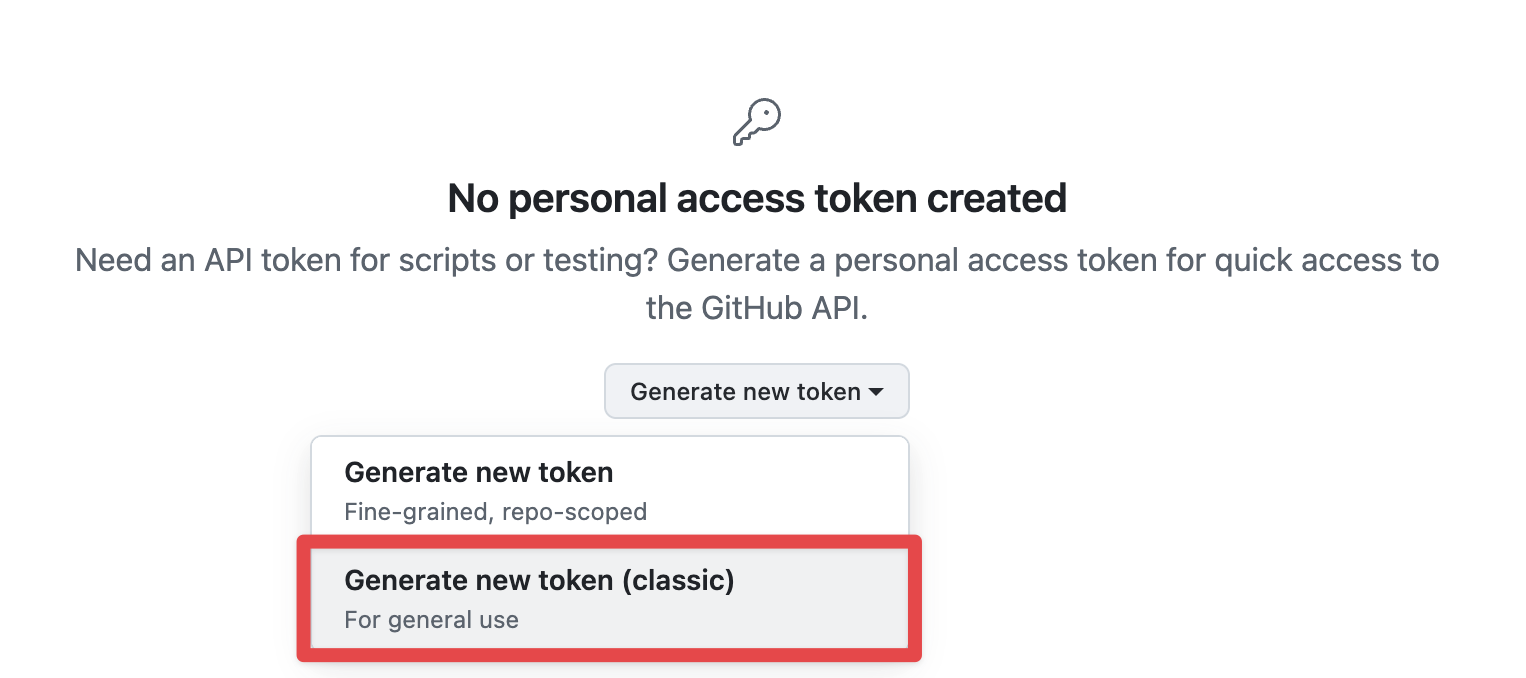
-
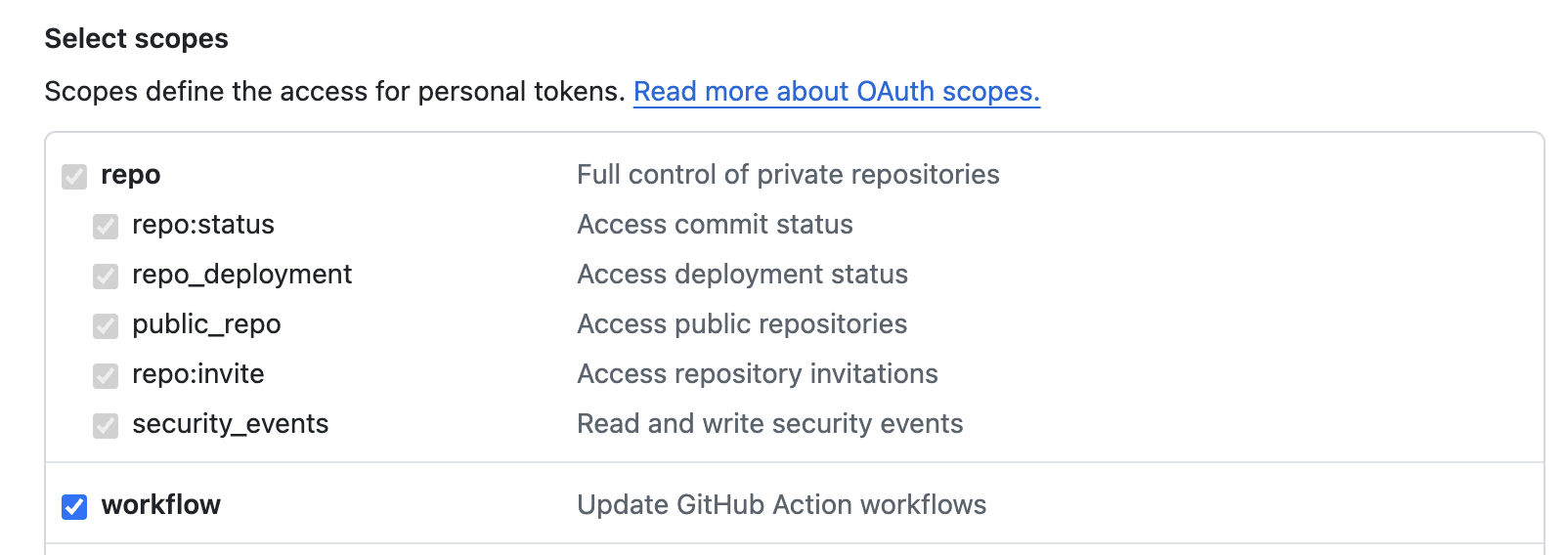
Give the token these scopes:
- repo
- workflow