- How to set up a new secret store connected to Google Secrets Manager
- Configuring and managing caching for your secret store to improve API performance
- Using secrets throughout the Superblocks platform
Prerequisites
To set up Google Secret Manager as a secret store for Superblocks you’ll need:- A Google Cloud Platform (GCP) project with the Secrets Manager API enabled
- A GCP account with the following IAM roles for your GCP project:
- Create Service Accounts (
roles/iam.serviceAccountCreator) - Secret Manager Admin (
roles/secretmanager.admin)
- Create Service Accounts (
Set up
Create a service account
Get started by creating a service account for each GCP project you want to connected to Superblocks. Superblocks will use this service account when reading secrets from Google Secret Manager.Grant access to secrets
Next, grant your service account permissions for the secrets you want to reference in Superblocks. To grant access, give your account the following permissions:- Secret Manager Secret Accessor
- Secret Manager Secret Viewer
Create a service account key
Create a service account key using the Google Cloud console and download the JSON key file.Configure secret store
Finally, configure a new secret store in Superblocks:- Go to the Secrets Management page in Superblocks
- Click the Google Secrets Manager tile
- Name your secret store
- Paste your Google Project ID and Service account key into the form
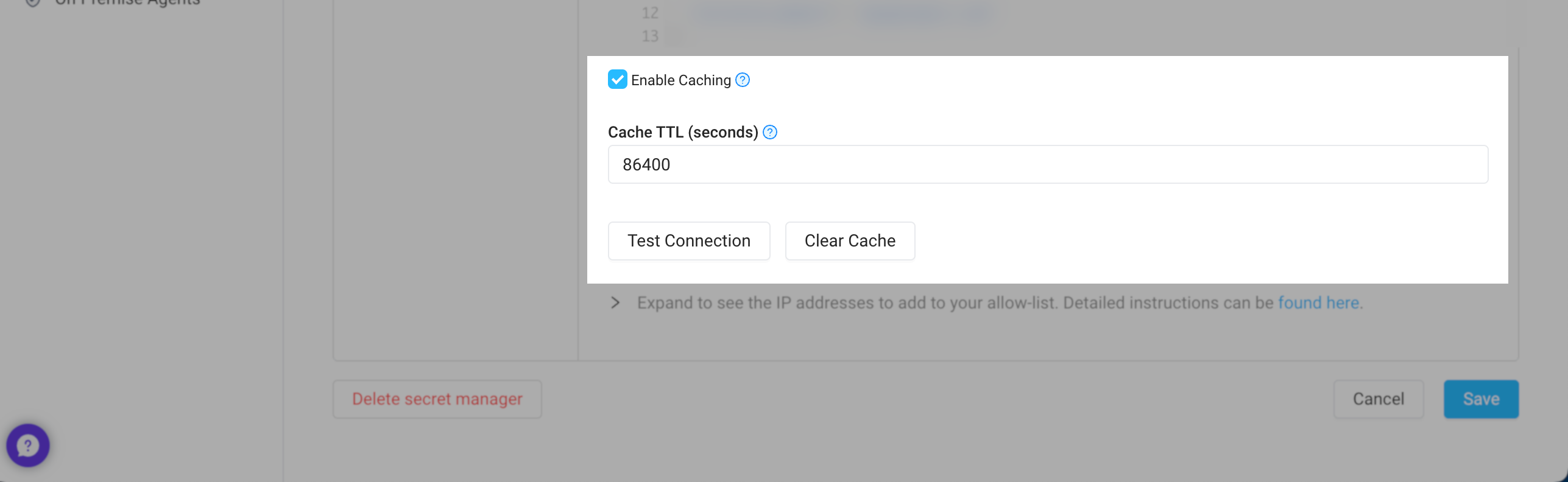
- Configure caching rules for this store
- Optionally, add more configurations for different environments
- Click Create
Caching
If enabled, Superblocks can cache your secrets, reducing calls to your secrets manager and improving API performance when using secrets. Caching can be configured for each of your secret store’s configurations, letting you set different policies based on the environment. To configure caches, go to Secrets Management and click into your secrets store. From here you can:- Update the Cache TTL (seconds) to your desired caching interval
- Clear the cache if you’ve rotated a secrets and need Superblocks to refetch secret values