- How to set up a new secret store connected to AWS Secrets Manager
- Configuring and managing caching for your secret store to improve API performance
- Using secrets throughout the Superblocks platform
Prerequisites
To set up AWS Secrets Manager as a secret store for Superblocks you’ll need:- An AWS account with AWS Secrets Manager configured
- Permission to create new IAM policies for your AWS account
Set up
Create IAM policy
Create an IAM policy to grant Superblocks access to your secrets This policy should be associated with either an IAM user (for Access Key auth) or an IAM role (for Assume Role auth when self-hosting the data plane). Below is an example policy:superblocks/${env}/ to easily identify the secrets used in Superblocks.
Configure secret store
Configure a new secret store in Superblocks:- Go to the Secrets Management page in Superblocks
- Click the AWS Secrets Manager tile
- Name your secret store integration
-
If your secrets follow hierarchical naming conventions, specify a Prefix to filter secrets in this store. For example, if Superblocks secrets are all named like
superblocks/${env}/secret1,superblocks/${env}/secret2, etc, thensuperblocks/${env}/will be the corresponding prefix value. - Specify your AWS Region
-
Select Auth type
- Access Key
- Assume Role
Paste the Access key ID and Secret access key for the IAM user Superblocks will act on behalf of. - Configure caching rules for this store
- Optionally, add more configurations for different environments
- Click Create
Caching
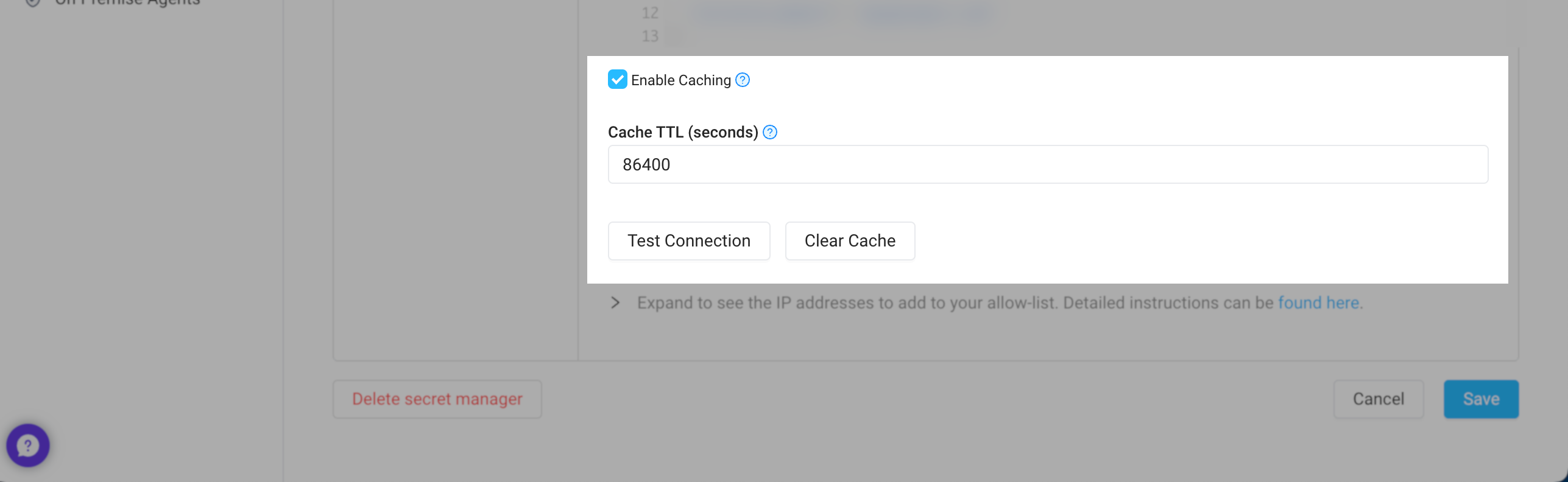
If enabled, Superblocks can cache your secrets, reducing calls to your secrets manager and improving API performance when using secrets. Caching can be configured for each of your secret store’s configurations, letting you set different policies based on the environment. To configure caches, go to Secrets Management and click into your secrets store. From here you can:- Update the Cache TTL (seconds) to your desired caching interval
- Clear the cache if you’ve rotated a secrets and need Superblocks to refetch secret values