

- Do certain types of development. See development permissions
- Gain access to all current and future resources in the org. See resource access permissions
- Manage certain org settings and features. See governance permissions
Creating a custom role
Organizations can create up to 10 custom organization roles. To create an organization role:- Click your avatar in the upper-left corner of the home page and click Organization Settings
- Click Roles & Permissions
- On the Organization roles tab, click + Add role
- Type a name and description for the custom role
- Click Create
- Add permissions to your custom role by selecting permissions in the permission table. For a full reference to assignable permissions see the Permissions reference
- Once you’ve selected all the permissions you want assigned to the role, click Save
Editing a custom role’s details
To edit the name or description of a custom role:- Click your avatar in the upper-left corner of the home page and click Organization Settings
- Click Roles & Permissions
- Next to the role you want to edit, select the dropdown menu (⋯), then click Edit details
- Change the role as required, then click Save
Editing a role’s permissions
To edit the permissions associated with a custom role:- Click your avatar in the upper-left corner of the home page and click Organization Settings
- Click Roles & Permissions
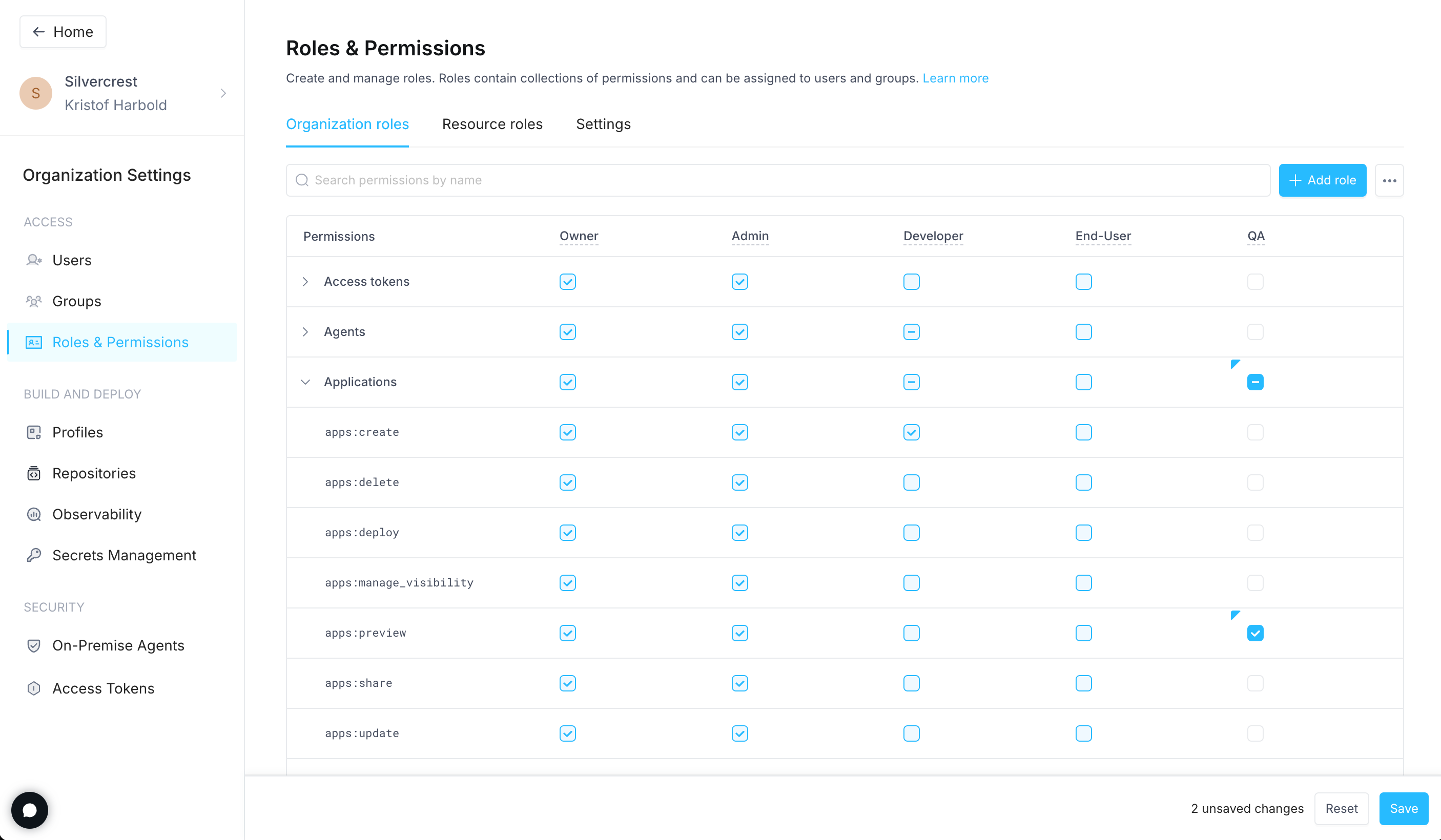
- Check/uncheck the boxes associated with permissions you want to add/remove from the role. Alternatively, if you want to grant all permissions associated with a type of Superblocks resource, check the box at the top of the resource group.
- Once you’ve made all your permission selections, click the Save button at the bottom of the page
Deleting a custom role
- Click your avatar in the upper-left corner of the home page and click Organization Settings
- Click Roles & Permissions
- Next to the role you want to delete, select the dropdown menu (⋯), then click Delete
- In the confirmation dialog, choose a new role to assign to users who are currently assigned the role being deleted
- Click Reassign & delete