> ## Documentation Index
> Fetch the complete documentation index at: https://docs.superblocks.com/llms.txt
> Use this file to discover all available pages before exploring further.
# Google Secret Manager
export const Alert = ({type, title, children}) => {
const variant = ["info", "success", "warning", "danger", "note"].includes(type) ? type : "note";
return
{title &&
{title}
}
{children}
;
};
Who can use this feature?
Organization Owners, Admins, and other users with the secrets:manage permission
Connect to your Google Secret Manager to securely access application secrets, API keys, and sensitive data from your Superblocks integrations. This guide covers:
* How to [**set up a new secret store**](#set-up) connected to Google Secrets Manager
* Configuring and managing [**caching**](#caching) for your secret store to improve API performance
* [**Using secrets**](#using-secrets) throughout the Superblocks platform
### Prerequisites
To set up Google Secret Manager as a secret store for Superblocks you'll need:
* A Google Cloud Platform (GCP) project with the [**Secrets Manager API**](https://console.cloud.google.com/marketplace/product/google/secretmanager.googleapis.com) enabled
* A GCP account with the following IAM roles for your GCP project:
* **Create Service Accounts** (`roles/iam.serviceAccountCreator`)
* **Secret Manager Admin** (`roles/secretmanager.admin`)
## Set up
### Create a service account
Get started by [**creating a service account**](https://cloud.google.com/iam/docs/service-accounts-create#iam-service-accounts-create-console) for each GCP project you want to connected to Superblocks. Superblocks will use this service account when reading secrets from Google Secret Manager.
### Grant access to secrets
Next, grant your service account permissions for the secrets you want to reference in Superblocks. To grant access, give your account the following permissions:
* Secret Manager Secret Accessor
* Secret Manager Secret Viewer
See Google's full documentation for how to [**Manage access to secrets**](https://cloud.google.com/secret-manager/docs/manage-access-to-secrets).
### Create a service account key
[**Create a service account key**](https://cloud.google.com/iam/docs/keys-create-delete#creating) using the Google Cloud console and download the JSON key file.
### Configure secret store
Finally, configure a new secret store in Superblocks:
1. Go to the [**Secrets Management**](https://app.superblocks.com/secrets-management) page in Superblocks
2. Click the **Google Secrets Manager** tile
3. Name your secret store
4. Paste your Google **Project ID** and **Service account key** into the form
5. Configure caching rules for this store
6. Optionally, add more configurations for [different environments](/development-lifecycle/build/data-tags)
7. Click **Create**
Your secret store is now configured. Developers can now reference secrets in their integration forms.
## Caching
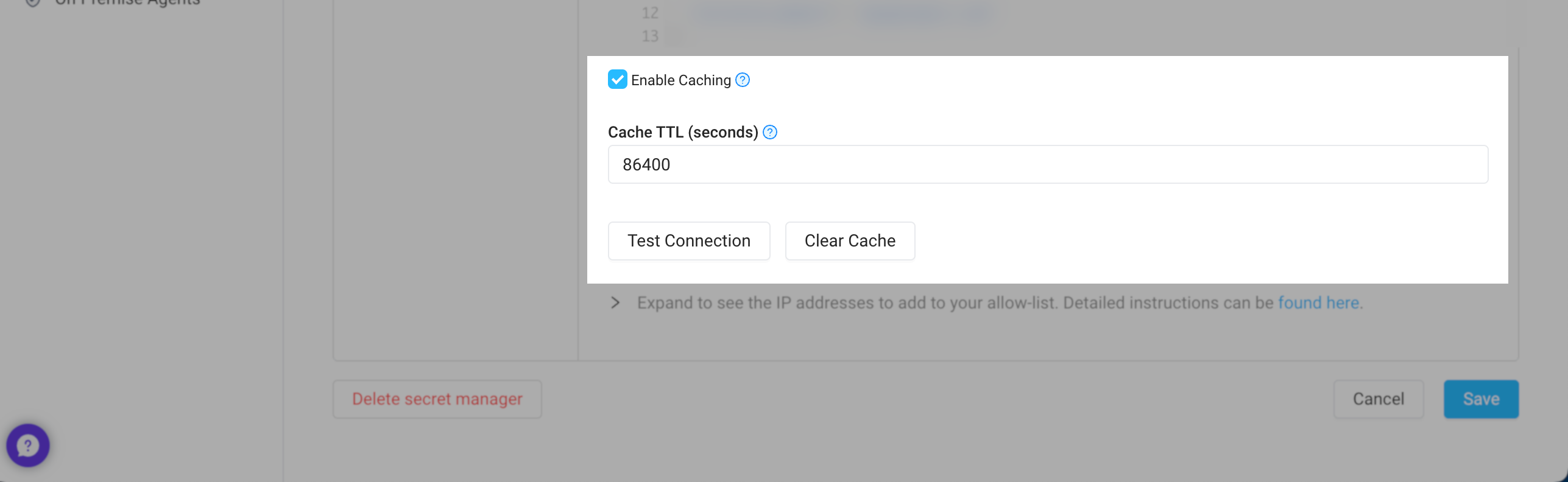
If enabled, Superblocks can cache your secrets, reducing calls to your secrets manager and improving API performance when using secrets. Caching can be configured for each of your secret store's configurations, letting you set different policies based on the environment.
To configure caches, go to [**Secrets Management**](https://app.superblocks.com/secrets-management) and click into your secrets store. From here you can:
* Update the **Cache TTL (seconds)** to your desired caching interval
* **Clear the cache** if you've rotated a secrets and need Superblocks to refetch secret values
If you're self-hosting with Hybrid or Cloud-Prem architectures, secrets are cached in-memory by the data plane. For scaled deployments, you'll need to clear each instance's cache individually when rotating secrets. To rotate secrets more easily, disable caching first. Then, after updating the secret, re-enable caching.
## Using secrets
For details on how to reference secrets in integration forms, see [Using secrets](/development-lifecycle/build/using-secrets).