> ## Documentation Index
> Fetch the complete documentation index at: https://docs.superblocks.com/llms.txt
> Use this file to discover all available pages before exploring further.
# Microsoft Fabric SQL Database with managed identity
This guide applies to the Superblocks [Hybrid](/enterprise/deployment-overview) deployment on [Azure Container Apps](/enterprise/hybrid-architecture/deployment/azure_container_apps). It does not apply to customers on Superblocks Cloud.
## Overview
This guide describes how to connect the Superblocks data plane running on **Azure Container Apps (ACA)** to a [**Microsoft Fabric SQL Database**](https://learn.microsoft.com/en-us/fabric/database/sql/overview) using the ACA's **system-assigned managed identity** and **Microsoft Entra authentication**.
### Authentication flow
1. The Superblocks data plane container app has a **system-assigned managed identity** enabled.
2. When a query runs, the container obtains an Entra access token from Azure's managed identity endpoint.
3. The token is supplied to the Microsoft SQL Server connector via the **connection string** (no SQL username or password).
4. Microsoft Fabric validates the token and authorizes the request based on workspace and database permissions granted to the identity.
```mermaid theme={null}
sequenceDiagram
autonumber
participant App as Superblocks app
participant DP as Data plane (ACA)
participant MI as Azure Managed Identity endpoint
participant Fabric as Fabric SQL Database
Note over DP: System-assigned managed identity attached to the container app
App->>DP: Run query against Fabric integration
rect rgb(232, 240, 254)
Note right of DP: Identity / token flow
DP->>MI: Request Entra access token (resource=https://database.windows.net/)
MI-->>DP: Access token
end
rect rgb(232, 247, 233)
Note right of DP: Data flow
DP->>Fabric: Open Fabric SQL connection using Entra token (no username/password)
Fabric->>Fabric: Validate Entra token
Fabric->>Fabric: Authorize via Fabric workspace + item permissions
Fabric->>Fabric: Authorize via SQL database roles (db_datareader / db_datawriter)
Fabric-->>DP: Query results
end
DP-->>App: Return data
```
## Prerequisites
* An [Azure Container App](/enterprise/hybrid-architecture/deployment/azure_container_apps) running the Superblocks data plane.
* **Owner** or **Contributor** on the resource group containing the container app.
* A **Microsoft Fabric SQL Database** in a workspace you can administer.
* A **Fabric / Power BI tenant administrator** available if service principal access is not yet enabled at the tenant level.
## Setup
If not previously configured, add the following environment variable to the container app:
| Name | Value |
| --------------------------------- | ----------------------------------- |
| `SB_EXECUTION_ENV_INCLUSION_LIST` | `IDENTITY_ENDPOINT,IDENTITY_HEADER` |
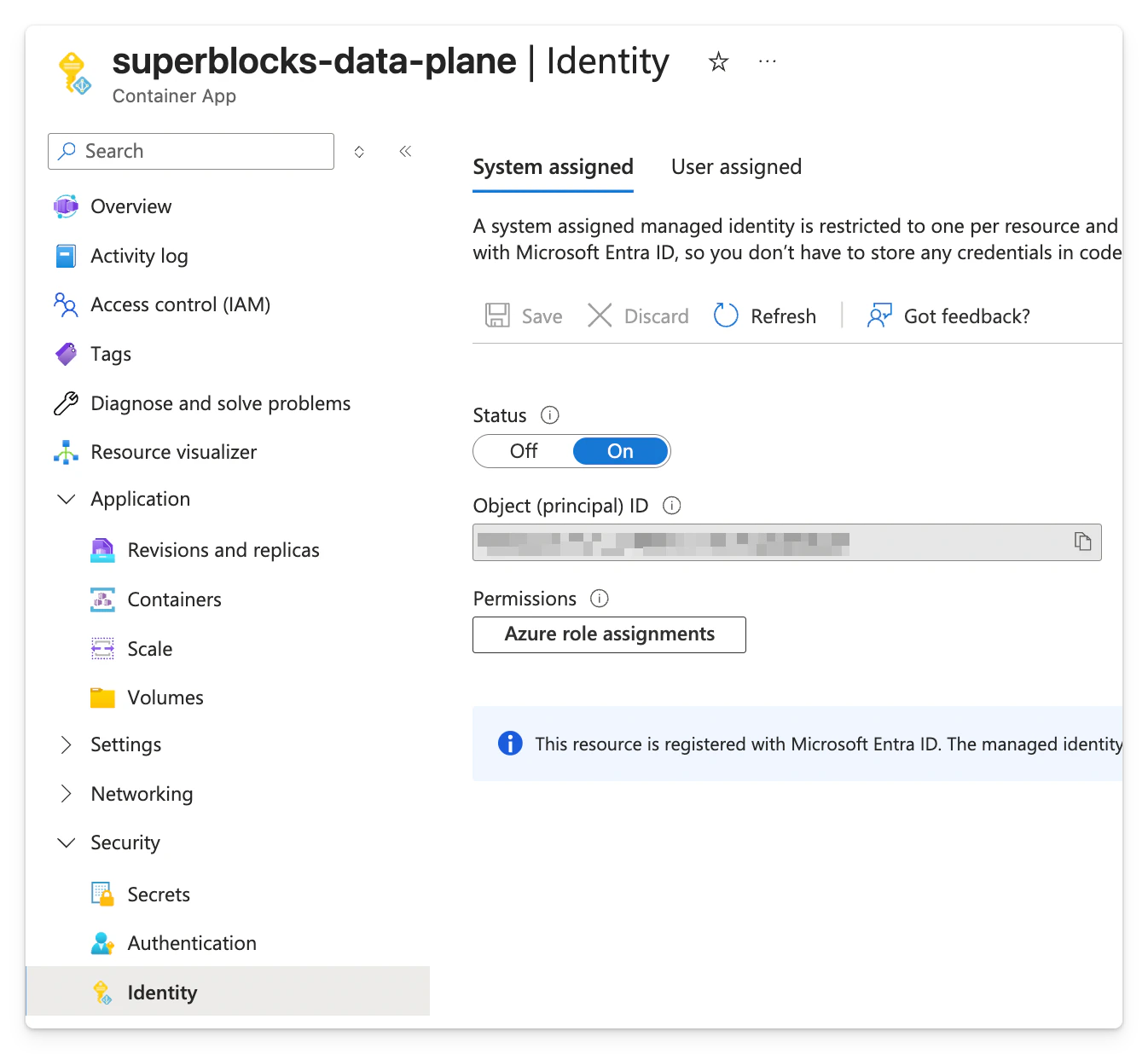
1. In the [Azure portal](https://portal.azure.com), open your **Container App**.
2. Go to **Security** → **Identity**.
3. Open the **System assigned** tab.
4. Set **Status** to **On** and click **Save**.
5. Redeploy the container app revision if prompted.
This automatically creates an Entra identity tied to the container app's lifecycle.
A **Fabric / Power BI tenant administrator** must enable service principal access before managed identities can use the Fabric APIs. Fabric gates this behind a **Microsoft Entra security group**: only identities that are members of an allowed group can use the APIs. Follow Microsoft's [Enable service principal authentication for admin APIs](https://learn.microsoft.com/en-us/fabric/admin/enable-service-principal-admin-apis) guide for the authoritative reference; the steps below summarize what is required for this setup.
Microsoft Fabric treats managed identities the same as service principals for API and database access.
1. **Create (or reuse) a Microsoft Entra security group**
In the [Azure portal](https://portal.azure.com), go to **Microsoft Entra ID** → **Groups** → **New group**. Set **Group type** to **Security**, give it a name (for example, `superblocks-fabric-access`), and create it.
2. **Add the managed identity to the security group**
Open the security group → **Members** → **Add members** and add the container app's system-assigned identity. You can search by the container app's name — the identity's display name matches the container app's resource name.
3. **Enable the tenant setting in the Fabric admin portal**
Sign in to the [Fabric admin portal](https://app.fabric.microsoft.com/admin-portal) as a **Fabric admin**, go to **Tenant settings**, and enable **Service principals can use Fabric APIs**:
* Set the toggle to **Enabled**.
* Select **Specific security groups**.
* Add the security group from the previous sub-step.
* Click **Apply**.
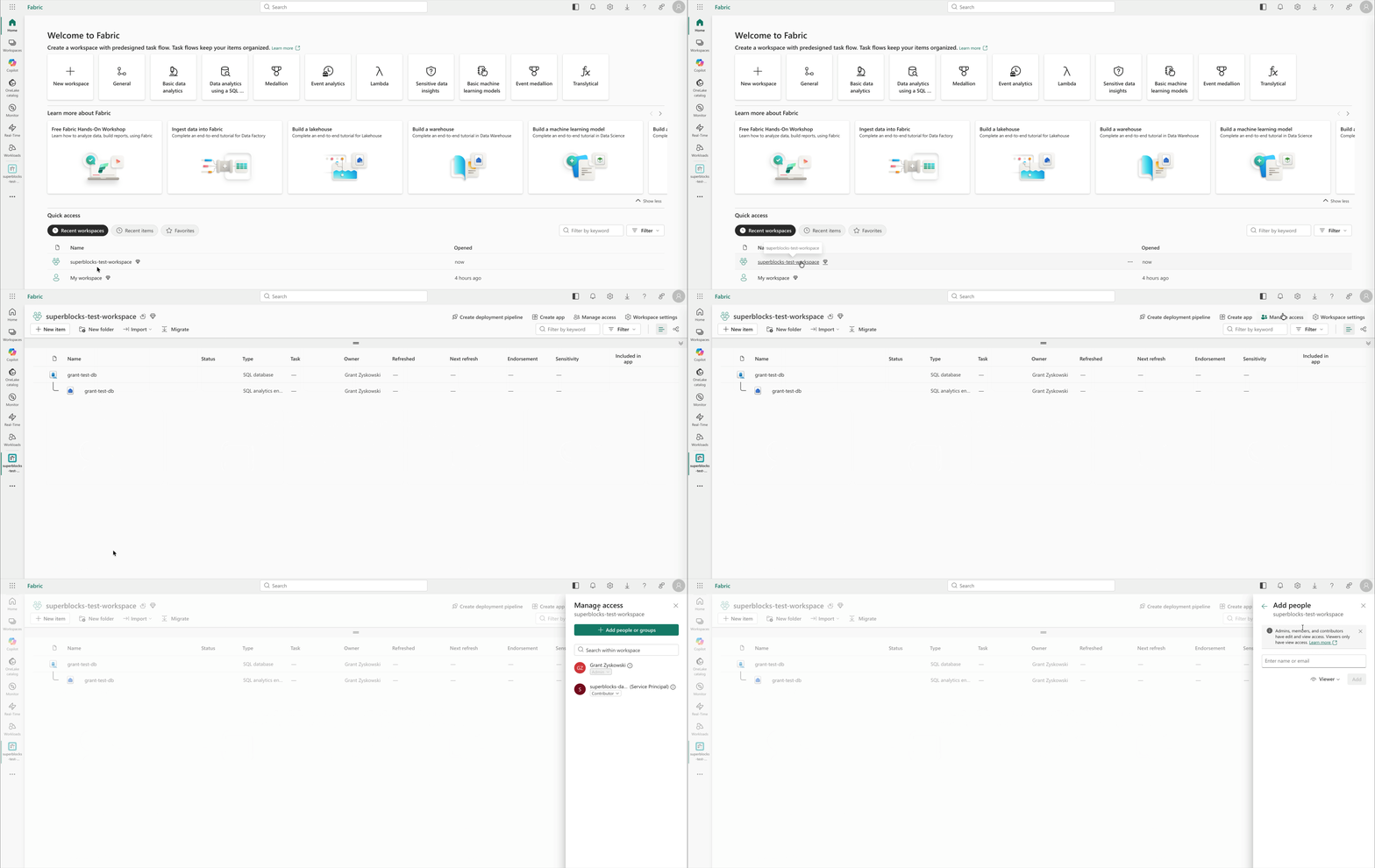
In the Fabric workspace that contains your SQL Database:
1. Click **Manage access** → **Add people or group**.
2. Add the ACA's system-assigned identity (search by the container app's name).
3. Grant at minimum **Viewer** permissions for reading data, or **Contributor** for reading / writing data. More on roles and permissions [here](https://learn.microsoft.com/en-us/fabric/database/sql/authorization#item-permissions).
This allows the identity to reach the Fabric SQL Database endpoint.
Connect to the Fabric SQL Database from VS Code, Azure Data Studio, or another SQL client **as yourself** (an admin), then run:
```sql theme={null}
USE ;
CREATE USER [] FROM EXTERNAL PROVIDER;
ALTER ROLE db_datareader ADD MEMBER [];
ALTER ROLE db_datawriter ADD MEMBER [];
```
Replace `` with the name of the container app whose system-assigned identity you enabled in the first step. The system-assigned identity's display name matches the container app's resource name.
`CREATE USER ... FROM EXTERNAL PROVIDER` maps the Entra identity to a database user so token-based logins are allowed. Adjust the roles to your least-privilege needs.
Create a [Microsoft SQL Server](/integrations/integrations-library/mssql) integration in Superblocks using a **connection string** that targets the **SQL Database endpoint** (not the SQL analytics endpoint):
```text wrap theme={null}
Data Source=.database.fabric.microsoft.com,1433;
Initial Catalog=;
Connect Timeout=30;
Authentication=Active Directory Integrated;
Encrypt=True;
TrustServerCertificate=False;
```
Because we are using a **system-assigned** identity (only one identity per container app), no `Client Id` is needed in the connection string. The MSSQL connector picks up the system-assigned identity automatically from the container app's MSI environment.
You can [find connection string details](https://learn.microsoft.com/en-us/fabric/database/sql/connect#find-sql-connection-string) like `` and `` under the Fabric SQL Database item's **Settings** → **Connection strings**.
## Related documentation
* [Azure managed identity authentication to SQL Server](/integrations/auth/guides/azure-msi-sql-server) — equivalent guide for SQL Server on an Azure VM using a user-assigned identity
* [Database connections](/integrations/auth/database-connections/index) — networking and connection strings
* [Microsoft SQL Server integration](/integrations/integrations-library/mssql) — Superblocks UI setup