> ## Documentation Index
> Fetch the complete documentation index at: https://docs.superblocks.com/llms.txt
> Use this file to discover all available pages before exploring further.
# Configure IP allowlist for databases
> This guide explains how to allow Superblocks to connect to databases on AWS and GCP
## Amazon Web Services (AWS)
* Log in to the [AWS Console](https://aws.amazon.com/console/)
* Navigate to the resource that you would like Superblocks to connect to
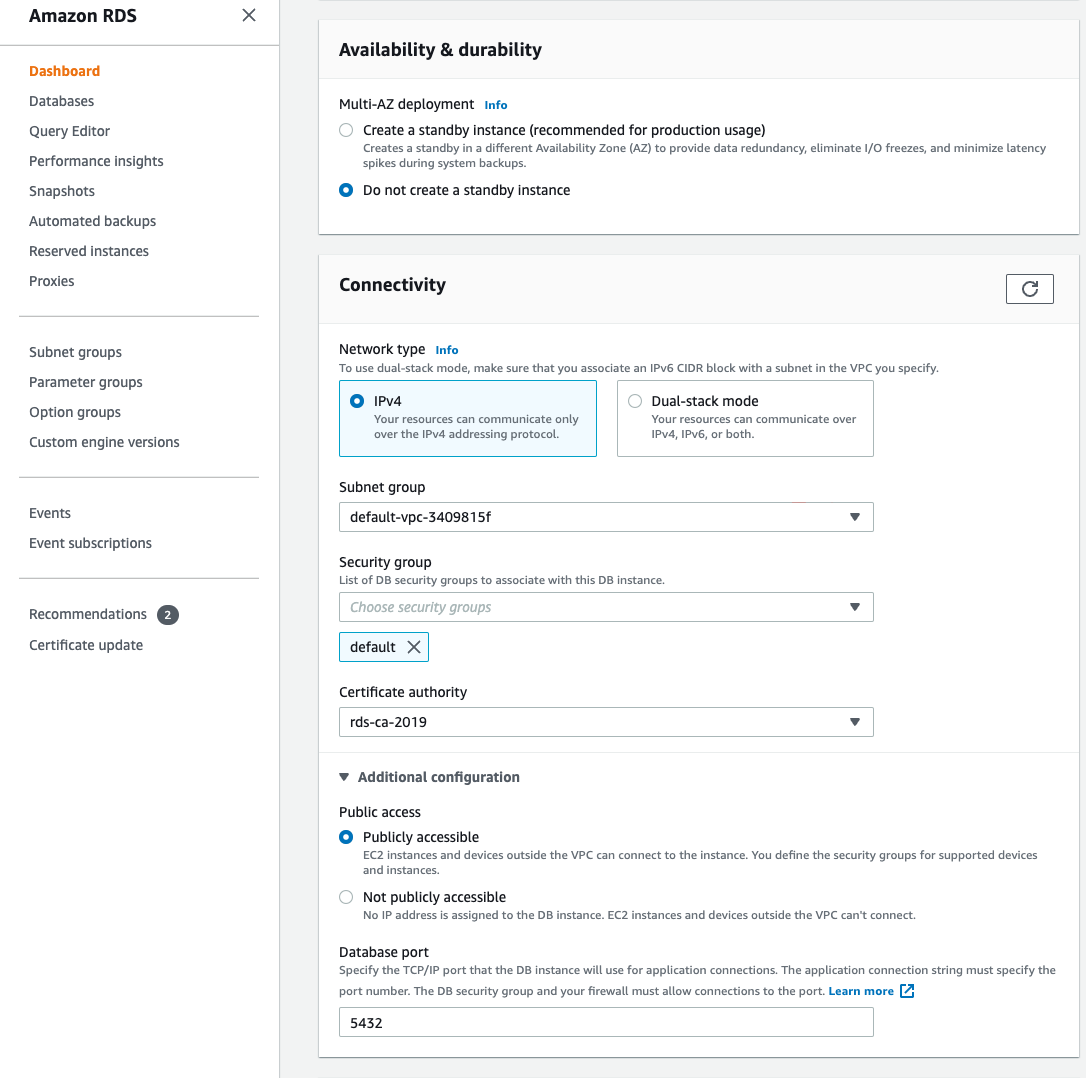
* If you are applying an allowlist to an RDS instance, the instance must be set to `Publicly accessible` (this is found under **Connectivity -> Additional configuration**)
 * Select an existing Security Group or create a new one
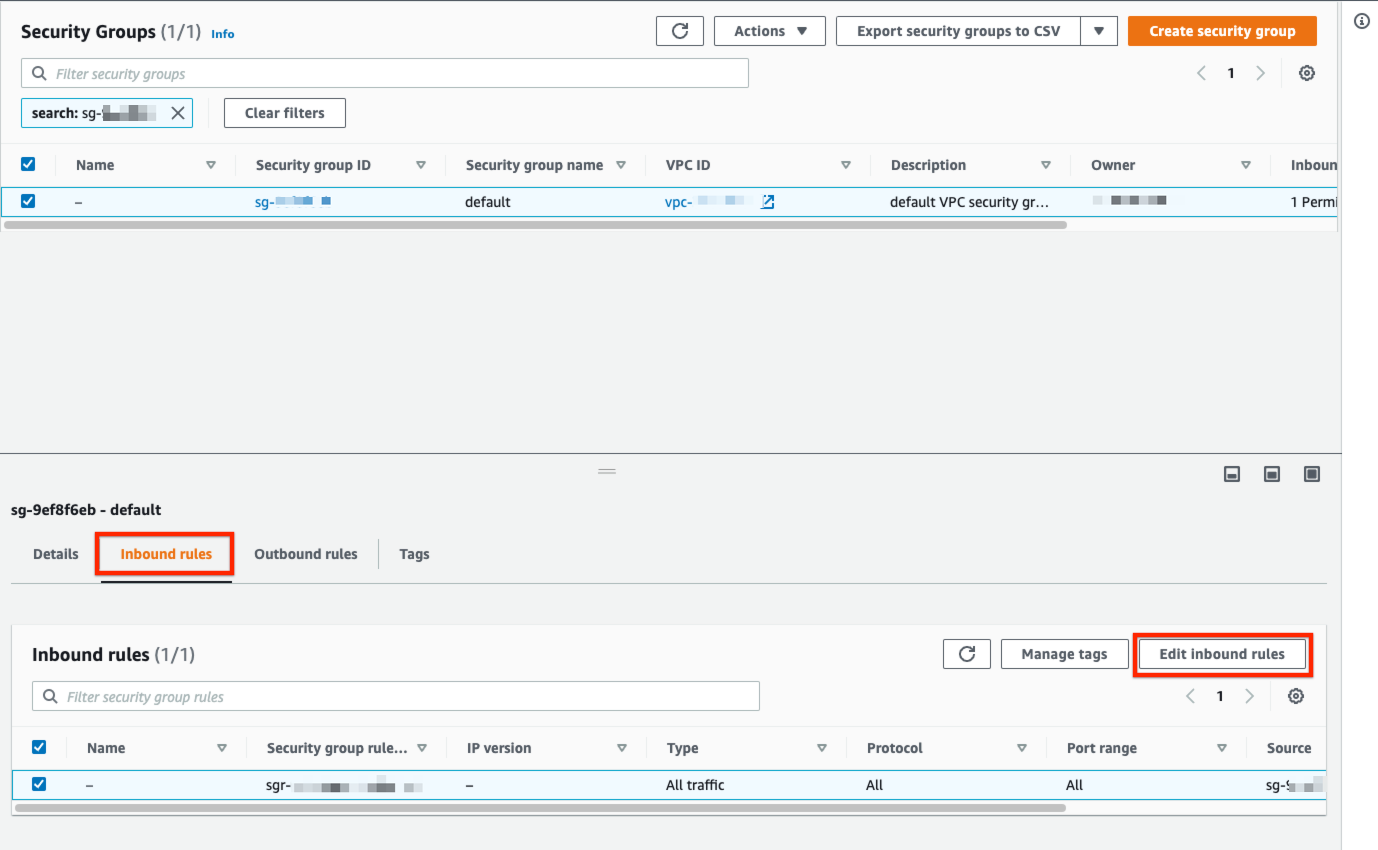
* Select the **Inbound rules** tab at the bottom and click **Edit inbound rules**
* Select an existing Security Group or create a new one
* Select the **Inbound rules** tab at the bottom and click **Edit inbound rules**
 * Choose the port (defaults: Postgres: 5432, MySQL: 3306, MSSQL: 1433)
* Set **Source** to "Custom" and enter the following IP addresses:
* Choose the port (defaults: Postgres: 5432, MySQL: 3306, MSSQL: 1433)
* Set **Source** to "Custom" and enter the following IP addresses:
`107.22.228.244/32, 3.93.101.124/32, 34.209.17.50/32, 34.227.169.51/32, 35.155.119.178/32, 35.171.116.214/32, 35.86.18.137/32, 44.232.244.93/32, 54.148.33.216/32`
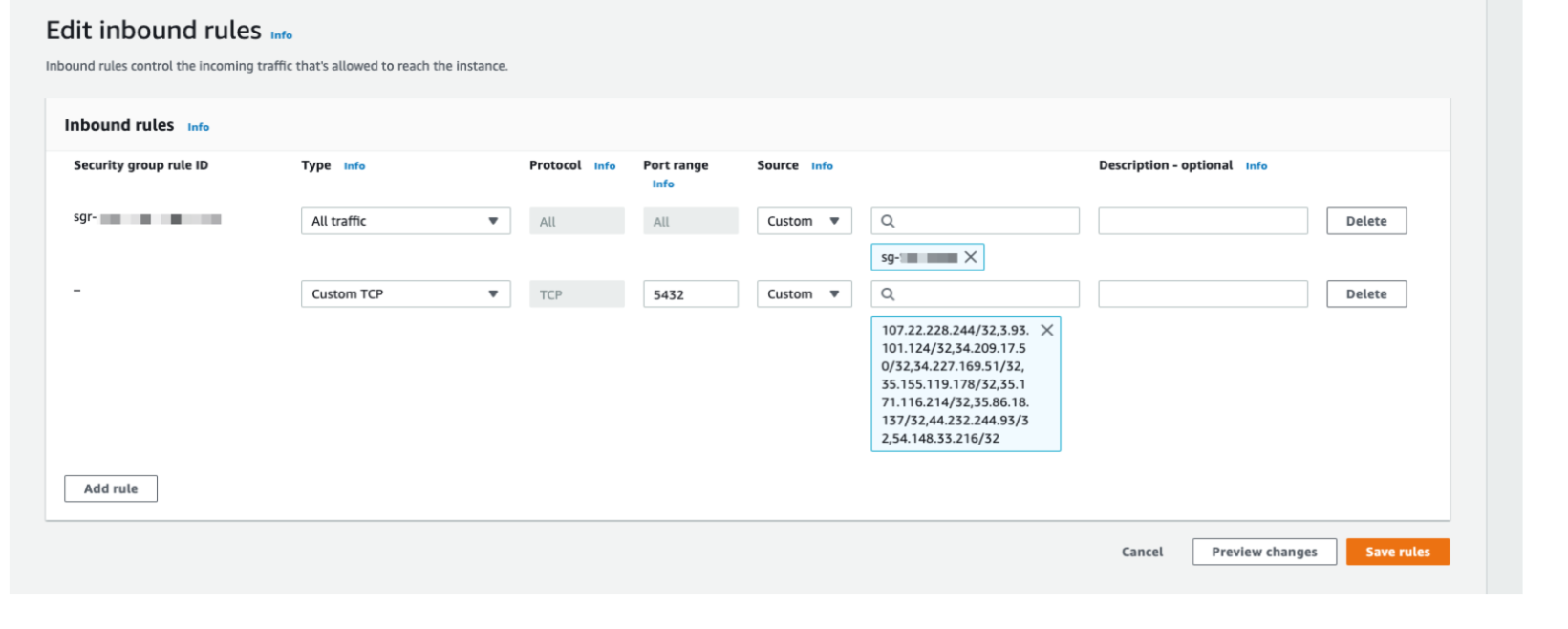 * Click **Save rules**
## Google Cloud Platform (GCP)
### Self hosted database
* Log in to the [GCP Console](https://console.cloud.google.com/)
* Navigate to [VPC Network -> Firewall](https://console.cloud.google.com/networking/firewalls)
* Select an existing Firewall Rule or create a new one
* Set the following:
* **Direction of traffic**: Ingress
* **Action on match**: Allow
* **Targets**: All instances on network
* **Source filter**: IPv4 ranges
* **Source IPv4 ranges**: Add the following IP addresses:
* Click **Save rules**
## Google Cloud Platform (GCP)
### Self hosted database
* Log in to the [GCP Console](https://console.cloud.google.com/)
* Navigate to [VPC Network -> Firewall](https://console.cloud.google.com/networking/firewalls)
* Select an existing Firewall Rule or create a new one
* Set the following:
* **Direction of traffic**: Ingress
* **Action on match**: Allow
* **Targets**: All instances on network
* **Source filter**: IPv4 ranges
* **Source IPv4 ranges**: Add the following IP addresses:
`107.22.228.244/32, 3.93.101.124/32, 34.209.17.50/32, 34.227.169.51/32, 35.155.119.178/32, 35.171.116.214/32, 35.86.18.137/32, 44.232.244.93/32, 54.148.33.216/32`
* **Protocols and ports**: Specified protocols and ports, TCP Ports (defaults: Postgres: 5432, MySQL: 3306, MSSQL: 1433)
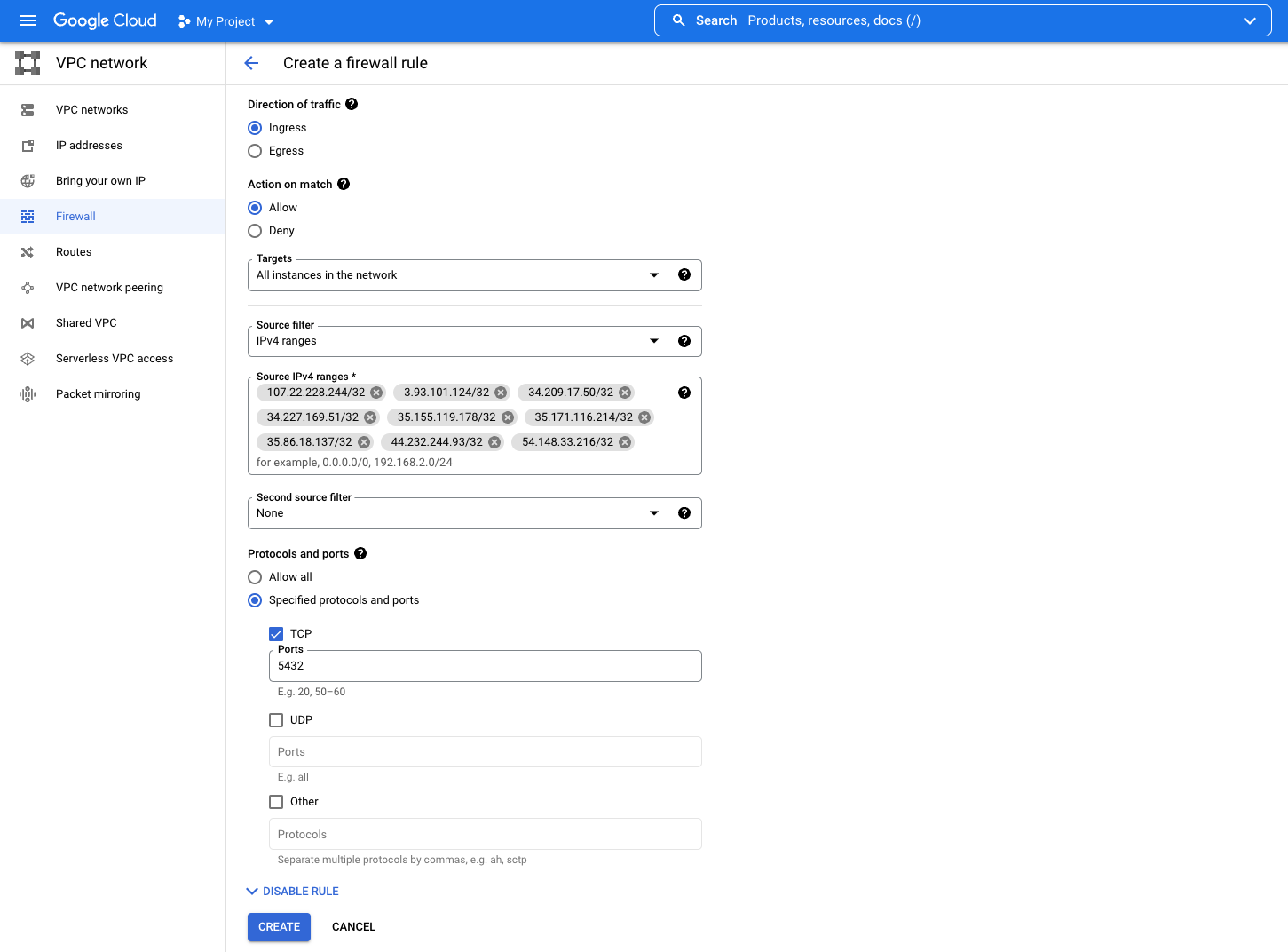 * Click Create/Save
### Cloud SQL
* Select a GCP [SQL instance](https://console.cloud.google.com/sql/instances)
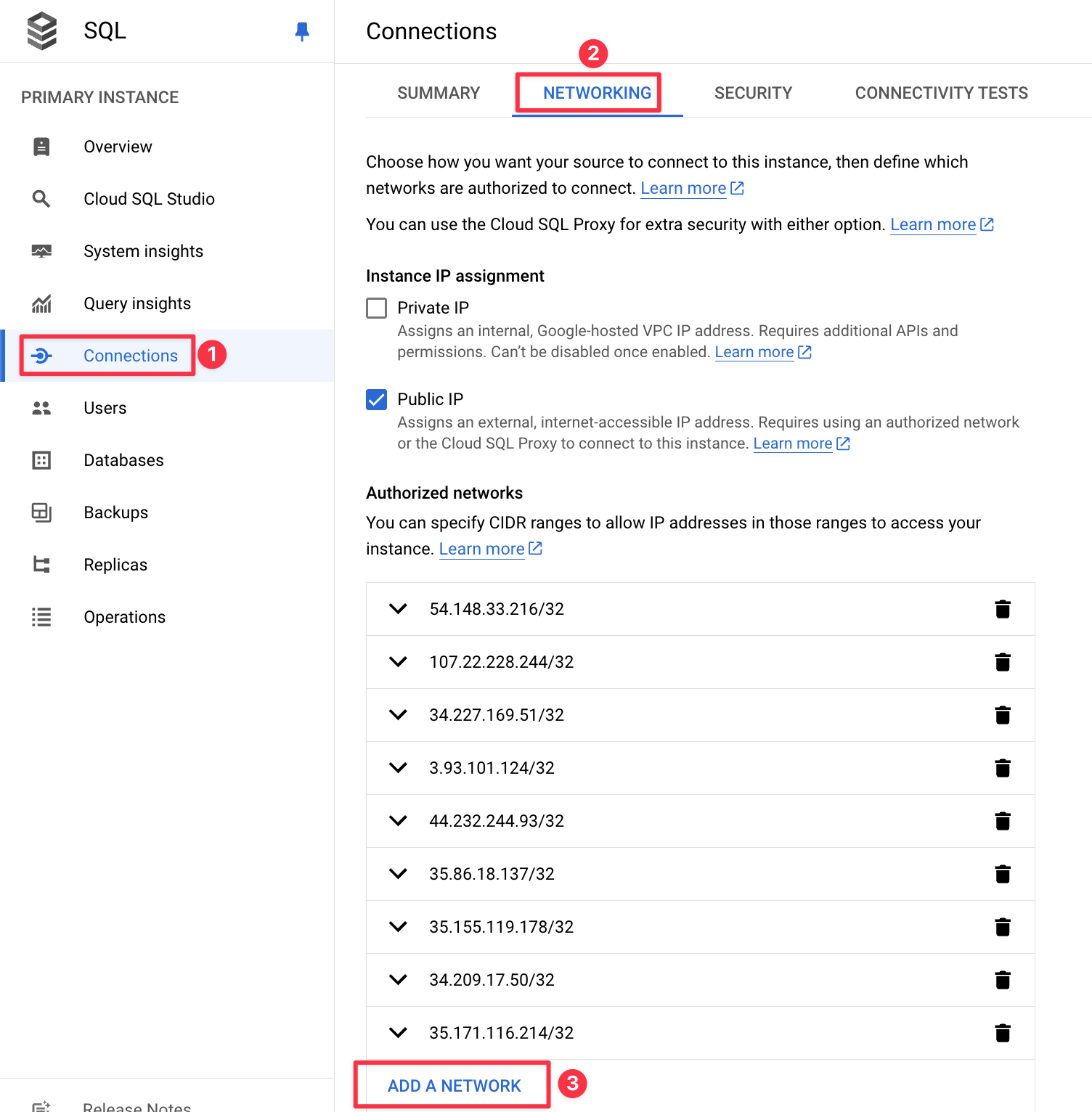
* Navigate to Connections -> Networking
* In the Networking tab, make sure to add all IP addresses in the "Authorized Network" section found in the [IP Allowlist](/integrations/auth/database-connections#networking) by clicking "Add a Network"
* Click Create/Save
### Cloud SQL
* Select a GCP [SQL instance](https://console.cloud.google.com/sql/instances)
* Navigate to Connections -> Networking
* In the Networking tab, make sure to add all IP addresses in the "Authorized Network" section found in the [IP Allowlist](/integrations/auth/database-connections#networking) by clicking "Add a Network"
 * Click Done/Save