> ## Documentation Index
> Fetch the complete documentation index at: https://docs.superblocks.com/llms.txt
> Use this file to discover all available pages before exploring further.
# API authentication types
Superblocks supports several types of authentication methods for APIs. Select a type from the **Authentication** dropdown in your integration's configuration page.
## None
Superblocks won't send authentication details with a request unless you select an authentication method. If your request doesn't require authentication, set the **Authentication** dropdown to **None**.
## Basic authentication
Basic authentication involves sending a verified username and password with your request. On the integration configuration page, set **Authentication** to **Basic Authentication**.
Check **Share username/password across all users** and enter your API username and password, or uncheck this option to have end users provide their own credentials.
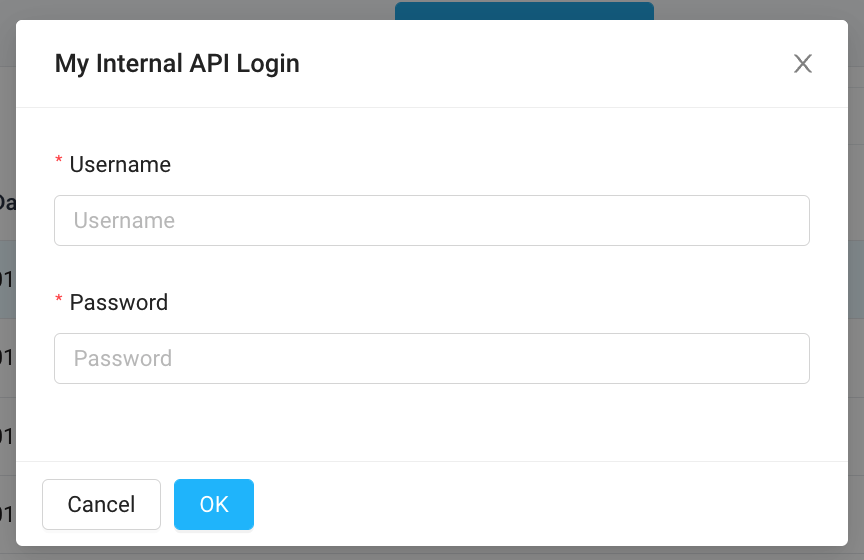 If end users are providing their credentials, they will be stored as an HTTP-Only Secure cookie in the user's browser and sent to the Superblocks Agent.
The Superblocks Agent sends your API a **Header** containing a Base64 encoded string representing your username and password values, appended to the text `Basic` as follows:
```
Basic
```
## API key
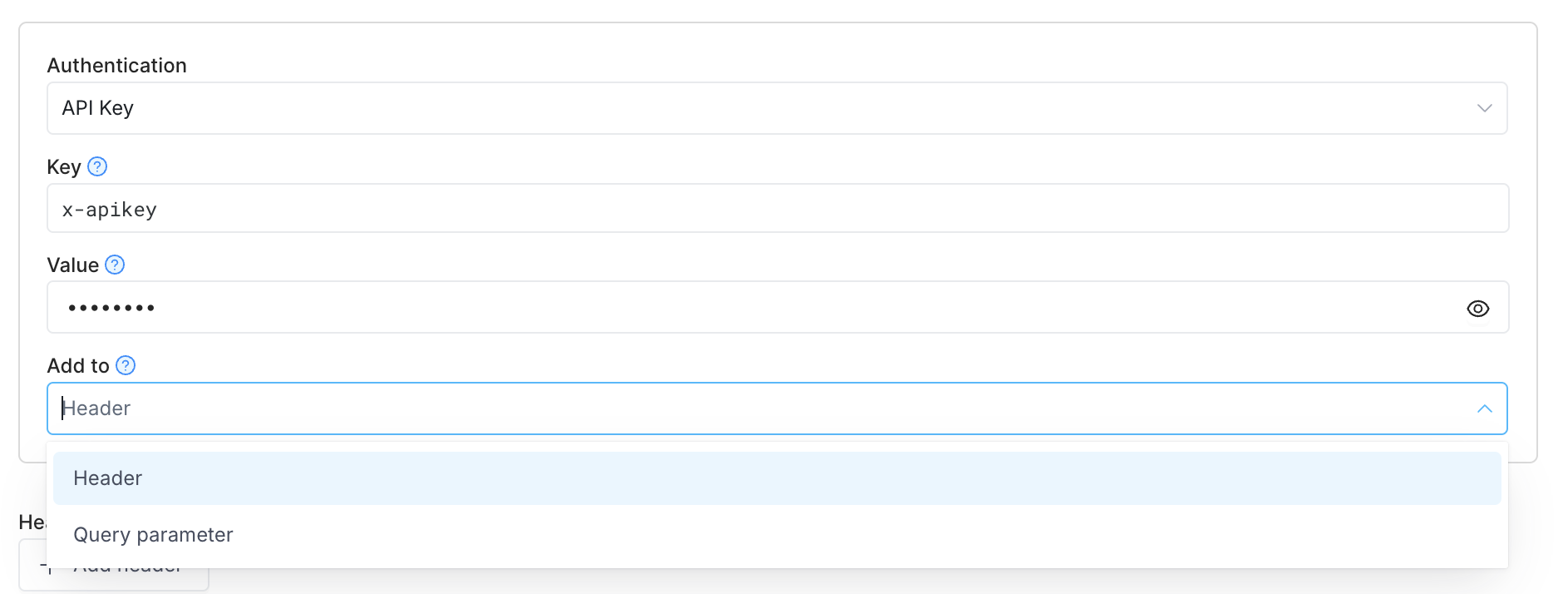
**API Key** authentication sends a key-value pair to the API either as a request header or query parameter. To authenticate using an API key, set the **Authentication** dropdown to **API key** in your integration configuration.
Enter your key name and value, and select either **Header** or **Query parameter** from the **Add to** dropdown list.
Superblocks will append the relevant information to your request headers or the URL query string.
If end users are providing their credentials, they will be stored as an HTTP-Only Secure cookie in the user's browser and sent to the Superblocks Agent.
The Superblocks Agent sends your API a **Header** containing a Base64 encoded string representing your username and password values, appended to the text `Basic` as follows:
```
Basic
```
## API key
**API Key** authentication sends a key-value pair to the API either as a request header or query parameter. To authenticate using an API key, set the **Authentication** dropdown to **API key** in your integration configuration.
Enter your key name and value, and select either **Header** or **Query parameter** from the **Add to** dropdown list.
Superblocks will append the relevant information to your request headers or the URL query string.
 ## Bearer token
Bearer tokens enable requests to authenticate using an access key, such as a JSON Web Token (JWT). The token is a text string included in the request header. On the integration configuration page, set **Authentication** to **Bearer Token** to use this auth method.
In the **Token** field, enter your token value. The Superblocks Agent will append the token value to the text `Bearer` in the required format to the request Authorization header as follows:
```
Bearer
```
## OAuth 2.0
Superblocks supports multiple OAuth 2.0 flows. For a full list of supported OAuth 2.0 flows and how to use them see the [OAuth 2.0](/integrations/auth/oauth-20) docs.
## Firebase
Learn more about [Firebase authentication](/integrations/auth/firebase) for [REST APIs](/integrations/integrations-library/rest-api).
## Bearer token
Bearer tokens enable requests to authenticate using an access key, such as a JSON Web Token (JWT). The token is a text string included in the request header. On the integration configuration page, set **Authentication** to **Bearer Token** to use this auth method.
In the **Token** field, enter your token value. The Superblocks Agent will append the token value to the text `Bearer` in the required format to the request Authorization header as follows:
```
Bearer
```
## OAuth 2.0
Superblocks supports multiple OAuth 2.0 flows. For a full list of supported OAuth 2.0 flows and how to use them see the [OAuth 2.0](/integrations/auth/oauth-20) docs.
## Firebase
Learn more about [Firebase authentication](/integrations/auth/firebase) for [REST APIs](/integrations/integrations-library/rest-api).