> ## Documentation Index
> Fetch the complete documentation index at: https://docs.superblocks.com/llms.txt
> Use this file to discover all available pages before exploring further.
# Developing apps in code
> Extend applications by editing the underlying React code in your IDE
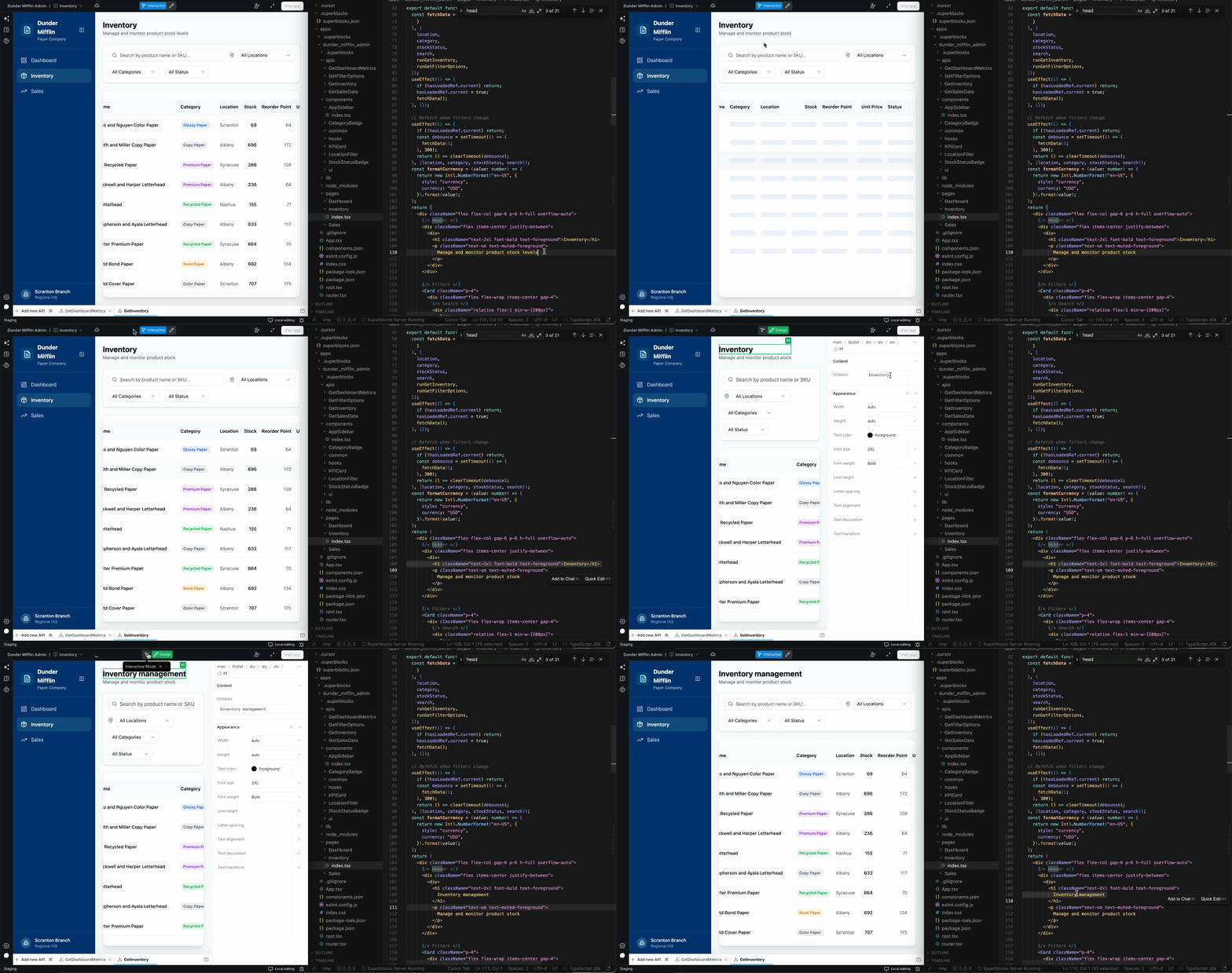
Superblocks supports two-way editing, allowing you to edit the underlying React code directly in your preferred IDE (Cursor, Windsurf, VSCode, etc.). Any changes you make sync instantly with the editor.
## Enabling local edit mode
To enable local editing, click **Cloud editing** in the bottom right corner of the screen, then follow the instructions in the modal.
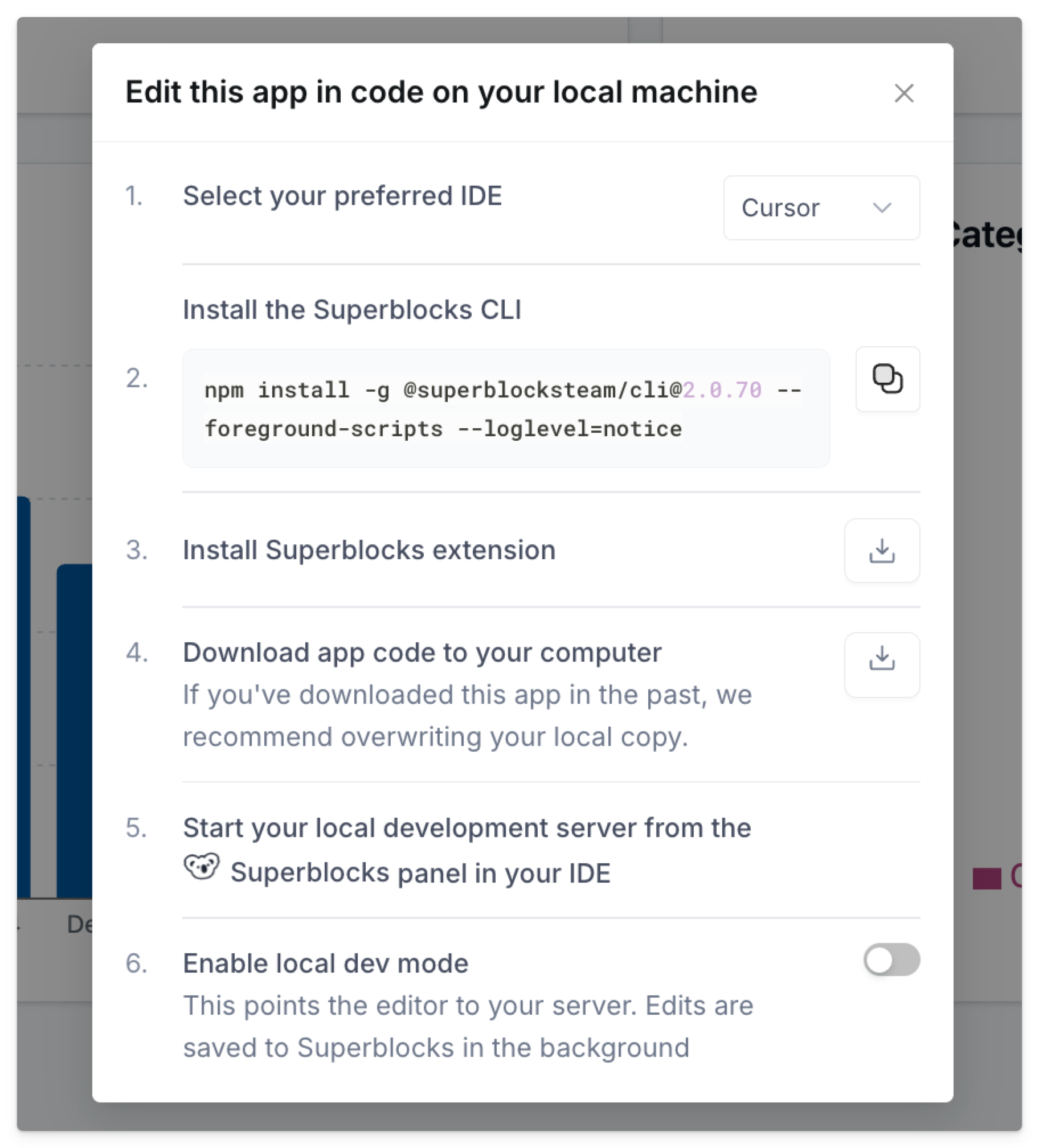 ### 1. Select your preferred IDE
Choose between VSCode and Cursor—this will be used for installing the **optional** Superblocks extension. For any other IDE, you can still edit apps locally with the Superblocks CLI. More on this below.
### 2. Install Superblocks CLI
Run the `npm` install command from the in-app modal, replacing `2.0.X` with the latest version.
```bash theme={null}
npm install -g @superblocksteam/cli@2.0.X --foreground-scripts --loglevel=notice
```
### 3. Install Superblocks extension
If using VSCode or Cursor, click the download button to install the Superblocks extension for your selected IDE.
### 4. Download application
Click the download button to download the application code to your computer. The first time an application initializes, you will be prompted to enter your personal API key from the [personal settings page](https://app.superblocks.com/personal-settings#profile).
Once the application is downloaded, you can explore the project structure, pages, components, and APIs.
### 1. Select your preferred IDE
Choose between VSCode and Cursor—this will be used for installing the **optional** Superblocks extension. For any other IDE, you can still edit apps locally with the Superblocks CLI. More on this below.
### 2. Install Superblocks CLI
Run the `npm` install command from the in-app modal, replacing `2.0.X` with the latest version.
```bash theme={null}
npm install -g @superblocksteam/cli@2.0.X --foreground-scripts --loglevel=notice
```
### 3. Install Superblocks extension
If using VSCode or Cursor, click the download button to install the Superblocks extension for your selected IDE.
### 4. Download application
Click the download button to download the application code to your computer. The first time an application initializes, you will be prompted to enter your personal API key from the [personal settings page](https://app.superblocks.com/personal-settings#profile).
Once the application is downloaded, you can explore the project structure, pages, components, and APIs.
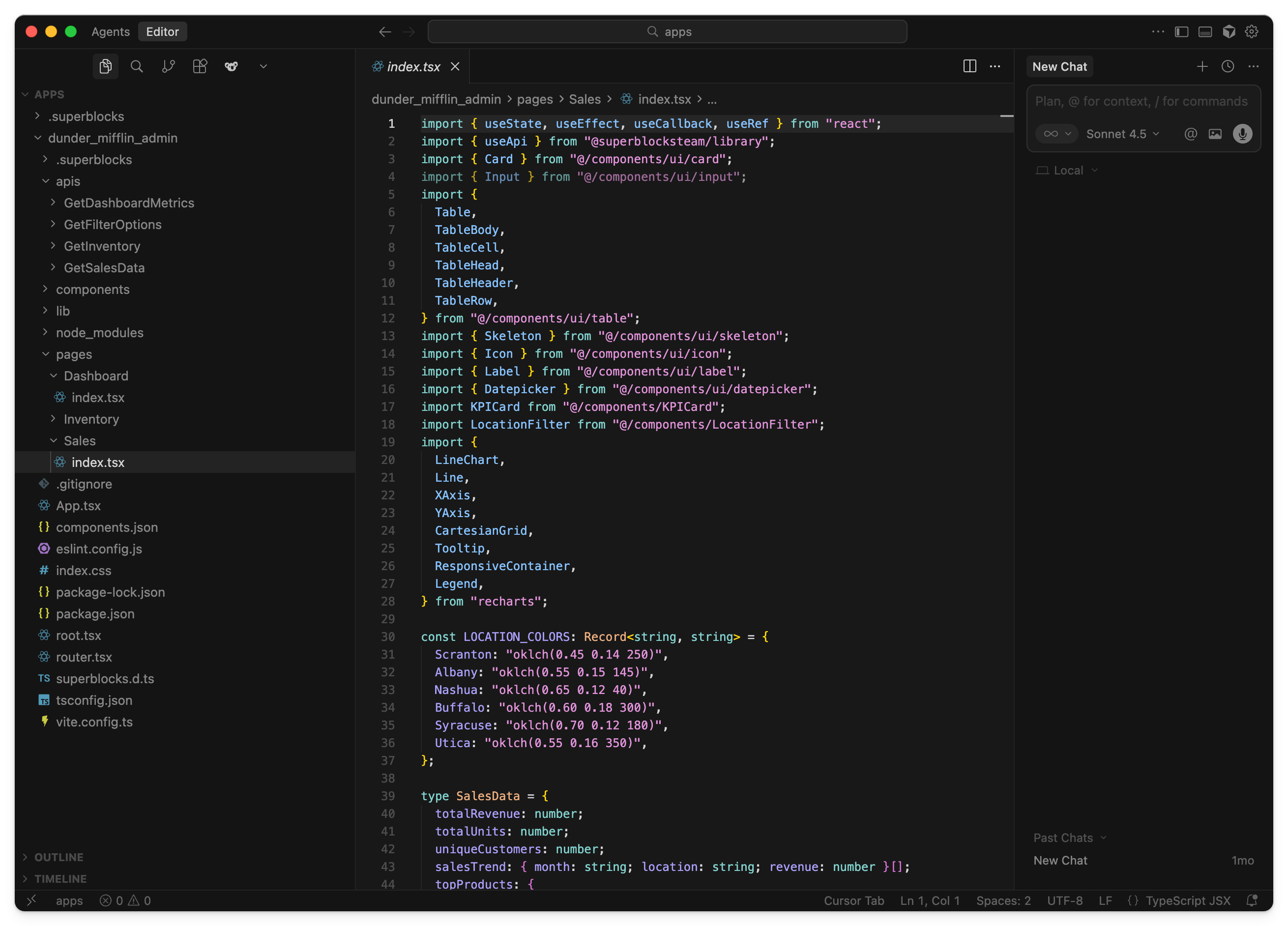 ### 5. Start the local dev server
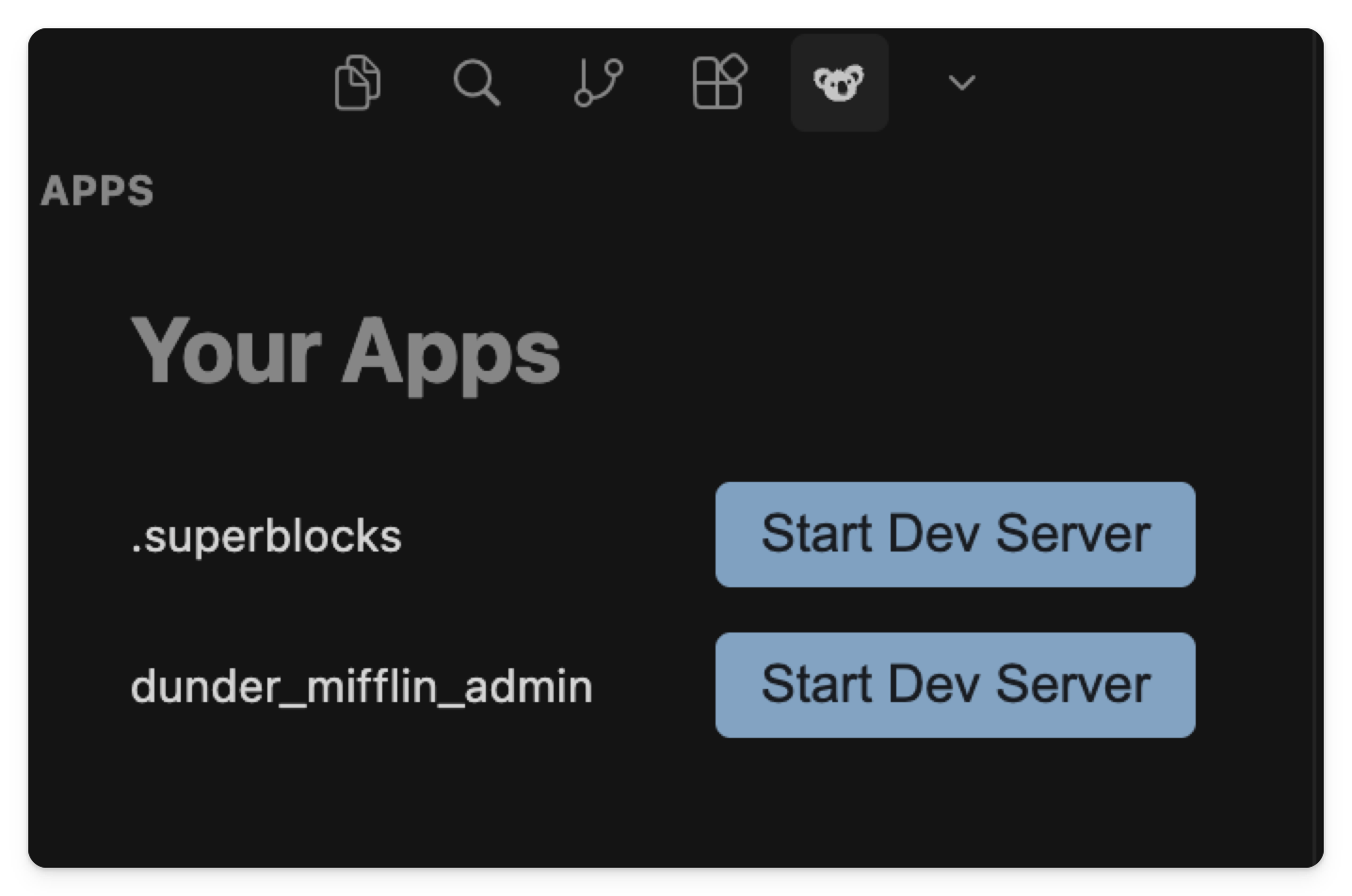
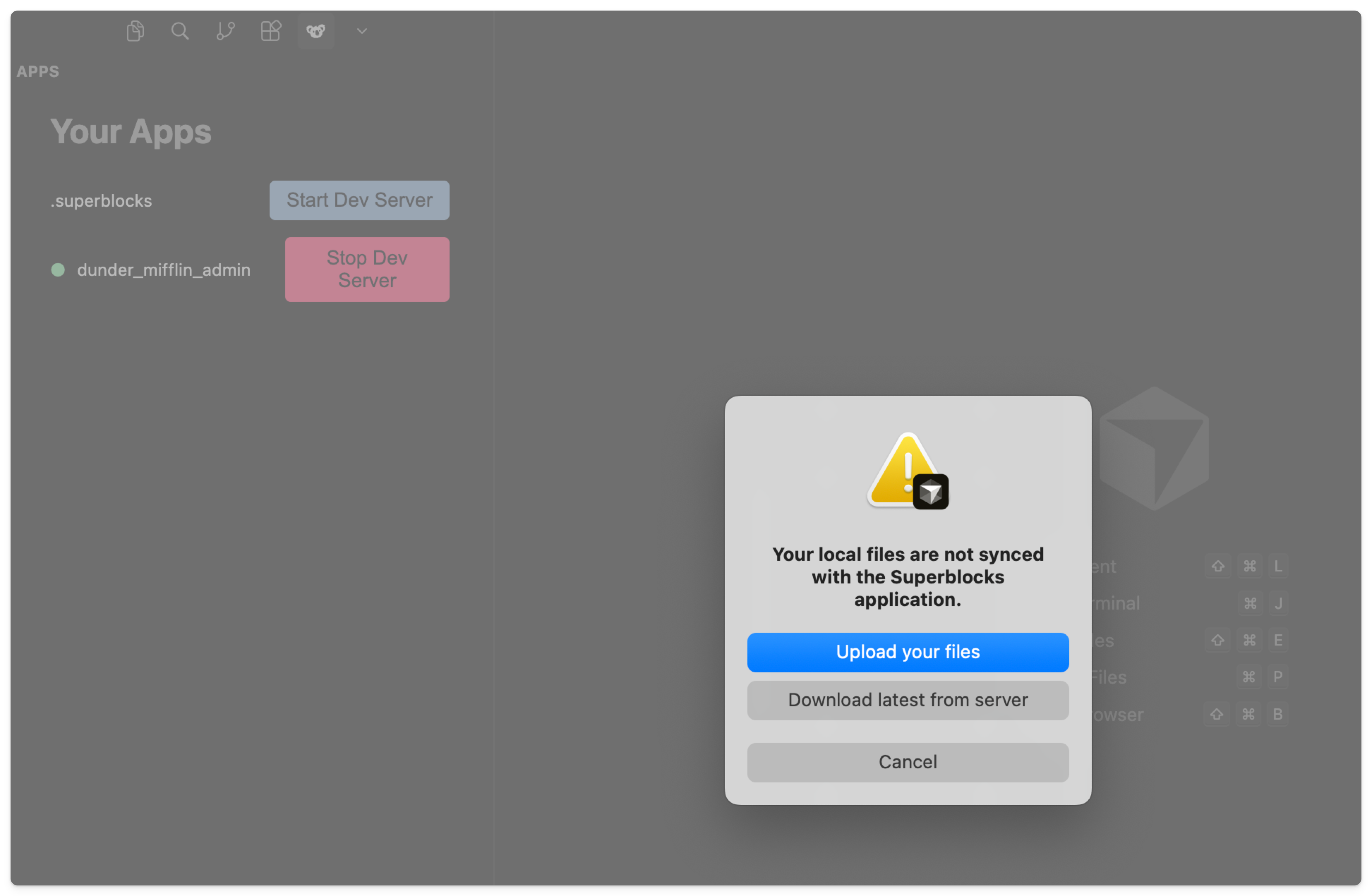
If using the Superblocks extension, select the koala logo in your IDE and click **Start Dev Server**. When prompted, choose whether you want to upload your files from local or download the latest files from the app.
If you are not using the extension, you can still start the local dev server using the Superblocks CLI command:
```bash theme={null}
superblocks dev [--upload-first] [--download-first]
```
### 6. Enable local dev mode
Once the dev server is running locally, navigate back to Superblocks and toggle on local dev mode. The bottom right corner will now show **Local editing**. Any edits you make in your local application will sync back to Superblocks, and vice versa.
### 5. Start the local dev server
If using the Superblocks extension, select the koala logo in your IDE and click **Start Dev Server**. When prompted, choose whether you want to upload your files from local or download the latest files from the app.
If you are not using the extension, you can still start the local dev server using the Superblocks CLI command:
```bash theme={null}
superblocks dev [--upload-first] [--download-first]
```
### 6. Enable local dev mode
Once the dev server is running locally, navigate back to Superblocks and toggle on local dev mode. The bottom right corner will now show **Local editing**. Any edits you make in your local application will sync back to Superblocks, and vice versa.