> ## Documentation Index
> Fetch the complete documentation index at: https://docs.superblocks.com/llms.txt
> Use this file to discover all available pages before exploring further.
# Adding context
> Target elements, tag APIs, and upload files to focus your prompts
The more context you can provide Clark on where / what to build, the better. For example, to iterate on a specific feature after an initial generation, you can **target** or **tag** the relevant components so Clark knows exactly what parts of the application to focus on (e.g., sidebar, specific div, backend API). Similarly, in addition to prompting with text alone, **uploading files** (e.g. screenshots, CSVs) is an effective way to provide Clark with more information on the requirements at any point in a chat.
## Targeting frontend elements
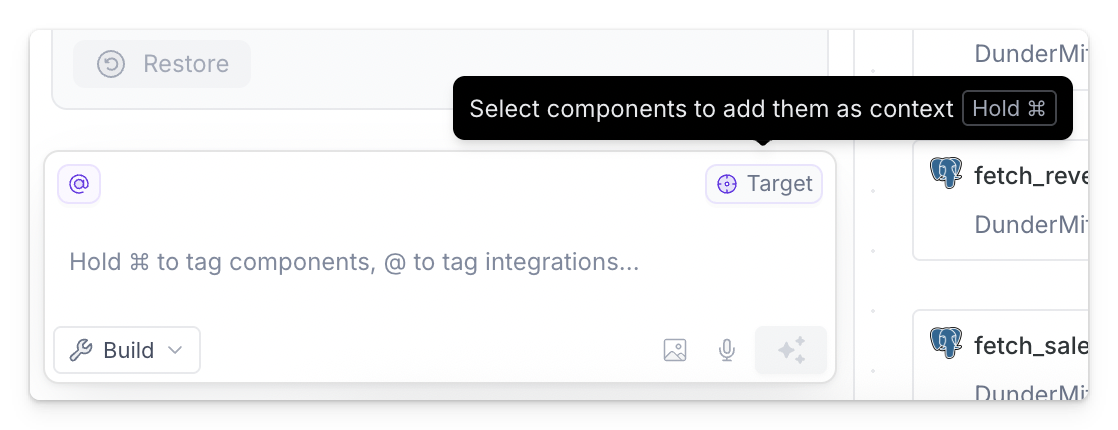
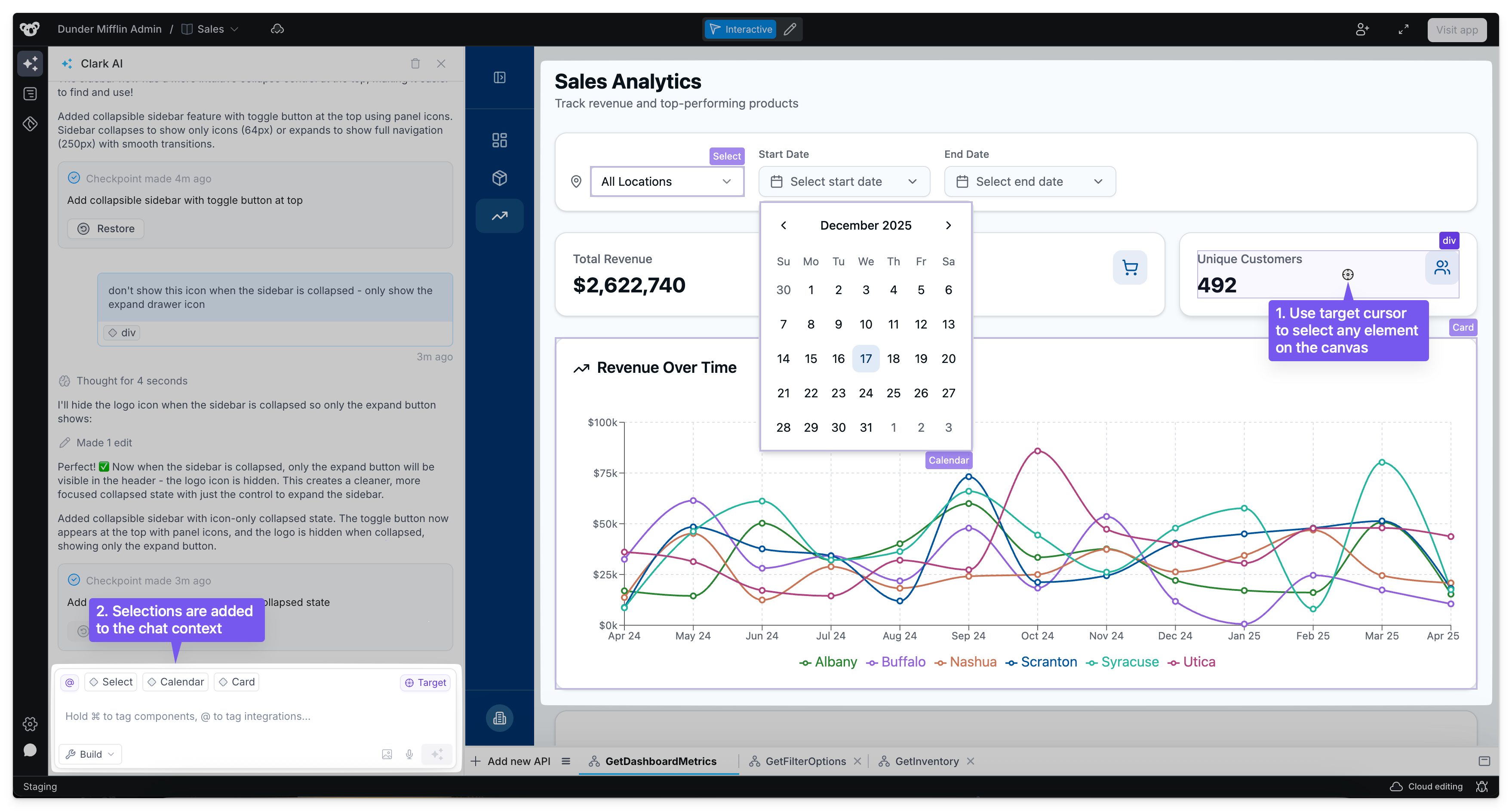
To focus Clark on any specific parts of the UI, select the **Target** icon in the chat or use keyboard shortcuts (hold `⌘` on Mac or `Ctrl` on PC).
After entering target mode, select any element on the canvas to add it to the chat context before submitting a new prompt. Targeted elements are highlighted in purple and added to the chat context.
 ## Tagging backend APIs
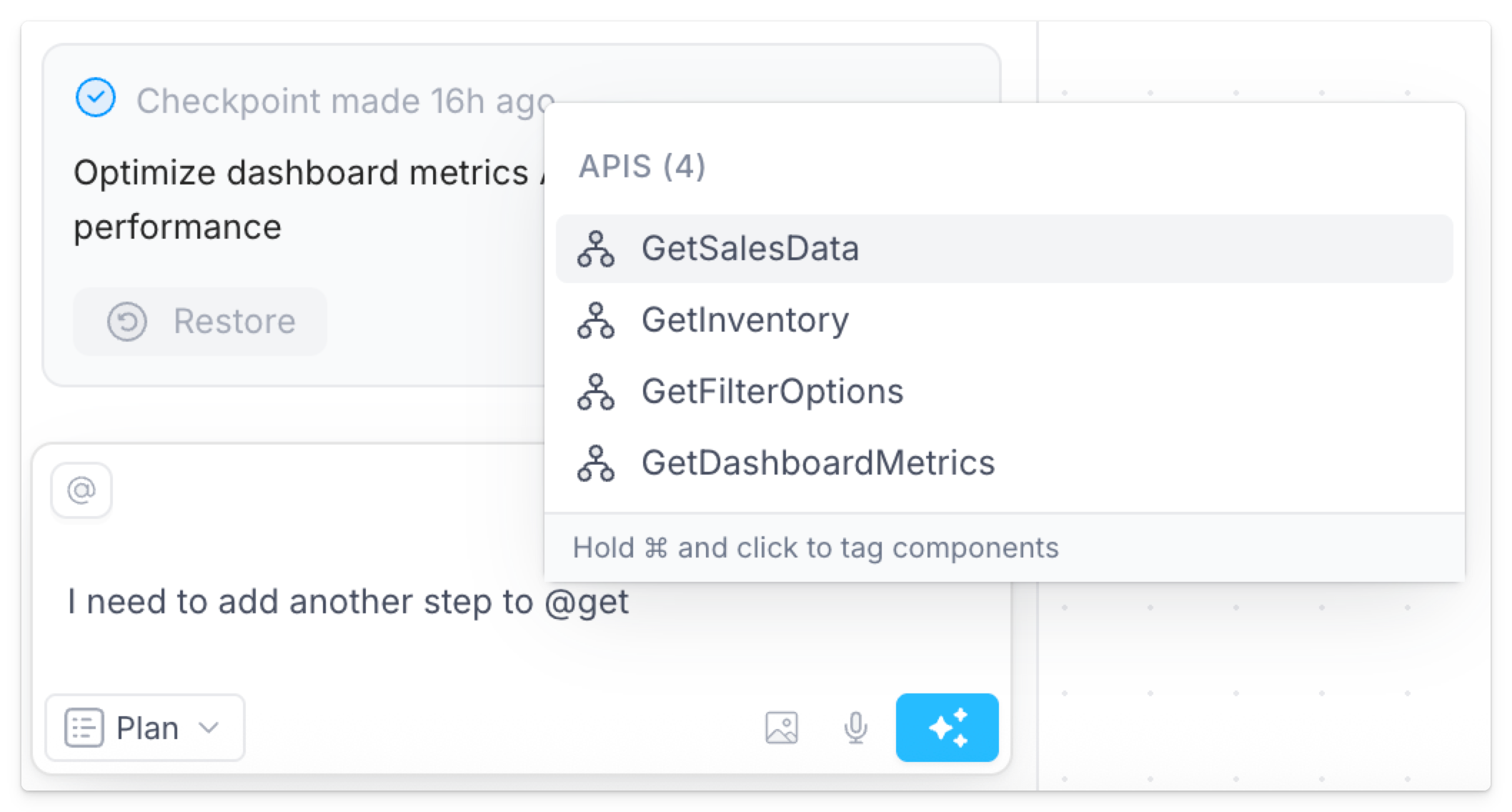
Similar to integrations, you can focus Clark on specific APIs by @mentioning them in chat.
## Tagging backend APIs
Similar to integrations, you can focus Clark on specific APIs by @mentioning them in chat.
 ## Uploading files
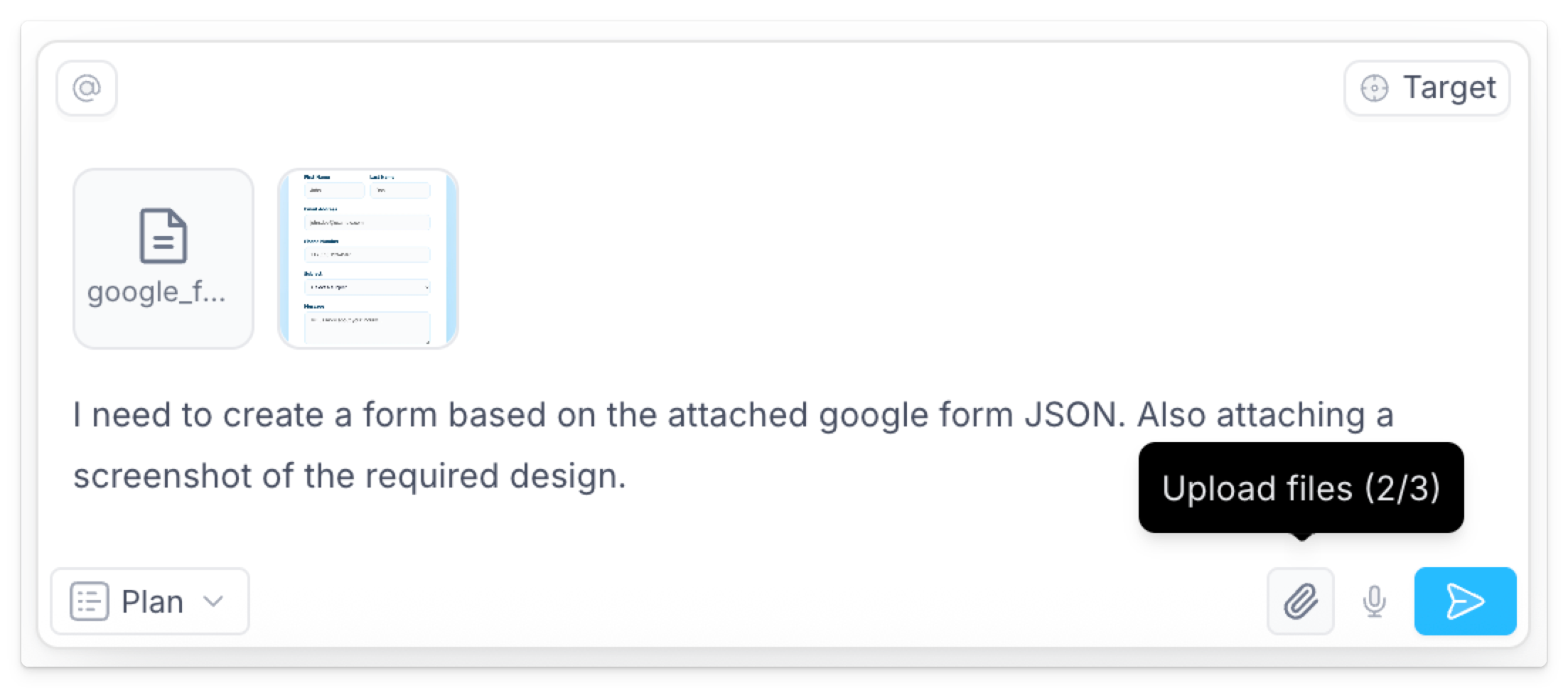
To add more detail to your prompts, upload files like images, JSON, CSVs, and more. For example, include a screenshot or wireframe to convey layout, hierarchy, and component states.
## Uploading files
To add more detail to your prompts, upload files like images, JSON, CSVs, and more. For example, include a screenshot or wireframe to convey layout, hierarchy, and component states.