> ## Documentation Index
> Fetch the complete documentation index at: https://docs.superblocks.com/llms.txt
> Use this file to discover all available pages before exploring further.
# Spend management
> Control AI credit spending with organization-wide limits, per-user budgets, and programmatic management
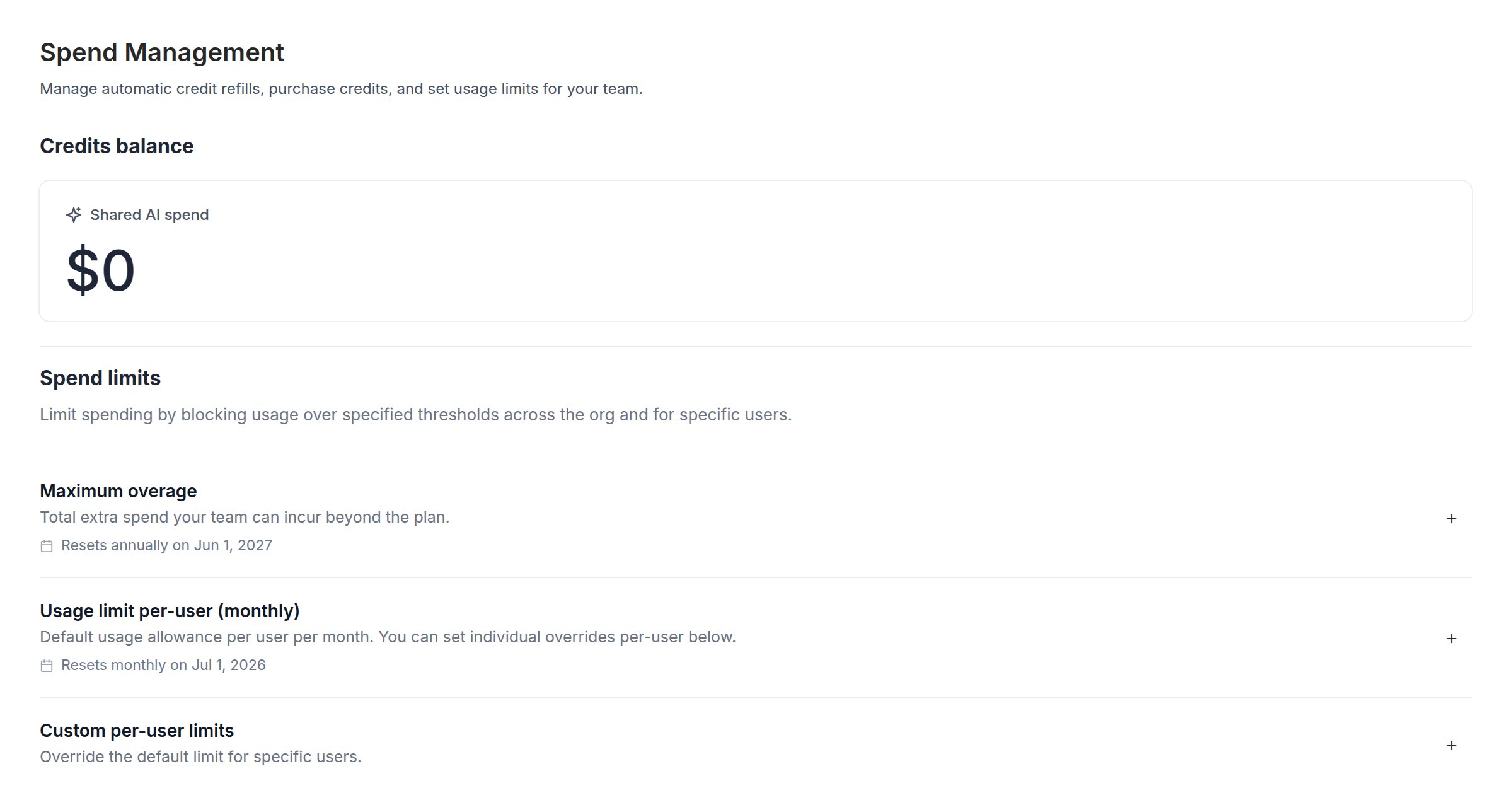
Superblocks gives administrators full control over AI credit spending. From the [**Spend Management**](https://app.superblocks.com/spending) page in your organization settings, you can set organization-wide caps, assign per-user budgets, and monitor usage, ensuring your team stays productive without unexpected costs.
Spend Management is available on Enterprise and Teams plans.
 ## Usage visibility
The Spend Management page provides detailed visibility into how AI credits are consumed across your organization:
* **Per-user usage**: See which team members are consuming the most credits
* **Per-application usage**: Track credit consumption by application, helping you identify which projects drive the most AI usage and allocate resources effectively
This granular visibility helps you make informed decisions about budget allocation and identify opportunities for optimization.
## Spend limits
Spend limits prevent unexpected charges by capping usage at both the organization and individual user level.
You can set org-wide overage spending limits, which are enforced based on your plan's billing cycle (monthly or annual). You can also set monthly per-user spend limits. Both budgets reset automatically at the start of each period.
### Maximum credit overage
Enterprise organizations can set an **overage cap** - the maximum additional usage your team can consume beyond your contractual commit. This is your primary guardrail against runaway spending if your team exceeds your committed usage.
## Usage visibility
The Spend Management page provides detailed visibility into how AI credits are consumed across your organization:
* **Per-user usage**: See which team members are consuming the most credits
* **Per-application usage**: Track credit consumption by application, helping you identify which projects drive the most AI usage and allocate resources effectively
This granular visibility helps you make informed decisions about budget allocation and identify opportunities for optimization.
## Spend limits
Spend limits prevent unexpected charges by capping usage at both the organization and individual user level.
You can set org-wide overage spending limits, which are enforced based on your plan's billing cycle (monthly or annual). You can also set monthly per-user spend limits. Both budgets reset automatically at the start of each period.
### Maximum credit overage
Enterprise organizations can set an **overage cap** - the maximum additional usage your team can consume beyond your contractual commit. This is your primary guardrail against runaway spending if your team exceeds your committed usage.
 ### Default per-user limit
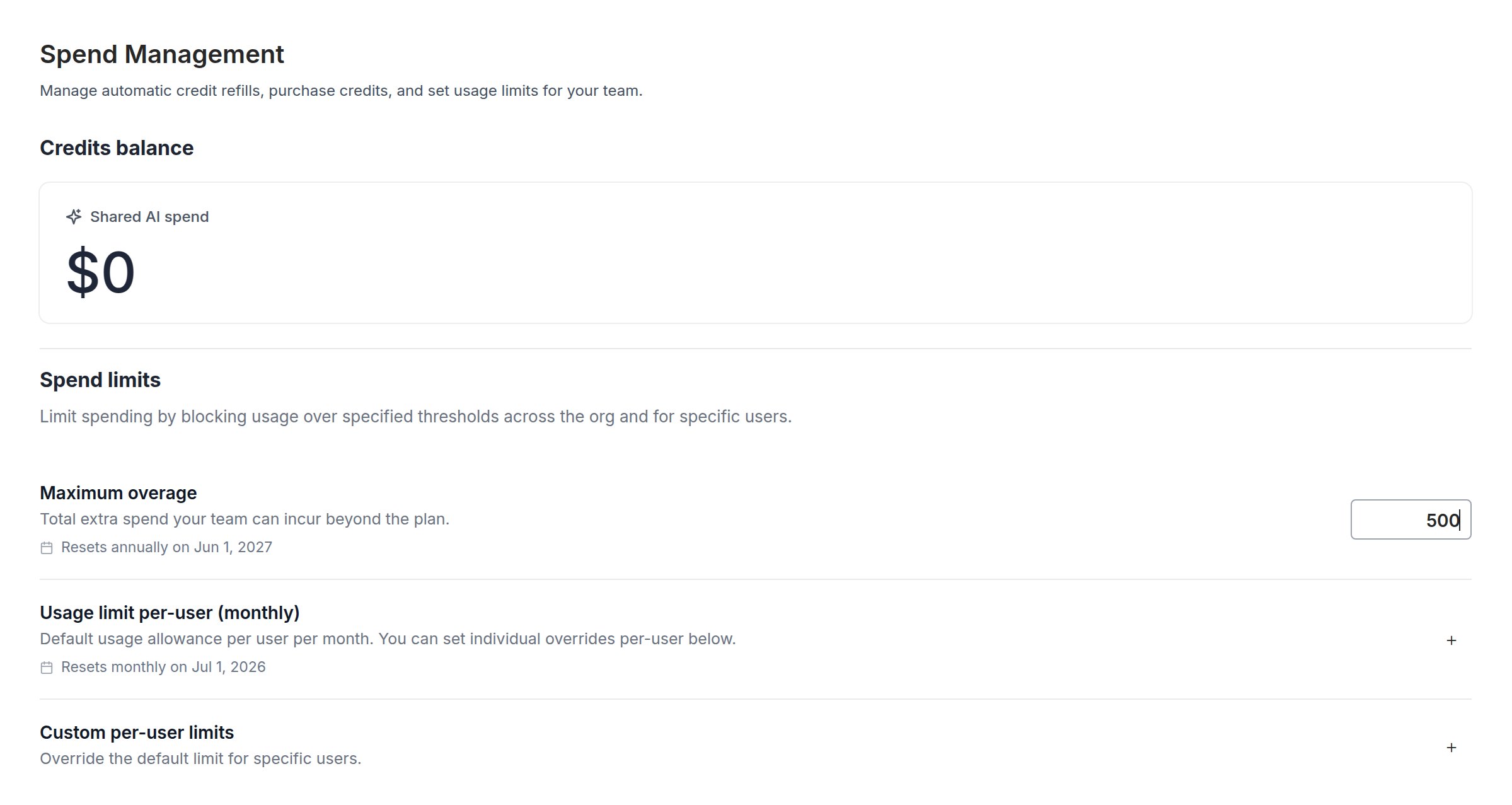
Set a default credit allowance that applies to every user in your organization. This is the maximum number of credits any individual user can consume per month. Per-user limits always reset monthly, regardless of your plan's billing cycle.
1. In the **Spend limits** section, click **+** next to **Default per-user limit**
2. Enter the credit limit
3. The limit takes effect immediately for all users without a custom override
### Custom per-user limits
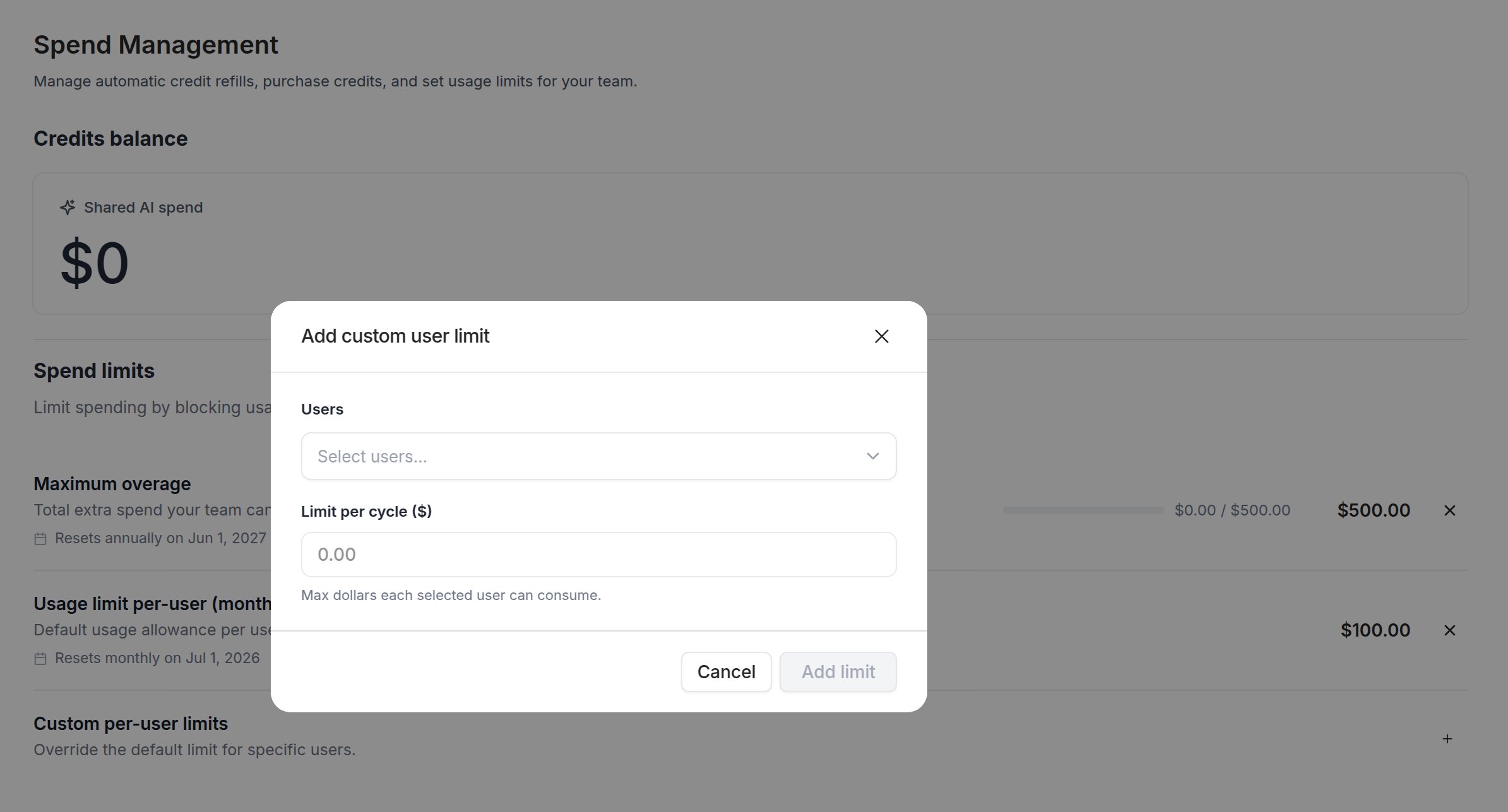
Override the default limit for specific users who need more (or fewer) credits.
1. Click **+** next to **Custom per-user limits**
2. Select a user from the dropdown — including pending invitees who haven't accepted yet
3. Set their individual credit limit
Custom limits take precedence over the default. When a user with a pending invite accepts, their pre-configured limit applies immediately — no additional admin action needed.
### Default per-user limit
Set a default credit allowance that applies to every user in your organization. This is the maximum number of credits any individual user can consume per month. Per-user limits always reset monthly, regardless of your plan's billing cycle.
1. In the **Spend limits** section, click **+** next to **Default per-user limit**
2. Enter the credit limit
3. The limit takes effect immediately for all users without a custom override
### Custom per-user limits
Override the default limit for specific users who need more (or fewer) credits.
1. Click **+** next to **Custom per-user limits**
2. Select a user from the dropdown — including pending invitees who haven't accepted yet
3. Set their individual credit limit
Custom limits take precedence over the default. When a user with a pending invite accepts, their pre-configured limit applies immediately — no additional admin action needed.
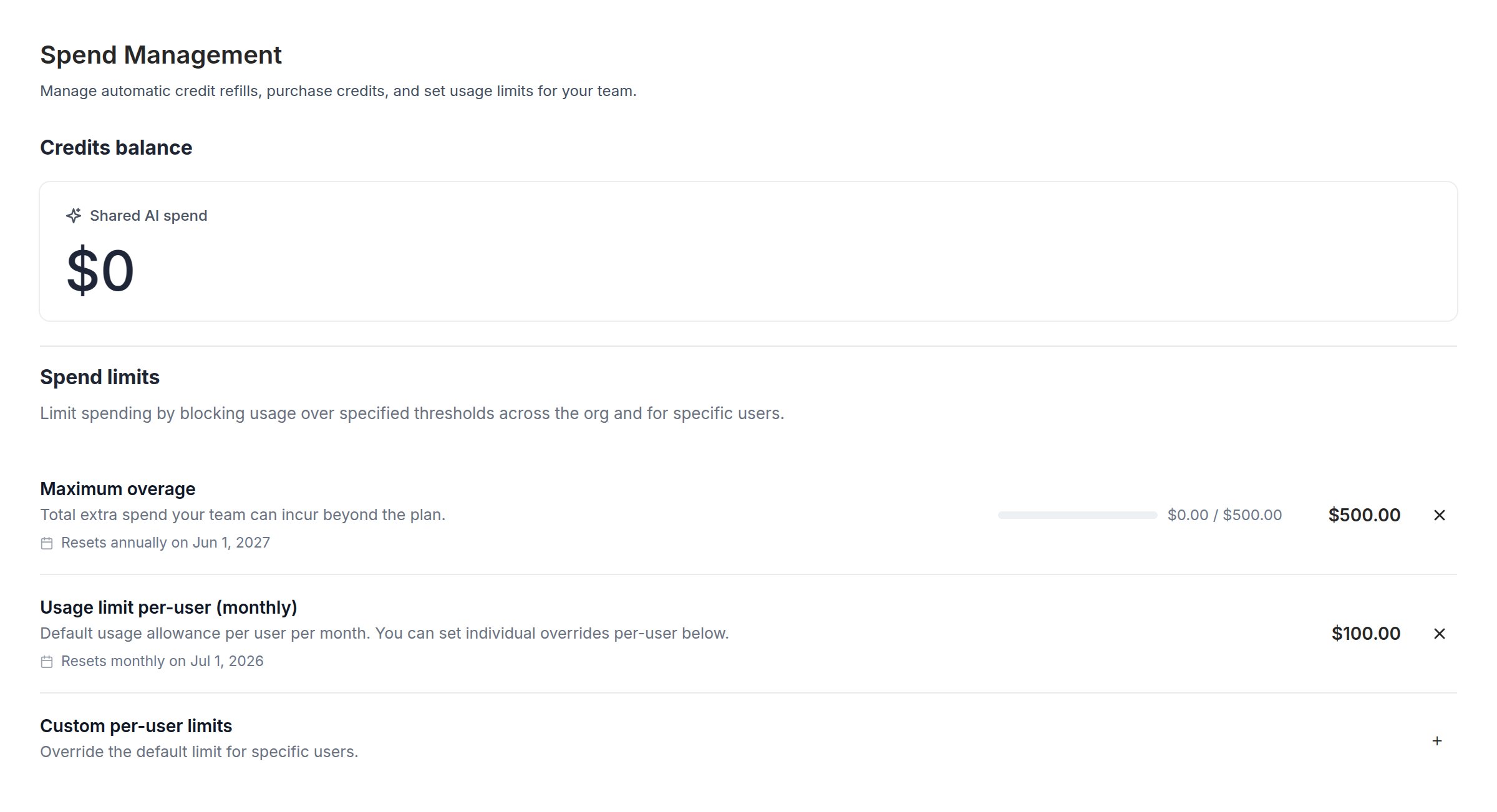
 For Enterprise contracts denominated in dollars (dollar commit), all limits and usage displays are shown in dollar amounts instead of credits.
## What happens when a limit is reached
When a user or organization reaches a configured spend limit:
* AI-powered features (Clark and other AI interactions) are paused for the affected scope
* Users see a notification explaining that their credit limit has been reached
* Administrators can increase limits or purchase additional credits to resume usage
* Limits reset automatically at the start of each period (monthly for per-user limits; your billing cycle for the org-wide overage cap)
## Programmatic spend management via MCP
You can monitor spending and configure limits programmatically using the [Superblocks MCP server](/admin/mcp-server). This is useful for automated monitoring, integrating with internal tools, or managing limits at scale.
### Available tools
| Tool | Description |
| --------------------------------- | --------------------------------------------------------------------------------------------------------- |
| `get_billing_plan_summary` | Get current plan details including credit allocation, usage, billing cycle dates, and deployed app counts |
| `get_billing_usage_daily` | Get daily AI credit usage for a date range — one row per day with total credits consumed |
| `get_billing_usage_records` | Get per-user AI credit usage records for a date range, including top consumers |
| `list_billing_usage_limits` | View all configured spend limits — organization-wide and per-user |
| `update_org_billing_usage_limit` | Set or update the organization-wide credit overage cap |
| `update_user_billing_usage_limit` | Set or update a per-user credit limit, or configure the default limit for all users |
All billing MCP tools require the `billing:manage` permission.
### Example: Check current usage
Ask your AI coding agent:
```
What's our current AI credit usage this billing cycle?
```
The agent will call `get_billing_plan_summary` and return your current usage, remaining credits, and billing cycle dates.
### Example: Set a per-user limit
```
Set a default per-user credit limit of 50 credits per month for my Superblocks org.
```
The agent will call `update_user_billing_usage_limit` with `is_default: true` and `credit_limit: 50`.
### Example: Monitor daily usage trends
```
Show me daily AI credit usage for the past 30 days.
```
The agent will call `get_billing_usage_daily` with the appropriate date range and return a breakdown of daily consumption.
## Spending notifications New
Spend alerts notify administrators by email when usage approaches configured thresholds, so you can take action before hitting a billing surprise. Configure alerts from the **Spend alerts** section at the bottom of the Spend Management page.
Spend alerts are rolling out progressively. If you don't see the Spend alerts section on your Spend Management page, contact support to have it enabled for your organization.
### Alert types
Superblocks supports four alert types. The types available to your organization depend on your plan:
| Alert type | Description | TEAMS | Enterprise |
| ---------------------- | -------------------------------------------------------------------------------------------------------------------------------- | ----- | ---------- |
| **Organization spend** | Fires when total org usage crosses a threshold (percentage of allocation, credits used, or credits remaining) | ✓ | ✓ |
| **Per-user spend** | Fires when an individual user's usage crosses a credit threshold | ✓ | ✓ |
| **Overage spend** | Fires when overage consumption crosses a specified threshold. Relevant for Enterprise plans. | — | ✓ |
| **Refill spend** | Fires when cumulative credit refill spending crosses a threshold in the current cycle. Relevant for pay-as-you-go plans (Teams). | ✓ | — |
Enterprise contracts denominated in dollars (dollar commit) display all thresholds and usage in dollar amounts instead of credits.
### Configuring alerts
1. Navigate to **Organization Settings > Spend Management**
2. Scroll to the **Spend alerts** section
3. Click **+ Add alert**
4. Choose an alert type — only types available on your plan are shown
5. Set one or more thresholds (for example, notify at 80% and 100% of your allocation)
6. Save the alert
Alerts are evaluated in real time as usage is recorded. When a threshold is crossed, an email is sent to all organization administrators. Each threshold fires at most once per billing cycle — it re-arms automatically when a new cycle begins.
### Threshold units
The units available depend on the alert type:
* **Organization spend:** percentage of allocation, credits used, or credits remaining
* **Per-user spend:** credits consumed by a single user
* **Overage spend:** overage credits consumed (or dollars, on dollar-commit plans)
* **Refill spend:** credits or dollars spent on refills
### Delivery
Spend alerts are delivered via email to all organization administrators. Per-user spend alerts also notify the individual user who triggered the threshold.
For Enterprise contracts denominated in dollars (dollar commit), all limits and usage displays are shown in dollar amounts instead of credits.
## What happens when a limit is reached
When a user or organization reaches a configured spend limit:
* AI-powered features (Clark and other AI interactions) are paused for the affected scope
* Users see a notification explaining that their credit limit has been reached
* Administrators can increase limits or purchase additional credits to resume usage
* Limits reset automatically at the start of each period (monthly for per-user limits; your billing cycle for the org-wide overage cap)
## Programmatic spend management via MCP
You can monitor spending and configure limits programmatically using the [Superblocks MCP server](/admin/mcp-server). This is useful for automated monitoring, integrating with internal tools, or managing limits at scale.
### Available tools
| Tool | Description |
| --------------------------------- | --------------------------------------------------------------------------------------------------------- |
| `get_billing_plan_summary` | Get current plan details including credit allocation, usage, billing cycle dates, and deployed app counts |
| `get_billing_usage_daily` | Get daily AI credit usage for a date range — one row per day with total credits consumed |
| `get_billing_usage_records` | Get per-user AI credit usage records for a date range, including top consumers |
| `list_billing_usage_limits` | View all configured spend limits — organization-wide and per-user |
| `update_org_billing_usage_limit` | Set or update the organization-wide credit overage cap |
| `update_user_billing_usage_limit` | Set or update a per-user credit limit, or configure the default limit for all users |
All billing MCP tools require the `billing:manage` permission.
### Example: Check current usage
Ask your AI coding agent:
```
What's our current AI credit usage this billing cycle?
```
The agent will call `get_billing_plan_summary` and return your current usage, remaining credits, and billing cycle dates.
### Example: Set a per-user limit
```
Set a default per-user credit limit of 50 credits per month for my Superblocks org.
```
The agent will call `update_user_billing_usage_limit` with `is_default: true` and `credit_limit: 50`.
### Example: Monitor daily usage trends
```
Show me daily AI credit usage for the past 30 days.
```
The agent will call `get_billing_usage_daily` with the appropriate date range and return a breakdown of daily consumption.
## Spending notifications New
Spend alerts notify administrators by email when usage approaches configured thresholds, so you can take action before hitting a billing surprise. Configure alerts from the **Spend alerts** section at the bottom of the Spend Management page.
Spend alerts are rolling out progressively. If you don't see the Spend alerts section on your Spend Management page, contact support to have it enabled for your organization.
### Alert types
Superblocks supports four alert types. The types available to your organization depend on your plan:
| Alert type | Description | TEAMS | Enterprise |
| ---------------------- | -------------------------------------------------------------------------------------------------------------------------------- | ----- | ---------- |
| **Organization spend** | Fires when total org usage crosses a threshold (percentage of allocation, credits used, or credits remaining) | ✓ | ✓ |
| **Per-user spend** | Fires when an individual user's usage crosses a credit threshold | ✓ | ✓ |
| **Overage spend** | Fires when overage consumption crosses a specified threshold. Relevant for Enterprise plans. | — | ✓ |
| **Refill spend** | Fires when cumulative credit refill spending crosses a threshold in the current cycle. Relevant for pay-as-you-go plans (Teams). | ✓ | — |
Enterprise contracts denominated in dollars (dollar commit) display all thresholds and usage in dollar amounts instead of credits.
### Configuring alerts
1. Navigate to **Organization Settings > Spend Management**
2. Scroll to the **Spend alerts** section
3. Click **+ Add alert**
4. Choose an alert type — only types available on your plan are shown
5. Set one or more thresholds (for example, notify at 80% and 100% of your allocation)
6. Save the alert
Alerts are evaluated in real time as usage is recorded. When a threshold is crossed, an email is sent to all organization administrators. Each threshold fires at most once per billing cycle — it re-arms automatically when a new cycle begins.
### Threshold units
The units available depend on the alert type:
* **Organization spend:** percentage of allocation, credits used, or credits remaining
* **Per-user spend:** credits consumed by a single user
* **Overage spend:** overage credits consumed (or dollars, on dollar-commit plans)
* **Refill spend:** credits or dollars spent on refills
### Delivery
Spend alerts are delivered via email to all organization administrators. Per-user spend alerts also notify the individual user who triggered the threshold.