> ## Documentation Index
> Fetch the complete documentation index at: https://docs.superblocks.com/llms.txt
> Use this file to discover all available pages before exploring further.
# Manage access to resources
> Manage individual, group, and app access to individual org resources
export const Alert = ({type, title, children}) => {
const getIcon = () => {
switch (type) {
case 'info':
return "data:image/svg+xml,%3Csvg xmlns='http://www.w3.org/2000/svg' width='20' height='20' viewBox='0 0 20 20' fill='none'%3E%3Cpath d='M10 0C4.477 0 0 4.477 0 10s4.477 10 10 10 10-4.477 10-10S15.523 0 10 0zm0 15c-.552 0-1-.448-1-1s.448-1 1-1 1 .448 1 1-.448 1-1 1zm1-3H9V6h2v6z' fill='%230099FF'/%3E%3C/svg%3E";
case 'success':
return "data:image/svg+xml,%3Csvg width='20' height='20' viewBox='0 0 20 20' fill='none' xmlns='http://www.w3.org/2000/svg'%3E%3Cpath fill-rule='evenodd' clip-rule='evenodd' d='M10 0C4.477 0 0 4.477 0 10s4.477 10 10 10 10-4.477 10-10S15.523 0 10 0zm4.293 6.293L9 11.586 5.707 8.293c-.391-.391-1.024-.391-1.414 0s-.391 1.024 0 1.414l4 4c.391.391 1.024.391 1.414 0l6-6c.391-.391.391-1.024 0-1.414s-1.024-.391-1.414 0z' fill='%230CC26D'/%3E%3C/svg%3E";
case 'warning':
return "data:image/svg+xml;charset=utf-8;base64,PHN2ZyB4bWxucz0naHR0cDovL3d3dy53My5vcmcvMjAwMC9zdmcnIHhtbDpzcGFjZT0ncHJlc2VydmUnIHdpZHRoPScxMDgwJyBoZWlnaHQ9JzEwODAnPjxyZWN0IHdpZHRoPScxMDAlJyBoZWlnaHQ9JzEwMCUnIGZpbGw9J3RyYW5zcGFyZW50Jy8+PHBhdGggZD0nTTEzLjc5NCAxMC43NSA4LjMgMS4yNWExLjUgMS41IDAgMCAwLTIuNiAwbC01LjQ5NCA5LjVBMS40OTQgMS40OTQgMCAwIDAgMS41IDEzaDExYTEuNDkzIDEuNDkzIDAgMCAwIDEuMjk0LTIuMjVNNi41IDUuNWEuNS41IDAgMCAxIDEgMFY4YS41LjUgMCAwIDEtMSAwek03IDExYS43NS43NSAwIDEgMSAwLTEuNS43NS43NSAwIDAgMSAwIDEuNScgc3R5bGU9J3N0cm9rZTpub25lO3N0cm9rZS13aWR0aDoxO3N0cm9rZS1kYXNoYXJyYXk6bm9uZTtzdHJva2UtbGluZWNhcDpidXR0O3N0cm9rZS1kYXNob2Zmc2V0OjA7c3Ryb2tlLWxpbmVqb2luOm1pdGVyO3N0cm9rZS1taXRlcmxpbWl0OjQ7ZmlsbDojZmY5ZjM1O2ZpbGwtcnVsZTpub256ZXJvO29wYWNpdHk6MScgdHJhbnNmb3JtPSd0cmFuc2xhdGUoLjAyIDE5LjMwNSlzY2FsZSg3Ny4xNCknLz48L3N2Zz4=";
case 'danger':
return "data:image/svg+xml,%3Csvg width='20' height='20' viewBox='0 0 20 20' fill='none' xmlns='http://www.w3.org/2000/svg'%3E%3Cpath d='M10 0C4.477 0 0 4.477 0 10s4.477 10 10 10 10-4.477 10-10S15.523 0 10 0zm5.707 4.293L10 9.586 4.293 4.293c-.391-.391-1.024-.391-1.414 0s-.391 1.024 0 1.414L8.586 11l-5.707 5.293c-.391.391-.391 1.024 0 1.414s1.024.391 1.414 0L10 12.414l5.707 5.293c.391.391 1.024.391 1.414 0s.391-1.024 0-1.414L11.414 11l5.707-5.293c.391-.391.391-1.024 0-1.414s-1.024-.391-1.414 0z' fill='%23F45252'/%3E%3C/svg%3E";
case 'note':
return "data:image/svg+xml,%3Csvg xmlns='http://www.w3.org/2000/svg' width='20' height='20' viewBox='0 0 20 20' fill='none'%3E%3Cpath d='M10 0C4.477 0 0 4.477 0 10s4.477 10 10 10 10-4.477 10-10S15.523 0 10 0zm0 15c-.552 0-1-.448-1-1s.448-1 1-1 1 .448 1 1-.448 1-1 1zm1-3H9V6h2v6z' fill='%230099FF'/%3E%3C/svg%3E";
default:
return "";
}
};
return
{title &&
{title}
}
{children}
;
};
**Who can use this feature?**
Organization **Owners**, **Admins**, and others with the `*:share` access to a resource
## Who can manage access
Users with the `share` permission to a resource can grant others access to that resource. This includes users with both `share` permission to an individual resource, as well as users with an organization role granting them `share` permission to all resources.
For example, a user with the [Admin](/admin/org-administration/resource-roles#applications) role on the **Customer 360** application is able to manage others' access to that application. Similarly, a user with the `integrations:share` permission granted to them through an [organization role](/admin/org-administration/org-roles) can manage access to all Integrations.
## Granting users access to resources
Resources in Superblocks (Apps, Integrations) can be shared with specific users or groups.
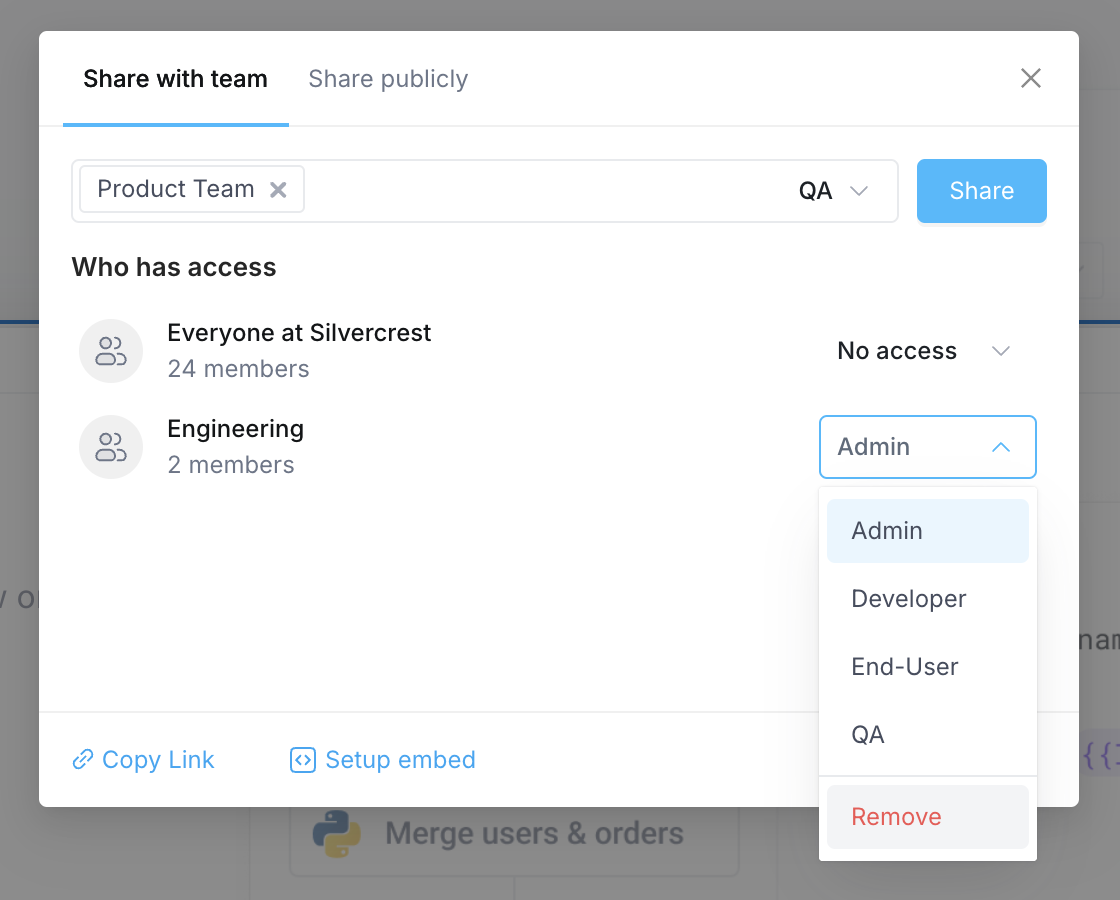
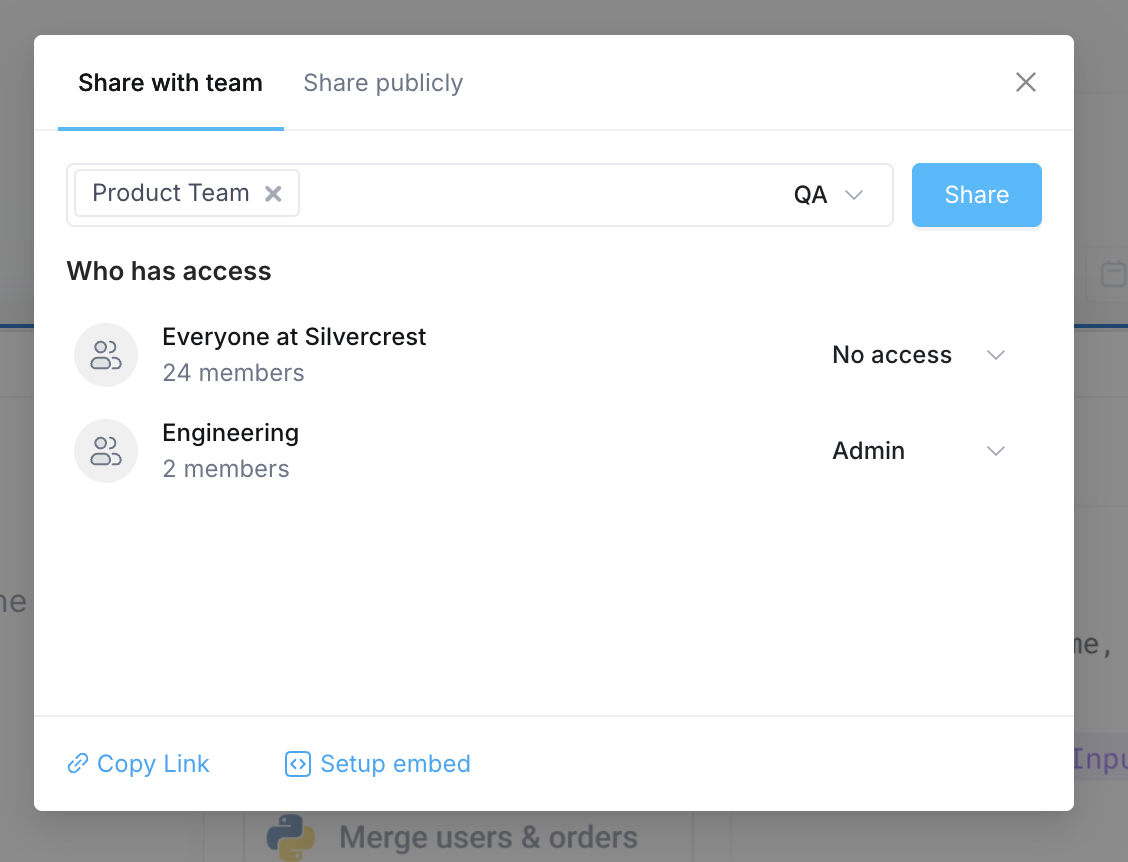
When you share the resource, you can select the resource role to grant to the user or group. This role dictates the permissions the user has over the resources.
To grant access to an individual resource:
1. Navigate to the resource (Application, Integration) you want to grant access to
2. Click into the editor or configuration page for that resource
3. Find and click on the **Share** button in the upper right-hand corner of the page
4. In the dialog box that appears, search for the individual or group you want to share the resource with
5. Select the **Resource role** you want to assign
6. Click **Share**
 ## Granting specific apps access to integrations
In addition to users and groups, integrations can be shared with specific **apps**.
When an integration is restricted to one or more apps, users can only build with this integration from within the specific apps.
An integration can be shared across all applications, or restricted to specific applications.
* **All apps**: The integration is available across the organization to users who have access to it. This is the default for new and existing integrations.
* **Specific apps**: The integration is only available to the apps you select.
To control which apps can use an integration:
1. Navigate to the [**Integrations**](https://app.superblocks.com/integrations) page and select the integration
2. Click the **Share** button
3. In the **App availability** section, select **Specific apps** and choose the apps to grant access, or select **All apps** to make it available across the organization
4. Click **Share** to save your changes
### How app and user-level integration access combine when building
App availability and a builder's own integration permission are checked independently.
* App availability determines which integrations are available within an app.
* A builder's integration permission determines which of those integrations he or she can build with.
Within a given app, a user can only build with an integration when **both** of the following are true:
* The integration is available to that app (either **All apps** or that **specific app**)
* The builder has the integration's `build` permission, granted directly or through a group.
This means:
* Sharing an integration with an app does not give that app's builders permission to build with that integration
* A builder's integration permission does not let them use the integration in an app the integration has not been shared with
If an integration is already in use within an app and that app's access is removed, existing APIs using this integration will continue to execute. However, builders will not be able to build new APIs with that integration.
### Integration access in published apps (for end-users)
A user does not need access to a specific integration in order to use the integration as an end-user of an application.
This is intentional; the resource permissions for integrations only restrict who can build with the integration (and in which apps).
Once the app is published, users can access any features in the app that are shared with them according to their [App-level RBAC](/building-with-clark/rbac).
## Auditing access changes
All changes to resource permissions, including granting or revoking user, group, and app access, are recorded in [Audit logs](/admin/audit-logs). Use audit logs to review who changed access to a resource and when. To view changes to integration access, filter by **Resource: Integration**.
## Granting access to all resources
Resource roles give a user access to specific resources. Organization roles differ from resource roles in that they can grant access to **all current and future resources** of a type. To learn more, see [About organization roles](/admin/org-administration/org-roles)
## Change the level of access granted
Once a user or group has access to a resource, you can change the level of access they've been granted. To change the access level:
1. Navigate to the resource (Application, Workflow, Integration, etc) you want to grant access to
2. Click into the editor or configuration page for that resource
3. Find and click on the **Share** button in the upper right-hand corner of the page
4. Find the user or group you want to update
5. Select the role dropdown and select the new role you want to set
## Removing access to a resource
To remove an individual or group's access to a resource:
1. Navigate to the resource (Application, Workflow, Integration, etc) you want to grant access to
2. Click into the editor or configuration page for that resource
3. Find and click on the **Share** button in the upper right-hand corner of the page
4. Find the user or group you want to remove access from
5. Select the role dropdown and select **Remove**
6. In the confirmation dialog, click **Confirm**
## Granting specific apps access to integrations
In addition to users and groups, integrations can be shared with specific **apps**.
When an integration is restricted to one or more apps, users can only build with this integration from within the specific apps.
An integration can be shared across all applications, or restricted to specific applications.
* **All apps**: The integration is available across the organization to users who have access to it. This is the default for new and existing integrations.
* **Specific apps**: The integration is only available to the apps you select.
To control which apps can use an integration:
1. Navigate to the [**Integrations**](https://app.superblocks.com/integrations) page and select the integration
2. Click the **Share** button
3. In the **App availability** section, select **Specific apps** and choose the apps to grant access, or select **All apps** to make it available across the organization
4. Click **Share** to save your changes
### How app and user-level integration access combine when building
App availability and a builder's own integration permission are checked independently.
* App availability determines which integrations are available within an app.
* A builder's integration permission determines which of those integrations he or she can build with.
Within a given app, a user can only build with an integration when **both** of the following are true:
* The integration is available to that app (either **All apps** or that **specific app**)
* The builder has the integration's `build` permission, granted directly or through a group.
This means:
* Sharing an integration with an app does not give that app's builders permission to build with that integration
* A builder's integration permission does not let them use the integration in an app the integration has not been shared with
If an integration is already in use within an app and that app's access is removed, existing APIs using this integration will continue to execute. However, builders will not be able to build new APIs with that integration.
### Integration access in published apps (for end-users)
A user does not need access to a specific integration in order to use the integration as an end-user of an application.
This is intentional; the resource permissions for integrations only restrict who can build with the integration (and in which apps).
Once the app is published, users can access any features in the app that are shared with them according to their [App-level RBAC](/building-with-clark/rbac).
## Auditing access changes
All changes to resource permissions, including granting or revoking user, group, and app access, are recorded in [Audit logs](/admin/audit-logs). Use audit logs to review who changed access to a resource and when. To view changes to integration access, filter by **Resource: Integration**.
## Granting access to all resources
Resource roles give a user access to specific resources. Organization roles differ from resource roles in that they can grant access to **all current and future resources** of a type. To learn more, see [About organization roles](/admin/org-administration/org-roles)
## Change the level of access granted
Once a user or group has access to a resource, you can change the level of access they've been granted. To change the access level:
1. Navigate to the resource (Application, Workflow, Integration, etc) you want to grant access to
2. Click into the editor or configuration page for that resource
3. Find and click on the **Share** button in the upper right-hand corner of the page
4. Find the user or group you want to update
5. Select the role dropdown and select the new role you want to set
## Removing access to a resource
To remove an individual or group's access to a resource:
1. Navigate to the resource (Application, Workflow, Integration, etc) you want to grant access to
2. Click into the editor or configuration page for that resource
3. Find and click on the **Share** button in the upper right-hand corner of the page
4. Find the user or group you want to remove access from
5. Select the role dropdown and select **Remove**
6. In the confirmation dialog, click **Confirm**