> ## Documentation Index
> Fetch the complete documentation index at: https://docs.superblocks.com/llms.txt
> Use this file to discover all available pages before exploring further.
# About custom resource roles
> Customize permissions granted on an individual resource with custom resource roles
export const Alert = ({type, title, children}) => {
const getIcon = () => {
switch (type) {
case 'info':
return "data:image/svg+xml,%3Csvg xmlns='http://www.w3.org/2000/svg' width='20' height='20' viewBox='0 0 20 20' fill='none'%3E%3Cpath d='M10 0C4.477 0 0 4.477 0 10s4.477 10 10 10 10-4.477 10-10S15.523 0 10 0zm0 15c-.552 0-1-.448-1-1s.448-1 1-1 1 .448 1 1-.448 1-1 1zm1-3H9V6h2v6z' fill='%230099FF'/%3E%3C/svg%3E";
case 'success':
return "data:image/svg+xml,%3Csvg width='20' height='20' viewBox='0 0 20 20' fill='none' xmlns='http://www.w3.org/2000/svg'%3E%3Cpath fill-rule='evenodd' clip-rule='evenodd' d='M10 0C4.477 0 0 4.477 0 10s4.477 10 10 10 10-4.477 10-10S15.523 0 10 0zm4.293 6.293L9 11.586 5.707 8.293c-.391-.391-1.024-.391-1.414 0s-.391 1.024 0 1.414l4 4c.391.391 1.024.391 1.414 0l6-6c.391-.391.391-1.024 0-1.414s-1.024-.391-1.414 0z' fill='%230CC26D'/%3E%3C/svg%3E";
case 'warning':
return "data:image/svg+xml;charset=utf-8;base64,PHN2ZyB4bWxucz0naHR0cDovL3d3dy53My5vcmcvMjAwMC9zdmcnIHhtbDpzcGFjZT0ncHJlc2VydmUnIHdpZHRoPScxMDgwJyBoZWlnaHQ9JzEwODAnPjxyZWN0IHdpZHRoPScxMDAlJyBoZWlnaHQ9JzEwMCUnIGZpbGw9J3RyYW5zcGFyZW50Jy8+PHBhdGggZD0nTTEzLjc5NCAxMC43NSA4LjMgMS4yNWExLjUgMS41IDAgMCAwLTIuNiAwbC01LjQ5NCA5LjVBMS40OTQgMS40OTQgMCAwIDAgMS41IDEzaDExYTEuNDkzIDEuNDkzIDAgMCAwIDEuMjk0LTIuMjVNNi41IDUuNWEuNS41IDAgMCAxIDEgMFY4YS41LjUgMCAwIDEtMSAwek03IDExYS43NS43NSAwIDEgMSAwLTEuNS43NS43NSAwIDAgMSAwIDEuNScgc3R5bGU9J3N0cm9rZTpub25lO3N0cm9rZS13aWR0aDoxO3N0cm9rZS1kYXNoYXJyYXk6bm9uZTtzdHJva2UtbGluZWNhcDpidXR0O3N0cm9rZS1kYXNob2Zmc2V0OjA7c3Ryb2tlLWxpbmVqb2luOm1pdGVyO3N0cm9rZS1taXRlcmxpbWl0OjQ7ZmlsbDojZmY5ZjM1O2ZpbGwtcnVsZTpub256ZXJvO29wYWNpdHk6MScgdHJhbnNmb3JtPSd0cmFuc2xhdGUoLjAyIDE5LjMwNSlzY2FsZSg3Ny4xNCknLz48L3N2Zz4=";
case 'danger':
return "data:image/svg+xml,%3Csvg width='20' height='20' viewBox='0 0 20 20' fill='none' xmlns='http://www.w3.org/2000/svg'%3E%3Cpath d='M10 0C4.477 0 0 4.477 0 10s4.477 10 10 10 10-4.477 10-10S15.523 0 10 0zm5.707 4.293L10 9.586 4.293 4.293c-.391-.391-1.024-.391-1.414 0s-.391 1.024 0 1.414L8.586 11l-5.707 5.293c-.391.391-.391 1.024 0 1.414s1.024.391 1.414 0L10 12.414l5.707 5.293c.391.391 1.024.391 1.414 0s.391-1.024 0-1.414L11.414 11l5.707-5.293c.391-.391.391-1.024 0-1.414s-1.024-.391-1.414 0z' fill='%23F45252'/%3E%3C/svg%3E";
case 'note':
return "data:image/svg+xml,%3Csvg xmlns='http://www.w3.org/2000/svg' width='20' height='20' viewBox='0 0 20 20' fill='none'%3E%3Cpath d='M10 0C4.477 0 0 4.477 0 10s4.477 10 10 10 10-4.477 10-10S15.523 0 10 0zm0 15c-.552 0-1-.448-1-1s.448-1 1-1 1 .448 1 1-.448 1-1 1zm1-3H9V6h2v6z' fill='%230099FF'/%3E%3C/svg%3E";
default:
return "";
}
};
return
{title &&
{title}
}
{children}
;
};
**Who can use this feature?**
Organization **Owners**, **Admins**, and other users with the `roles:manage` permission
Custom resource roles let you gain more control over the permissions users have to manage individual Applications, Integrations, Workflows, and Scheduled Jobs.
For example, you can create custom roles like:
| Custom role | Description | Resource | Permissions |
| ----------- | ---------------------------------------------------------------------------------------------------------------- | ----------- | ------------------------------------------------ |
| QA | Lets the QA team review application changes using commit previews, but doesn't give them access to the live app. | Application | `apps:preview` |
| Maintainer | Grants permissions to edit an integration's credentials while not letting them delete or share the integration | Integration | `integrations:update`
`integrations:build` |
| Contributor | Can make updates to assigned Workflows, but can't deploy their changes. | Workflow | `workflows:update` |
## Creating a custom role
To create a custom resource role:
1. Click your avatar in the upper-left corner of the home page and click **Organization Settings**
2. Click [**Roles & Permissions**](https://app.superblocks.com/roles-and-permissions/resource-roles)
3. Click on the **Resource roles** tab
4. Locate the resource you want to create a custom role for
5. On the resource roles table, click **+** icon
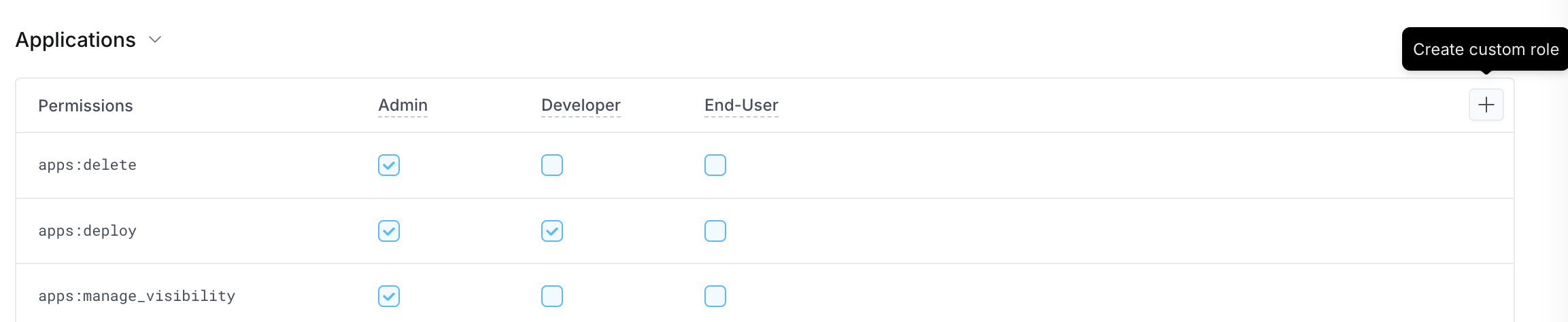 6. Type a name and description for the custom role
7. Click **Create**
8. Add permissions to your custom role by selecting the permissions in the permission table
9. Once you've selected all the permissions you want assigned to the role, click **Save**
After you create a custom role:
* Anyone with the `*:share` permission of a resource can assign the role to users or groups. See [Managing access to resources](/admin/org-administration/resource-roles/manage-access)
* You can make this role what everyone receives when new resources are created. See [Resource base permissions](/admin/org-administration/resource-roles/base-permissions)
* You can make the role the one assigned to resource creators. See [Manage creator roles](/admin/org-administration/resource-roles/creator-roles)
## Editing a custom role's details
To edit the name or description of a custom role:
1. Click your avatar in the upper-left corner of the home page and click **Organization Settings**
2. Click [**Roles & Permissions**](https://app.superblocks.com/roles-and-permissions/resource-roles)
3. Click on the **Resource roles** tab
4. Next to the role you want to edit, select the dropdown menu (⋯), then click **Edit details**
5. Change the role as required, then click **Save**
## Editing a role's permissions
To edit the permissions associated with a custom role:
1. Click your avatar in the upper-left corner of the home page and click **Organization Settings**
2. Click [**Roles & Permissions**](https://app.superblocks.com/roles-and-permissions/resource-roles)
3. Click on the **Resource roles** tab
4. Locate the role you want to edit
5. Check/uncheck the boxes associated with permissions you want to add/remove from the role
6. Once you've made all your permission selections, click the **Save** button at the bottom of the page
## Deleting a custom role
1. Click your avatar in the upper-left corner of the home page and click **Organization Settings**
2. Click [**Roles & Permissions**](https://app.superblocks.com/roles-and-permissions/resource-roles)
3. Click on the **Resource roles** tab
4. Next to the role you want to delete, select the dropdown menu (⋯), then click **Delete**
5. In the confirmation dialog, choose a new role to assigned to users that currently are assigned the role being deleted, or select **Remove access**
6. Click **Reassign & delete**
## Precedence for different levels of access
Role and permissions are additive. If a person is given different levels of access through different avenues the user will have the sum of all access grants.
For example, if the organization Owner assigns a user the [End-user organization role](/admin/org-administration/org-roles#builtin-organization-roles), and then an app admin gives the user the [Developer](/admin/org-administration/resource-roles#applications) role on their Application, the user will be able to edit the application shard with them even though they cannot create their own Applications.
6. Type a name and description for the custom role
7. Click **Create**
8. Add permissions to your custom role by selecting the permissions in the permission table
9. Once you've selected all the permissions you want assigned to the role, click **Save**
After you create a custom role:
* Anyone with the `*:share` permission of a resource can assign the role to users or groups. See [Managing access to resources](/admin/org-administration/resource-roles/manage-access)
* You can make this role what everyone receives when new resources are created. See [Resource base permissions](/admin/org-administration/resource-roles/base-permissions)
* You can make the role the one assigned to resource creators. See [Manage creator roles](/admin/org-administration/resource-roles/creator-roles)
## Editing a custom role's details
To edit the name or description of a custom role:
1. Click your avatar in the upper-left corner of the home page and click **Organization Settings**
2. Click [**Roles & Permissions**](https://app.superblocks.com/roles-and-permissions/resource-roles)
3. Click on the **Resource roles** tab
4. Next to the role you want to edit, select the dropdown menu (⋯), then click **Edit details**
5. Change the role as required, then click **Save**
## Editing a role's permissions
To edit the permissions associated with a custom role:
1. Click your avatar in the upper-left corner of the home page and click **Organization Settings**
2. Click [**Roles & Permissions**](https://app.superblocks.com/roles-and-permissions/resource-roles)
3. Click on the **Resource roles** tab
4. Locate the role you want to edit
5. Check/uncheck the boxes associated with permissions you want to add/remove from the role
6. Once you've made all your permission selections, click the **Save** button at the bottom of the page
## Deleting a custom role
1. Click your avatar in the upper-left corner of the home page and click **Organization Settings**
2. Click [**Roles & Permissions**](https://app.superblocks.com/roles-and-permissions/resource-roles)
3. Click on the **Resource roles** tab
4. Next to the role you want to delete, select the dropdown menu (⋯), then click **Delete**
5. In the confirmation dialog, choose a new role to assigned to users that currently are assigned the role being deleted, or select **Remove access**
6. Click **Reassign & delete**
## Precedence for different levels of access
Role and permissions are additive. If a person is given different levels of access through different avenues the user will have the sum of all access grants.
For example, if the organization Owner assigns a user the [End-user organization role](/admin/org-administration/org-roles#builtin-organization-roles), and then an app admin gives the user the [Developer](/admin/org-administration/resource-roles#applications) role on their Application, the user will be able to edit the application shard with them even though they cannot create their own Applications.