> ## Documentation Index
> Fetch the complete documentation index at: https://docs.superblocks.com/llms.txt
> Use this file to discover all available pages before exploring further.
# Using organization roles
export const Alert = ({type, title, children}) => {
const getIcon = () => {
switch (type) {
case 'info':
return "data:image/svg+xml,%3Csvg xmlns='http://www.w3.org/2000/svg' width='20' height='20' viewBox='0 0 20 20' fill='none'%3E%3Cpath d='M10 0C4.477 0 0 4.477 0 10s4.477 10 10 10 10-4.477 10-10S15.523 0 10 0zm0 15c-.552 0-1-.448-1-1s.448-1 1-1 1 .448 1 1-.448 1-1 1zm1-3H9V6h2v6z' fill='%230099FF'/%3E%3C/svg%3E";
case 'success':
return "data:image/svg+xml,%3Csvg width='20' height='20' viewBox='0 0 20 20' fill='none' xmlns='http://www.w3.org/2000/svg'%3E%3Cpath fill-rule='evenodd' clip-rule='evenodd' d='M10 0C4.477 0 0 4.477 0 10s4.477 10 10 10 10-4.477 10-10S15.523 0 10 0zm4.293 6.293L9 11.586 5.707 8.293c-.391-.391-1.024-.391-1.414 0s-.391 1.024 0 1.414l4 4c.391.391 1.024.391 1.414 0l6-6c.391-.391.391-1.024 0-1.414s-1.024-.391-1.414 0z' fill='%230CC26D'/%3E%3C/svg%3E";
case 'warning':
return "data:image/svg+xml;charset=utf-8;base64,PHN2ZyB4bWxucz0naHR0cDovL3d3dy53My5vcmcvMjAwMC9zdmcnIHhtbDpzcGFjZT0ncHJlc2VydmUnIHdpZHRoPScxMDgwJyBoZWlnaHQ9JzEwODAnPjxyZWN0IHdpZHRoPScxMDAlJyBoZWlnaHQ9JzEwMCUnIGZpbGw9J3RyYW5zcGFyZW50Jy8+PHBhdGggZD0nTTEzLjc5NCAxMC43NSA4LjMgMS4yNWExLjUgMS41IDAgMCAwLTIuNiAwbC01LjQ5NCA5LjVBMS40OTQgMS40OTQgMCAwIDAgMS41IDEzaDExYTEuNDkzIDEuNDkzIDAgMCAwIDEuMjk0LTIuMjVNNi41IDUuNWEuNS41IDAgMCAxIDEgMFY4YS41LjUgMCAwIDEtMSAwek03IDExYS43NS43NSAwIDEgMSAwLTEuNS43NS43NSAwIDAgMSAwIDEuNScgc3R5bGU9J3N0cm9rZTpub25lO3N0cm9rZS13aWR0aDoxO3N0cm9rZS1kYXNoYXJyYXk6bm9uZTtzdHJva2UtbGluZWNhcDpidXR0O3N0cm9rZS1kYXNob2Zmc2V0OjA7c3Ryb2tlLWxpbmVqb2luOm1pdGVyO3N0cm9rZS1taXRlcmxpbWl0OjQ7ZmlsbDojZmY5ZjM1O2ZpbGwtcnVsZTpub256ZXJvO29wYWNpdHk6MScgdHJhbnNmb3JtPSd0cmFuc2xhdGUoLjAyIDE5LjMwNSlzY2FsZSg3Ny4xNCknLz48L3N2Zz4=";
case 'danger':
return "data:image/svg+xml,%3Csvg width='20' height='20' viewBox='0 0 20 20' fill='none' xmlns='http://www.w3.org/2000/svg'%3E%3Cpath d='M10 0C4.477 0 0 4.477 0 10s4.477 10 10 10 10-4.477 10-10S15.523 0 10 0zm5.707 4.293L10 9.586 4.293 4.293c-.391-.391-1.024-.391-1.414 0s-.391 1.024 0 1.414L8.586 11l-5.707 5.293c-.391.391-.391 1.024 0 1.414s1.024.391 1.414 0L10 12.414l5.707 5.293c.391.391 1.024.391 1.414 0s.391-1.024 0-1.414L11.414 11l5.707-5.293c.391-.391.391-1.024 0-1.414s-1.024-.391-1.414 0z' fill='%23F45252'/%3E%3C/svg%3E";
case 'note':
return "data:image/svg+xml,%3Csvg xmlns='http://www.w3.org/2000/svg' width='20' height='20' viewBox='0 0 20 20' fill='none'%3E%3Cpath d='M10 0C4.477 0 0 4.477 0 10s4.477 10 10 10 10-4.477 10-10S15.523 0 10 0zm0 15c-.552 0-1-.448-1-1s.448-1 1-1 1 .448 1 1-.448 1-1 1zm1-3H9V6h2v6z' fill='%230099FF'/%3E%3C/svg%3E";
default:
return "";
}
};
return
{title &&
{title}
}
{children}
;
};
**Who can use this feature?**
Organization **Owners**, **Admins**, and users with `org.users:manage` or `groups:manage` permission
Each member of a Superblocks organization has an organization role. These roles control the Superblocks features that members can access, the administrative actions they can perform, and the level of access they have to all current and future resources created in the org.
Users can be assigned a [built-in role](/admin/org-administration/org-roles#builtin-organization-roles), or you can create up to 10 custom roles. For more information, see [About custom organization roles](/admin/org-administration/org-roles/custom-roles)
This guide walks through how to manage the organization roles assigned to individuals and groups in Superblocks.
Superblocks also supports managing roles with SCIM. Learn more about [SCIM](/admin/org-administration/auth/scim)
## Viewing role permissions
To view the permissions associated with an organization role:
1. Click your avatar in the upper-left corner of the home page and click **Organization Settings**
2. Click [**Roles & Permissions**](https://app.superblocks.com/roles-and-permissions/organization-roles)
3. Expand/collapse resources in the table to view the permissions associated with each role
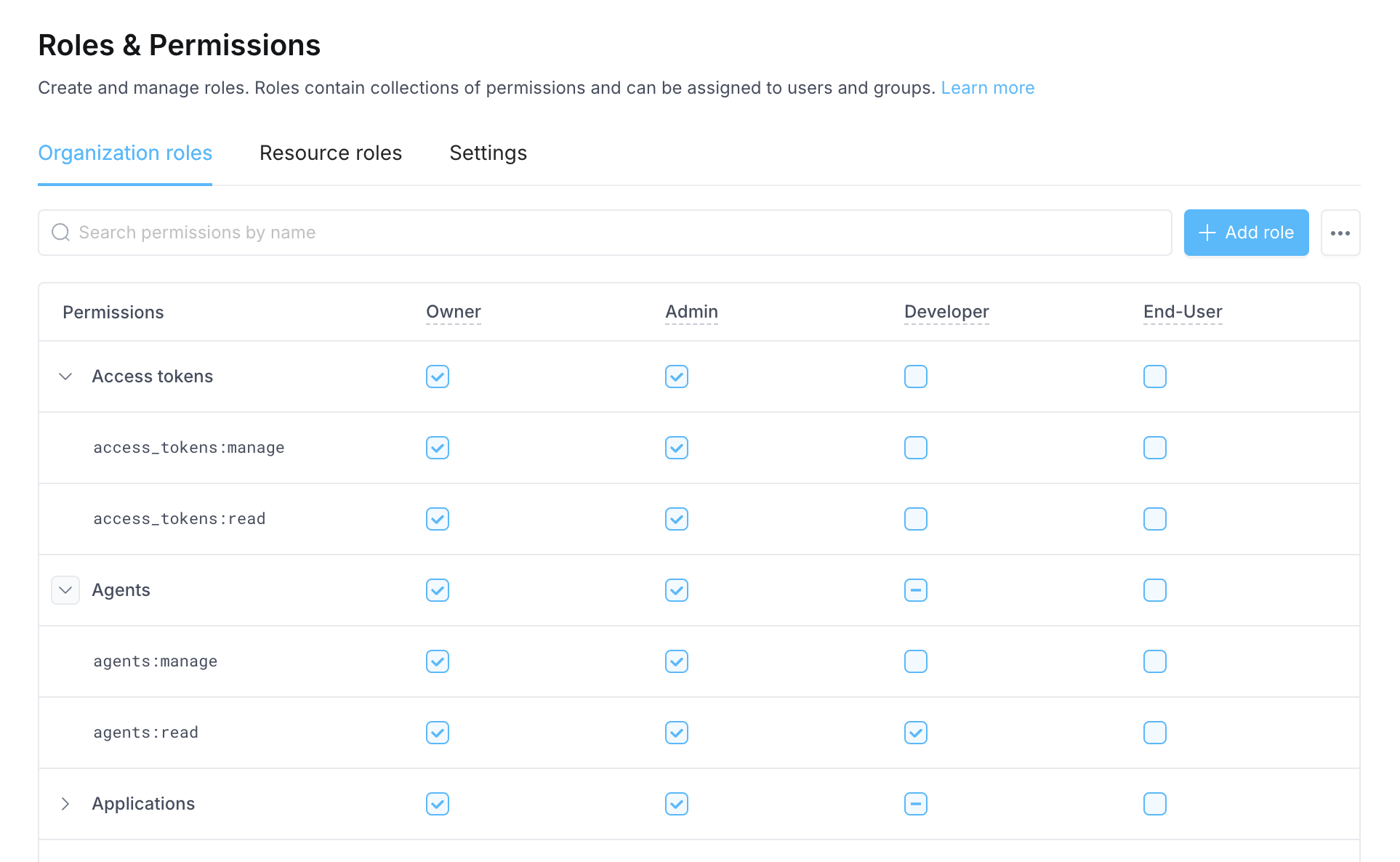 Permissions listed grant access to manage the organization and permissions to **all current and future resources** in the organization. Learn more about [organization role permissions](/admin/org-administration/org-roles/permissions)
## Setting default role
Each member of your organization must have an organization role. When users are [invited](/admin/org-administration/members/invite-users) to your org, you must select the role that will be assigned. If your organization lets users join your team based on their email domain, they will be assigned the **default role** set for your organization. To update your org's default role:
1. Click your avatar in the upper-left corner of the home page and click **Organization Settings**
2. Click [**Roles & Permissions**](https://app.superblocks.com/roles-and-permissions/settings) and go to the **Settings** tab
3. Update the **New user default role**
Permissions listed grant access to manage the organization and permissions to **all current and future resources** in the organization. Learn more about [organization role permissions](/admin/org-administration/org-roles/permissions)
## Setting default role
Each member of your organization must have an organization role. When users are [invited](/admin/org-administration/members/invite-users) to your org, you must select the role that will be assigned. If your organization lets users join your team based on their email domain, they will be assigned the **default role** set for your organization. To update your org's default role:
1. Click your avatar in the upper-left corner of the home page and click **Organization Settings**
2. Click [**Roles & Permissions**](https://app.superblocks.com/roles-and-permissions/settings) and go to the **Settings** tab
3. Update the **New user default role**
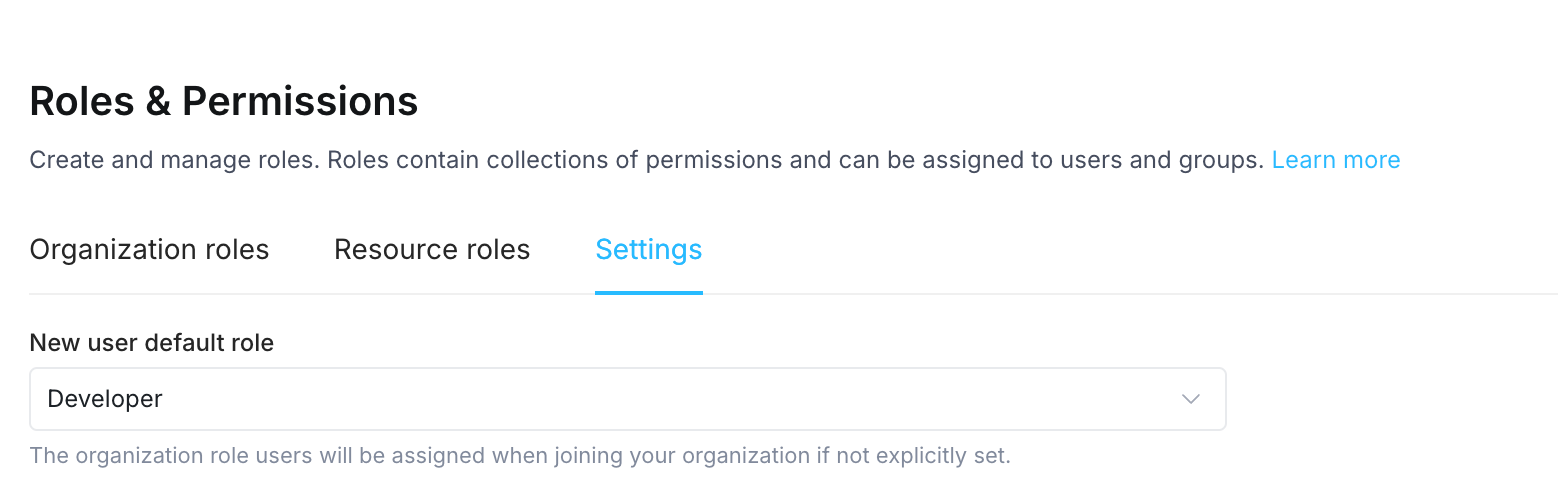 Now, when users join your team, they will automatically be assigned this role.
## Assign organization roles
### Assign to individual user
To change the role of an individual member:
1. Click your avatar in the upper-left corner of the home page and click **Organization Settings**
2. Click [**Users**](https://app.superblocks.com/users)
3. Find the user by entering their name or email into the search bar
4. Click into the **Role** selector and choose the new role you want to assign
### Assign to multiple users
To update the role assigned to multiple organization members:
1. Click your avatar in the upper-left corner of the home page and click **Organization Settings**
2. Click [**Users**](https://app.superblocks.com/users)
3. Select the checkbox to the left of the members' name to select that member
4. Select all members that you want to update. Alternatively, if you wish to select all the members, click the checkbox next to the Name column in the table.
5. Next to the Invite user button, another button will appear for bulk **Actions**
6. Click the **Actions** button and then select **Change user roles**
7. Select a new role for all of the selected users and click **Save**
### Assign roles to groups
Assigning roles to groups is optional but can be beneficial for efficiently managing permissions across users who share similar responsibilities. For full details on how group roles interact with user roles and how to manage group roles, see [Manage group permissions](/admin/org-administration/groups/managing-group-permissions)
Now, when users join your team, they will automatically be assigned this role.
## Assign organization roles
### Assign to individual user
To change the role of an individual member:
1. Click your avatar in the upper-left corner of the home page and click **Organization Settings**
2. Click [**Users**](https://app.superblocks.com/users)
3. Find the user by entering their name or email into the search bar
4. Click into the **Role** selector and choose the new role you want to assign
### Assign to multiple users
To update the role assigned to multiple organization members:
1. Click your avatar in the upper-left corner of the home page and click **Organization Settings**
2. Click [**Users**](https://app.superblocks.com/users)
3. Select the checkbox to the left of the members' name to select that member
4. Select all members that you want to update. Alternatively, if you wish to select all the members, click the checkbox next to the Name column in the table.
5. Next to the Invite user button, another button will appear for bulk **Actions**
6. Click the **Actions** button and then select **Change user roles**
7. Select a new role for all of the selected users and click **Save**
### Assign roles to groups
Assigning roles to groups is optional but can be beneficial for efficiently managing permissions across users who share similar responsibilities. For full details on how group roles interact with user roles and how to manage group roles, see [Manage group permissions](/admin/org-administration/groups/managing-group-permissions)