> ## Documentation Index
> Fetch the complete documentation index at: https://docs.superblocks.com/llms.txt
> Use this file to discover all available pages before exploring further.
# About custom organization roles
export const Alert = ({type, title, children}) => {
const getIcon = () => {
switch (type) {
case 'info':
return "data:image/svg+xml,%3Csvg xmlns='http://www.w3.org/2000/svg' width='20' height='20' viewBox='0 0 20 20' fill='none'%3E%3Cpath d='M10 0C4.477 0 0 4.477 0 10s4.477 10 10 10 10-4.477 10-10S15.523 0 10 0zm0 15c-.552 0-1-.448-1-1s.448-1 1-1 1 .448 1 1-.448 1-1 1zm1-3H9V6h2v6z' fill='%230099FF'/%3E%3C/svg%3E";
case 'success':
return "data:image/svg+xml,%3Csvg width='20' height='20' viewBox='0 0 20 20' fill='none' xmlns='http://www.w3.org/2000/svg'%3E%3Cpath fill-rule='evenodd' clip-rule='evenodd' d='M10 0C4.477 0 0 4.477 0 10s4.477 10 10 10 10-4.477 10-10S15.523 0 10 0zm4.293 6.293L9 11.586 5.707 8.293c-.391-.391-1.024-.391-1.414 0s-.391 1.024 0 1.414l4 4c.391.391 1.024.391 1.414 0l6-6c.391-.391.391-1.024 0-1.414s-1.024-.391-1.414 0z' fill='%230CC26D'/%3E%3C/svg%3E";
case 'warning':
return "data:image/svg+xml;charset=utf-8;base64,PHN2ZyB4bWxucz0naHR0cDovL3d3dy53My5vcmcvMjAwMC9zdmcnIHhtbDpzcGFjZT0ncHJlc2VydmUnIHdpZHRoPScxMDgwJyBoZWlnaHQ9JzEwODAnPjxyZWN0IHdpZHRoPScxMDAlJyBoZWlnaHQ9JzEwMCUnIGZpbGw9J3RyYW5zcGFyZW50Jy8+PHBhdGggZD0nTTEzLjc5NCAxMC43NSA4LjMgMS4yNWExLjUgMS41IDAgMCAwLTIuNiAwbC01LjQ5NCA5LjVBMS40OTQgMS40OTQgMCAwIDAgMS41IDEzaDExYTEuNDkzIDEuNDkzIDAgMCAwIDEuMjk0LTIuMjVNNi41IDUuNWEuNS41IDAgMCAxIDEgMFY4YS41LjUgMCAwIDEtMSAwek03IDExYS43NS43NSAwIDEgMSAwLTEuNS43NS43NSAwIDAgMSAwIDEuNScgc3R5bGU9J3N0cm9rZTpub25lO3N0cm9rZS13aWR0aDoxO3N0cm9rZS1kYXNoYXJyYXk6bm9uZTtzdHJva2UtbGluZWNhcDpidXR0O3N0cm9rZS1kYXNob2Zmc2V0OjA7c3Ryb2tlLWxpbmVqb2luOm1pdGVyO3N0cm9rZS1taXRlcmxpbWl0OjQ7ZmlsbDojZmY5ZjM1O2ZpbGwtcnVsZTpub256ZXJvO29wYWNpdHk6MScgdHJhbnNmb3JtPSd0cmFuc2xhdGUoLjAyIDE5LjMwNSlzY2FsZSg3Ny4xNCknLz48L3N2Zz4=";
case 'danger':
return "data:image/svg+xml,%3Csvg width='20' height='20' viewBox='0 0 20 20' fill='none' xmlns='http://www.w3.org/2000/svg'%3E%3Cpath d='M10 0C4.477 0 0 4.477 0 10s4.477 10 10 10 10-4.477 10-10S15.523 0 10 0zm5.707 4.293L10 9.586 4.293 4.293c-.391-.391-1.024-.391-1.414 0s-.391 1.024 0 1.414L8.586 11l-5.707 5.293c-.391.391-.391 1.024 0 1.414s1.024.391 1.414 0L10 12.414l5.707 5.293c.391.391 1.024.391 1.414 0s.391-1.024 0-1.414L11.414 11l5.707-5.293c.391-.391.391-1.024 0-1.414s-1.024-.391-1.414 0z' fill='%23F45252'/%3E%3C/svg%3E";
case 'note':
return "data:image/svg+xml,%3Csvg xmlns='http://www.w3.org/2000/svg' width='20' height='20' viewBox='0 0 20 20' fill='none'%3E%3Cpath d='M10 0C4.477 0 0 4.477 0 10s4.477 10 10 10 10-4.477 10-10S15.523 0 10 0zm0 15c-.552 0-1-.448-1-1s.448-1 1-1 1 .448 1 1-.448 1-1 1zm1-3H9V6h2v6z' fill='%230099FF'/%3E%3C/svg%3E";
default:
return "";
}
};
return
{title &&
{title}
}
{children}
;
};
**Who can use this feature?**
Organization **Owners**, **Admins**, and other users with the `roles:manage` permission
You can granularly control user permissions with custom organization roles. Organization roles control the Superblocks features members can access, the administrative actions they can perform, and the level of access users have to all current and future resources created in the org.
For example, you can use custom roles to grant a set of users permission to manage self-hosting the Superblocks data plane, without granting permission to invite and manage org members. Or let users create Apps, Workflows, and Jobs without granting permission to add Integrations.
Each custom roles includes a set of permissions. Permissions either let users:
* Do certain types of development. See [development permissions](/admin/org-administration/org-roles/permissions#development)
* Gain access to **all current and future resources** in the org. See [resource access permissions](/admin/org-administration/org-roles/permissions#resource-level-access)
* Manage certain org settings and features. See [governance permissions](/admin/org-administration/org-roles/permissions#governance)
This guide walks through how to create and manage custom organization roles. To learn more about assigning roles see [Using organization roles](/admin/org-administration/org-roles/using-org-roles)
## Creating a custom role
Organizations can create up to 10 custom organization roles. To create an organization role:
1. Click your avatar in the upper-left corner of the home page and click **Organization Settings**
2. Click [**Roles & Permissions**](https://app.superblocks.com/roles-and-permissions/organization-roles)
3. On the **Organization roles** tab, click **+ Add role**
4. Type a name and description for the custom role
5. Click **Create**
6. Add permissions to your custom role by selecting permissions in the permission table. For a full reference to assignable permissions see the [Permissions reference](/admin/org-administration/org-roles/permissions)
7. Once you've selected all the permissions you want assigned to the role, click **Save**
## Editing a custom role's details
To edit the name or description of a custom role:
1. Click your avatar in the upper-left corner of the home page and click **Organization Settings**
2. Click [**Roles & Permissions**](https://app.superblocks.com/roles-and-permissions/organization-roles)
3. Next to the role you want to edit, select the dropdown menu (⋯), then click **Edit details**
4. Change the role as required, then click **Save**
## Editing a role's permissions
To edit the permissions associated with a custom role:
1. Click your avatar in the upper-left corner of the home page and click **Organization Settings**
2. Click [**Roles & Permissions**](https://app.superblocks.com/roles-and-permissions/organization-roles)
3. Check/uncheck the boxes associated with permissions you want to add/remove from the role. Alternatively, if you want to grant all permissions associated with a type of Superblocks resource, check the box at the top of the resource group.
4. Once you've made all your permission selections, click the **Save** button at the bottom of the page
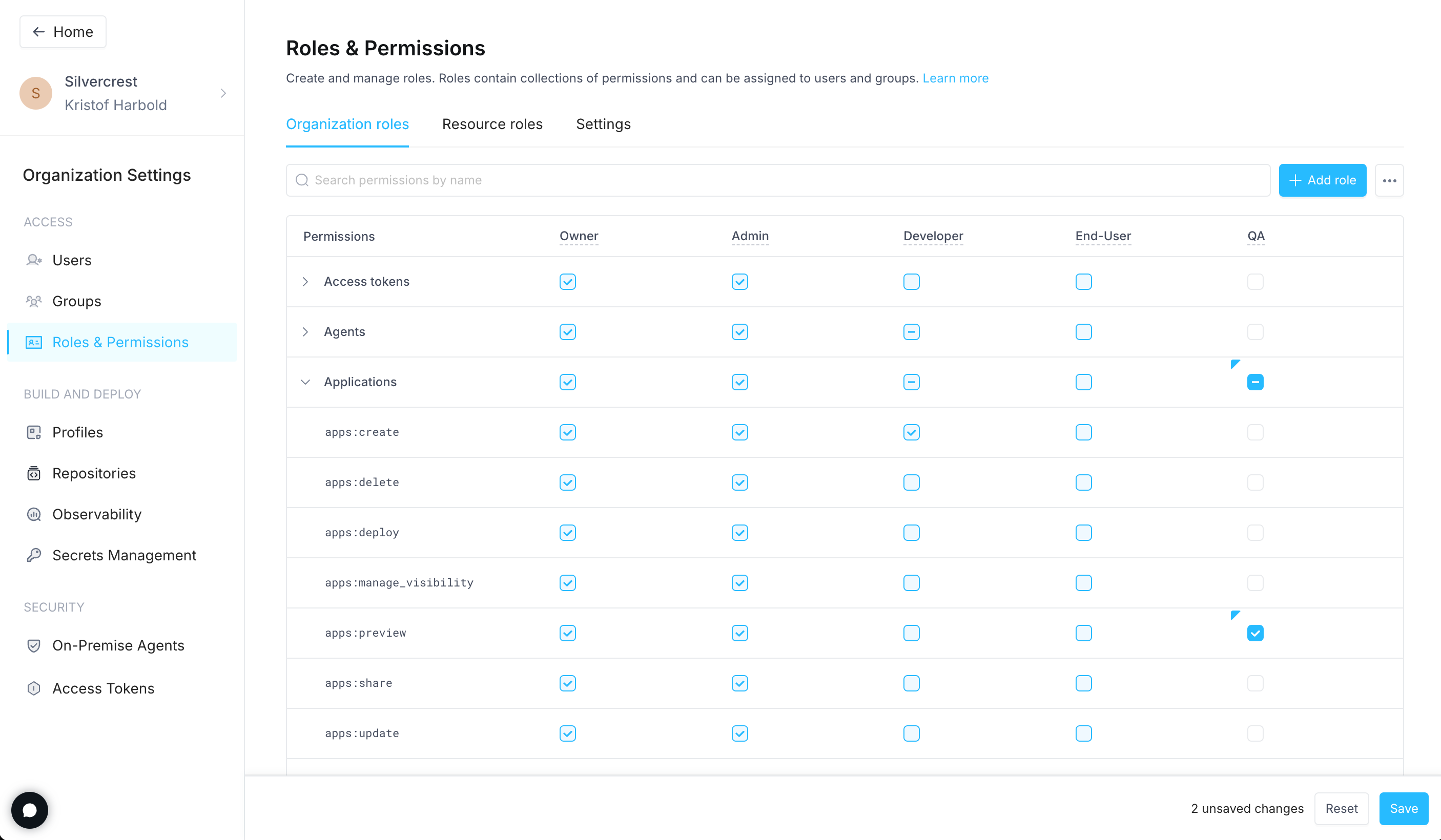 For a full reference of permissions and the access they grant, see [Permissions reference](/admin/org-administration/org-roles/permissions)
## Deleting a custom role
1. Click your avatar in the upper-left corner of the home page and click **Organization Settings**
2. Click [**Roles & Permissions**](https://app.superblocks.com/roles-and-permissions/organization-roles)
3. Next to the role you want to delete, select the dropdown menu (⋯), then click **Delete**
4. In the confirmation dialog, choose a new role to assign to users who are currently assigned the role being deleted
5. Click **Reassign & delete**
For a full reference of permissions and the access they grant, see [Permissions reference](/admin/org-administration/org-roles/permissions)
## Deleting a custom role
1. Click your avatar in the upper-left corner of the home page and click **Organization Settings**
2. Click [**Roles & Permissions**](https://app.superblocks.com/roles-and-permissions/organization-roles)
3. Next to the role you want to delete, select the dropdown menu (⋯), then click **Delete**
4. In the confirmation dialog, choose a new role to assign to users who are currently assigned the role being deleted
5. Click **Reassign & delete**