> ## Documentation Index
> Fetch the complete documentation index at: https://docs.superblocks.com/llms.txt
> Use this file to discover all available pages before exploring further.
# Manage organization members
> Invite users to become members of your Superblocks organization
export const Alert = ({type, title, children}) => {
const getIcon = () => {
switch (type) {
case 'info':
return "data:image/svg+xml,%3Csvg xmlns='http://www.w3.org/2000/svg' width='20' height='20' viewBox='0 0 20 20' fill='none'%3E%3Cpath d='M10 0C4.477 0 0 4.477 0 10s4.477 10 10 10 10-4.477 10-10S15.523 0 10 0zm0 15c-.552 0-1-.448-1-1s.448-1 1-1 1 .448 1 1-.448 1-1 1zm1-3H9V6h2v6z' fill='%230099FF'/%3E%3C/svg%3E";
case 'success':
return "data:image/svg+xml,%3Csvg width='20' height='20' viewBox='0 0 20 20' fill='none' xmlns='http://www.w3.org/2000/svg'%3E%3Cpath fill-rule='evenodd' clip-rule='evenodd' d='M10 0C4.477 0 0 4.477 0 10s4.477 10 10 10 10-4.477 10-10S15.523 0 10 0zm4.293 6.293L9 11.586 5.707 8.293c-.391-.391-1.024-.391-1.414 0s-.391 1.024 0 1.414l4 4c.391.391 1.024.391 1.414 0l6-6c.391-.391.391-1.024 0-1.414s-1.024-.391-1.414 0z' fill='%230CC26D'/%3E%3C/svg%3E";
case 'warning':
return "data:image/svg+xml;charset=utf-8;base64,PHN2ZyB4bWxucz0naHR0cDovL3d3dy53My5vcmcvMjAwMC9zdmcnIHhtbDpzcGFjZT0ncHJlc2VydmUnIHdpZHRoPScxMDgwJyBoZWlnaHQ9JzEwODAnPjxyZWN0IHdpZHRoPScxMDAlJyBoZWlnaHQ9JzEwMCUnIGZpbGw9J3RyYW5zcGFyZW50Jy8+PHBhdGggZD0nTTEzLjc5NCAxMC43NSA4LjMgMS4yNWExLjUgMS41IDAgMCAwLTIuNiAwbC01LjQ5NCA5LjVBMS40OTQgMS40OTQgMCAwIDAgMS41IDEzaDExYTEuNDkzIDEuNDkzIDAgMCAwIDEuMjk0LTIuMjVNNi41IDUuNWEuNS41IDAgMCAxIDEgMFY4YS41LjUgMCAwIDEtMSAwek03IDExYS43NS43NSAwIDEgMSAwLTEuNS43NS43NSAwIDAgMSAwIDEuNScgc3R5bGU9J3N0cm9rZTpub25lO3N0cm9rZS13aWR0aDoxO3N0cm9rZS1kYXNoYXJyYXk6bm9uZTtzdHJva2UtbGluZWNhcDpidXR0O3N0cm9rZS1kYXNob2Zmc2V0OjA7c3Ryb2tlLWxpbmVqb2luOm1pdGVyO3N0cm9rZS1taXRlcmxpbWl0OjQ7ZmlsbDojZmY5ZjM1O2ZpbGwtcnVsZTpub256ZXJvO29wYWNpdHk6MScgdHJhbnNmb3JtPSd0cmFuc2xhdGUoLjAyIDE5LjMwNSlzY2FsZSg3Ny4xNCknLz48L3N2Zz4=";
case 'danger':
return "data:image/svg+xml,%3Csvg width='20' height='20' viewBox='0 0 20 20' fill='none' xmlns='http://www.w3.org/2000/svg'%3E%3Cpath d='M10 0C4.477 0 0 4.477 0 10s4.477 10 10 10 10-4.477 10-10S15.523 0 10 0zm5.707 4.293L10 9.586 4.293 4.293c-.391-.391-1.024-.391-1.414 0s-.391 1.024 0 1.414L8.586 11l-5.707 5.293c-.391.391-.391 1.024 0 1.414s1.024.391 1.414 0L10 12.414l5.707 5.293c.391.391 1.024.391 1.414 0s.391-1.024 0-1.414L11.414 11l5.707-5.293c.391-.391.391-1.024 0-1.414s-1.024-.391-1.414 0z' fill='%23F45252'/%3E%3C/svg%3E";
case 'note':
return "data:image/svg+xml,%3Csvg xmlns='http://www.w3.org/2000/svg' width='20' height='20' viewBox='0 0 20 20' fill='none'%3E%3Cpath d='M10 0C4.477 0 0 4.477 0 10s4.477 10 10 10 10-4.477 10-10S15.523 0 10 0zm0 15c-.552 0-1-.448-1-1s.448-1 1-1 1 .448 1 1-.448 1-1 1zm1-3H9V6h2v6z' fill='%230099FF'/%3E%3C/svg%3E";
default:
return "";
}
};
return
{title &&
{title}
}
{children}
;
};
**Who can use this feature?**
Organization **Owners**, **Admins**, and other users with the `org.users:manage` permission
Superblocks also supports user management with OAuth and SAML based Single Sign on, and SCIM. Learn more about [enabling single sign-on](/admin/org-administration/auth/single-sign-on) and [SCIM](/admin/org-administration/auth/scim)
## About invitations
To add someone to your Superblocks organization, you'll need to [invite them to join](#invite-users-to-join) the org. When you invite someone to your Superblocks organization, they'll receive an email with an invitation link. To join the organization, the invitee just needs to click the invitation link in the email.
People will only become full members of your organization once they've accepted their invitation.
You can implement SCIM to add, manage, and remove organization members' access to Superblocks through an identity provider (IdP). Users added to organization via SCIM do not receive invitation emails. Learn more about [SCIM](/admin/org-administration/auth/scim).
## Member emails
When inviting users to your organization, you'll need to provide an email address. Superblocks users can only be a member of a single organization at a time. If someone has already been invited or joined a different Superblocks org, you won't be able to invite them using the same email address.
To keep things simple and secure, we recommend inviting users with email addresses that are tied to your organization's domain. It's best to avoid personal email addresses or emails from outside your organization.
If you try to invite a user with an email that's already in another Superblocks org, you'll get an error. If this user need access to multiple organizations, it's recommended to use different email addresses, or email aliases.
## Invite users to join
1. Click your avatar in the upper-left corner of the home page and click **Organization Settings**
2. Click [**Users**](https://app.superblocks.com/users)
3. Click **+ Invite user**
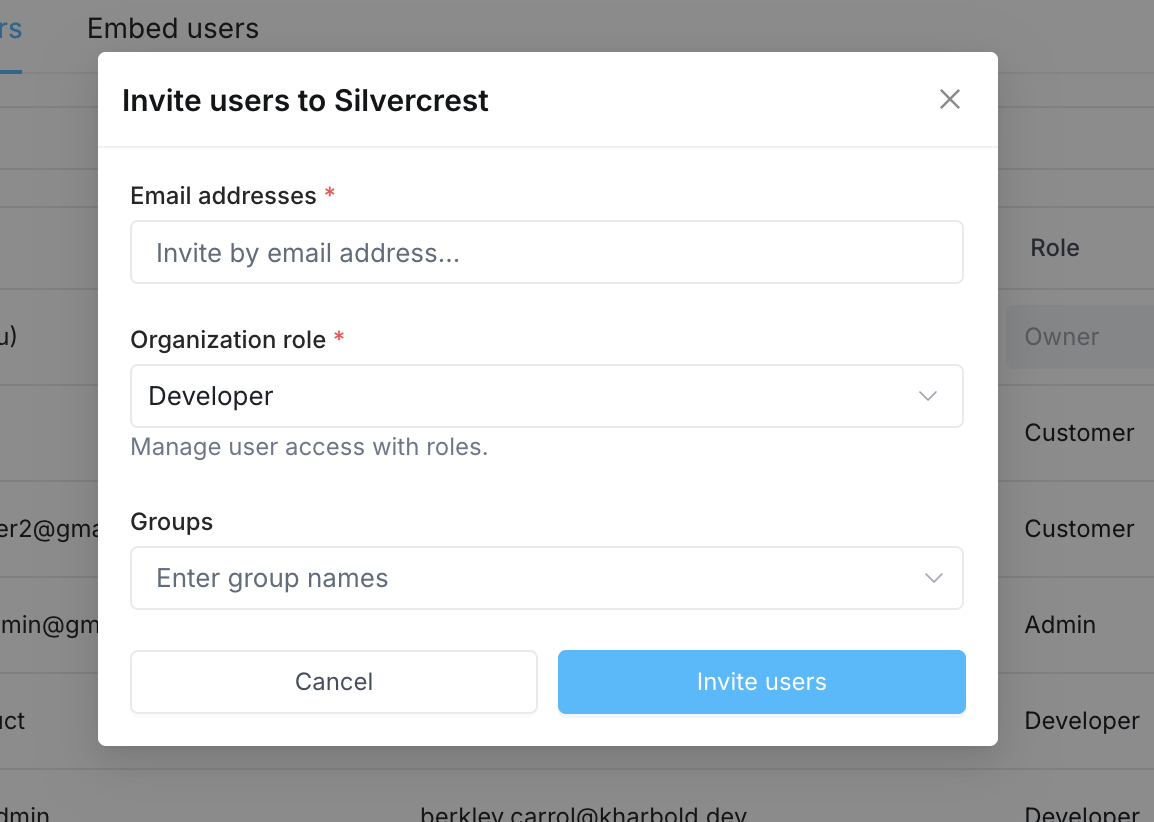
4. Enter one or more email addresses. If you are inviting multiple members, separate emails with a comma.
5. Choose an initial [built-in or custom role](/admin/org-administration/org-roles) from the **Organization role** dropdown
6. (Optional) Select groups to add these members to
7. Click **Invite users**
1. The invited people will receive emails inviting them to the organization. They will need to accept the invitation before becoming a member of the organization. You can edit or cancel an invitation any time before the user accepts.
## Cancel an invitation
Invitations never expire. If you no longer want a user to join your organization, you can cancel their invitation. To cancel an invitation:
1. Click your avatar in the upper-left corner of the home page and click **Organization Settings**
2. Click [**Users**](https://app.superblocks.com/users)
3. Find the invited user by entering their name or email into the search box, or filter the list to invited users
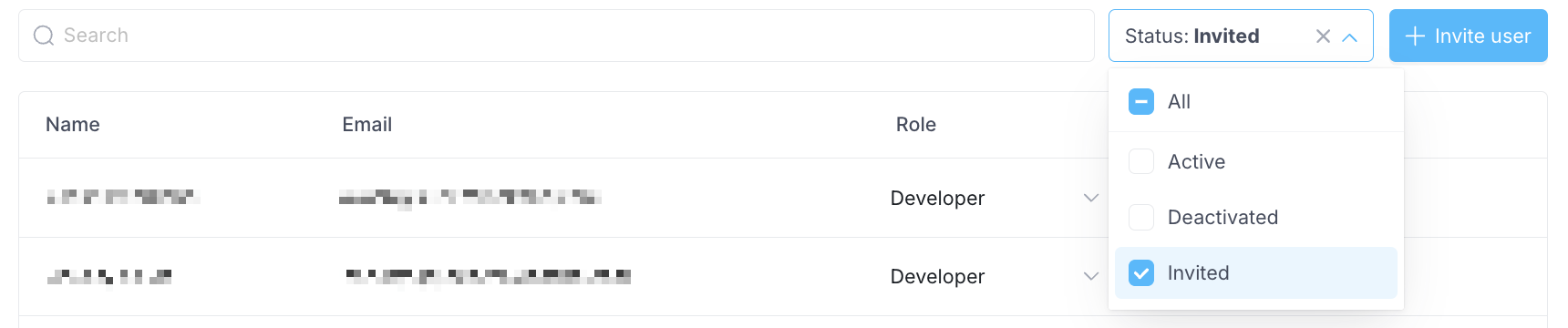 1. Next to the user, select the dropdown menu (⋯), then click **Remove invite**
 1. To confirm, click **Remove**