> ## Documentation Index
> Fetch the complete documentation index at: https://docs.superblocks.com/llms.txt
> Use this file to discover all available pages before exploring further.
# Managing user groups
export const Alert = ({type, title, children}) => {
const getIcon = () => {
switch (type) {
case 'info':
return "data:image/svg+xml,%3Csvg xmlns='http://www.w3.org/2000/svg' width='20' height='20' viewBox='0 0 20 20' fill='none'%3E%3Cpath d='M10 0C4.477 0 0 4.477 0 10s4.477 10 10 10 10-4.477 10-10S15.523 0 10 0zm0 15c-.552 0-1-.448-1-1s.448-1 1-1 1 .448 1 1-.448 1-1 1zm1-3H9V6h2v6z' fill='%230099FF'/%3E%3C/svg%3E";
case 'success':
return "data:image/svg+xml,%3Csvg width='20' height='20' viewBox='0 0 20 20' fill='none' xmlns='http://www.w3.org/2000/svg'%3E%3Cpath fill-rule='evenodd' clip-rule='evenodd' d='M10 0C4.477 0 0 4.477 0 10s4.477 10 10 10 10-4.477 10-10S15.523 0 10 0zm4.293 6.293L9 11.586 5.707 8.293c-.391-.391-1.024-.391-1.414 0s-.391 1.024 0 1.414l4 4c.391.391 1.024.391 1.414 0l6-6c.391-.391.391-1.024 0-1.414s-1.024-.391-1.414 0z' fill='%230CC26D'/%3E%3C/svg%3E";
case 'warning':
return "data:image/svg+xml;charset=utf-8;base64,PHN2ZyB4bWxucz0naHR0cDovL3d3dy53My5vcmcvMjAwMC9zdmcnIHhtbDpzcGFjZT0ncHJlc2VydmUnIHdpZHRoPScxMDgwJyBoZWlnaHQ9JzEwODAnPjxyZWN0IHdpZHRoPScxMDAlJyBoZWlnaHQ9JzEwMCUnIGZpbGw9J3RyYW5zcGFyZW50Jy8+PHBhdGggZD0nTTEzLjc5NCAxMC43NSA4LjMgMS4yNWExLjUgMS41IDAgMCAwLTIuNiAwbC01LjQ5NCA5LjVBMS40OTQgMS40OTQgMCAwIDAgMS41IDEzaDExYTEuNDkzIDEuNDkzIDAgMCAwIDEuMjk0LTIuMjVNNi41IDUuNWEuNS41IDAgMCAxIDEgMFY4YS41LjUgMCAwIDEtMSAwek03IDExYS43NS43NSAwIDEgMSAwLTEuNS43NS43NSAwIDAgMSAwIDEuNScgc3R5bGU9J3N0cm9rZTpub25lO3N0cm9rZS13aWR0aDoxO3N0cm9rZS1kYXNoYXJyYXk6bm9uZTtzdHJva2UtbGluZWNhcDpidXR0O3N0cm9rZS1kYXNob2Zmc2V0OjA7c3Ryb2tlLWxpbmVqb2luOm1pdGVyO3N0cm9rZS1taXRlcmxpbWl0OjQ7ZmlsbDojZmY5ZjM1O2ZpbGwtcnVsZTpub256ZXJvO29wYWNpdHk6MScgdHJhbnNmb3JtPSd0cmFuc2xhdGUoLjAyIDE5LjMwNSlzY2FsZSg3Ny4xNCknLz48L3N2Zz4=";
case 'danger':
return "data:image/svg+xml,%3Csvg width='20' height='20' viewBox='0 0 20 20' fill='none' xmlns='http://www.w3.org/2000/svg'%3E%3Cpath d='M10 0C4.477 0 0 4.477 0 10s4.477 10 10 10 10-4.477 10-10S15.523 0 10 0zm5.707 4.293L10 9.586 4.293 4.293c-.391-.391-1.024-.391-1.414 0s-.391 1.024 0 1.414L8.586 11l-5.707 5.293c-.391.391-.391 1.024 0 1.414s1.024.391 1.414 0L10 12.414l5.707 5.293c.391.391 1.024.391 1.414 0s.391-1.024 0-1.414L11.414 11l5.707-5.293c.391-.391.391-1.024 0-1.414s-1.024-.391-1.414 0z' fill='%23F45252'/%3E%3C/svg%3E";
case 'note':
return "data:image/svg+xml,%3Csvg xmlns='http://www.w3.org/2000/svg' width='20' height='20' viewBox='0 0 20 20' fill='none'%3E%3Cpath d='M10 0C4.477 0 0 4.477 0 10s4.477 10 10 10 10-4.477 10-10S15.523 0 10 0zm0 15c-.552 0-1-.448-1-1s.448-1 1-1 1 .448 1 1-.448 1-1 1zm1-3H9V6h2v6z' fill='%230099FF'/%3E%3C/svg%3E";
default:
return "";
}
};
return
{title &&
{title}
}
{children}
;
};
**Who can use this feature?**
Organization **Owners**, **Admins**, and other users with the `groups:manage` or `groups.members:manage` permission
## Overview
User groups enable large organizations to efficiently manage members and their access in Superblocks. By organizing users into groups, new tools can be quickly shared with different parts of the organization.
[Custom roles](/admin/org-administration/org-roles/custom-roles) can also be assigned to grant group members access beyond the permissions granted to users through their individually assigned role. Learn more about [Managing group permissions](/admin/org-administration/groups/managing-group-permissions)
Superblocks also supports syncing groups and group memberships with SCIM. Learn more about managing groups with [SCIM](/admin/org-administration/auth/scim).
## Creating a group
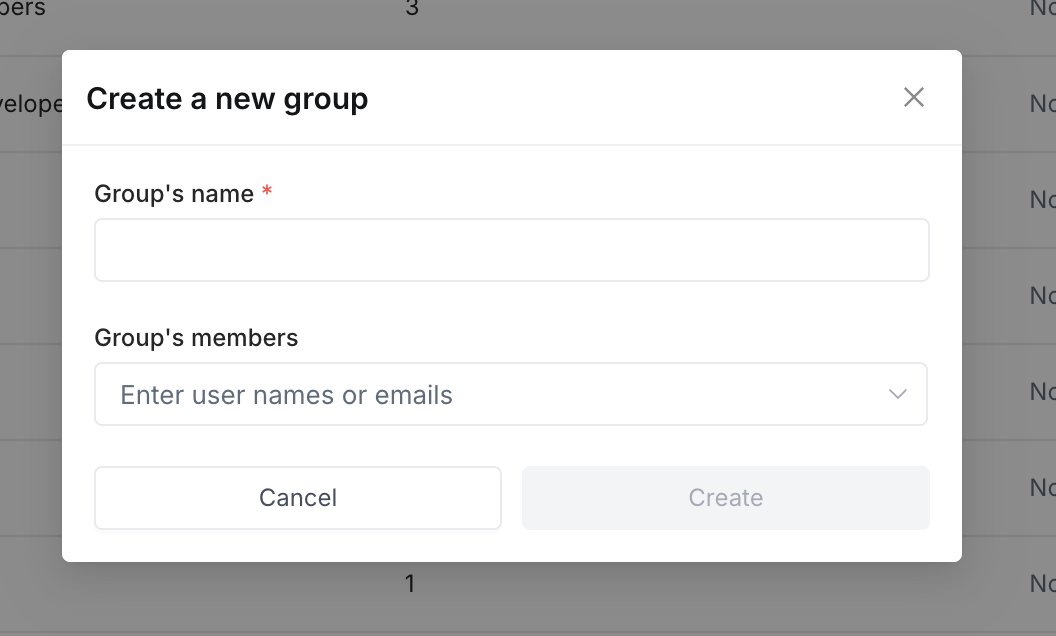
To create a new user group:
1. Click your avatar in the upper-left corner of the home page and click **Organization Settings**
2. Click [**Groups**](https://app.superblocks.com/groups)
3. Click **+ Add group**
4. Create a name for your group
5. Select the members you want to add to the group
6. Click **Create**
 Once you've created a group you can assign a [custom organization roles](/admin/org-administration/org-roles/custom-roles) to the group to grant members additional permissions. Learn more about in [Managing group permissions](/admin/org-administration/groups/managing-group-permissions)
## Add members to a group
To add members to a group:
1. Click your avatar in the upper-left corner of the home page and click **Organization Settings**
2. Click [**Groups**](https://app.superblocks.com/groups)
3. Click on the name of a group to navigate to that group's page
4. On the **Members** tab click **+ Add member**
5. Select the members to add to the team
6. Click **Add members**
## Remove members from a group
To remove a member from a group:
1. Click your avatar in the upper-left corner of the home page and click **Organization Settings**
2. Click [**Groups**](https://app.superblocks.com/groups)
3. Click on the name of a group to navigate to that group's page
4. Find the member in the list of team members
5. Select the dropdown menu (⋯) at the right of the row of the member you want to remove
6. Select **Remove from group**
7. Click **Remove** in the confirmation dialog
## Deleting a group
You can delete groups from the Groups page. To delete a group:
1. Click your avatar in the upper-left corner of the home page and click **Organization Settings**
2. Click [**Groups**](https://app.superblocks.com/groups)
3. Select the dropdown menu (⋯) at the right of the row of the group you want to delete
4. Click **Remove group**
5. Click **Remove** in the confirmation dialog
Once you've created a group you can assign a [custom organization roles](/admin/org-administration/org-roles/custom-roles) to the group to grant members additional permissions. Learn more about in [Managing group permissions](/admin/org-administration/groups/managing-group-permissions)
## Add members to a group
To add members to a group:
1. Click your avatar in the upper-left corner of the home page and click **Organization Settings**
2. Click [**Groups**](https://app.superblocks.com/groups)
3. Click on the name of a group to navigate to that group's page
4. On the **Members** tab click **+ Add member**
5. Select the members to add to the team
6. Click **Add members**
## Remove members from a group
To remove a member from a group:
1. Click your avatar in the upper-left corner of the home page and click **Organization Settings**
2. Click [**Groups**](https://app.superblocks.com/groups)
3. Click on the name of a group to navigate to that group's page
4. Find the member in the list of team members
5. Select the dropdown menu (⋯) at the right of the row of the member you want to remove
6. Select **Remove from group**
7. Click **Remove** in the confirmation dialog
## Deleting a group
You can delete groups from the Groups page. To delete a group:
1. Click your avatar in the upper-left corner of the home page and click **Organization Settings**
2. Click [**Groups**](https://app.superblocks.com/groups)
3. Select the dropdown menu (⋯) at the right of the row of the group you want to delete
4. Click **Remove group**
5. Click **Remove** in the confirmation dialog