> ## Documentation Index
> Fetch the complete documentation index at: https://docs.superblocks.com/llms.txt
> Use this file to discover all available pages before exploring further.
# Managing group permissions
export const Alert = ({type, title, children}) => {
const getIcon = () => {
switch (type) {
case 'info':
return "data:image/svg+xml,%3Csvg xmlns='http://www.w3.org/2000/svg' width='20' height='20' viewBox='0 0 20 20' fill='none'%3E%3Cpath d='M10 0C4.477 0 0 4.477 0 10s4.477 10 10 10 10-4.477 10-10S15.523 0 10 0zm0 15c-.552 0-1-.448-1-1s.448-1 1-1 1 .448 1 1-.448 1-1 1zm1-3H9V6h2v6z' fill='%230099FF'/%3E%3C/svg%3E";
case 'success':
return "data:image/svg+xml,%3Csvg width='20' height='20' viewBox='0 0 20 20' fill='none' xmlns='http://www.w3.org/2000/svg'%3E%3Cpath fill-rule='evenodd' clip-rule='evenodd' d='M10 0C4.477 0 0 4.477 0 10s4.477 10 10 10 10-4.477 10-10S15.523 0 10 0zm4.293 6.293L9 11.586 5.707 8.293c-.391-.391-1.024-.391-1.414 0s-.391 1.024 0 1.414l4 4c.391.391 1.024.391 1.414 0l6-6c.391-.391.391-1.024 0-1.414s-1.024-.391-1.414 0z' fill='%230CC26D'/%3E%3C/svg%3E";
case 'warning':
return "data:image/svg+xml;charset=utf-8;base64,PHN2ZyB4bWxucz0naHR0cDovL3d3dy53My5vcmcvMjAwMC9zdmcnIHhtbDpzcGFjZT0ncHJlc2VydmUnIHdpZHRoPScxMDgwJyBoZWlnaHQ9JzEwODAnPjxyZWN0IHdpZHRoPScxMDAlJyBoZWlnaHQ9JzEwMCUnIGZpbGw9J3RyYW5zcGFyZW50Jy8+PHBhdGggZD0nTTEzLjc5NCAxMC43NSA4LjMgMS4yNWExLjUgMS41IDAgMCAwLTIuNiAwbC01LjQ5NCA5LjVBMS40OTQgMS40OTQgMCAwIDAgMS41IDEzaDExYTEuNDkzIDEuNDkzIDAgMCAwIDEuMjk0LTIuMjVNNi41IDUuNWEuNS41IDAgMCAxIDEgMFY4YS41LjUgMCAwIDEtMSAwek03IDExYS43NS43NSAwIDEgMSAwLTEuNS43NS43NSAwIDAgMSAwIDEuNScgc3R5bGU9J3N0cm9rZTpub25lO3N0cm9rZS13aWR0aDoxO3N0cm9rZS1kYXNoYXJyYXk6bm9uZTtzdHJva2UtbGluZWNhcDpidXR0O3N0cm9rZS1kYXNob2Zmc2V0OjA7c3Ryb2tlLWxpbmVqb2luOm1pdGVyO3N0cm9rZS1taXRlcmxpbWl0OjQ7ZmlsbDojZmY5ZjM1O2ZpbGwtcnVsZTpub256ZXJvO29wYWNpdHk6MScgdHJhbnNmb3JtPSd0cmFuc2xhdGUoLjAyIDE5LjMwNSlzY2FsZSg3Ny4xNCknLz48L3N2Zz4=";
case 'danger':
return "data:image/svg+xml,%3Csvg width='20' height='20' viewBox='0 0 20 20' fill='none' xmlns='http://www.w3.org/2000/svg'%3E%3Cpath d='M10 0C4.477 0 0 4.477 0 10s4.477 10 10 10 10-4.477 10-10S15.523 0 10 0zm5.707 4.293L10 9.586 4.293 4.293c-.391-.391-1.024-.391-1.414 0s-.391 1.024 0 1.414L8.586 11l-5.707 5.293c-.391.391-.391 1.024 0 1.414s1.024.391 1.414 0L10 12.414l5.707 5.293c.391.391 1.024.391 1.414 0s.391-1.024 0-1.414L11.414 11l5.707-5.293c.391-.391.391-1.024 0-1.414s-1.024-.391-1.414 0z' fill='%23F45252'/%3E%3C/svg%3E";
case 'note':
return "data:image/svg+xml,%3Csvg xmlns='http://www.w3.org/2000/svg' width='20' height='20' viewBox='0 0 20 20' fill='none'%3E%3Cpath d='M10 0C4.477 0 0 4.477 0 10s4.477 10 10 10 10-4.477 10-10S15.523 0 10 0zm0 15c-.552 0-1-.448-1-1s.448-1 1-1 1 .448 1 1-.448 1-1 1zm1-3H9V6h2v6z' fill='%230099FF'/%3E%3C/svg%3E";
default:
return "";
}
};
return
{title &&
{title}
}
{children}
;
};
**Who can use this feature?**
Organization **Owners**, **Admins**, and other users with the `groups:manage` permission
To grant a group of users permissions in Superblocks, you can either assign them an [organization role](/admin/org-administration/org-roles) that defines the Superblocks feature/admin permissions they receive, or a [resource role](/admin/org-administration/resource-roles) that grant them access to an Application, Integration, Workflow, or Scheduled Job.
To learn more about the types of roles and access they grant, see [Permissions in Superblocks](/admin/org-administration/rbac)
## Assigning org role to a group
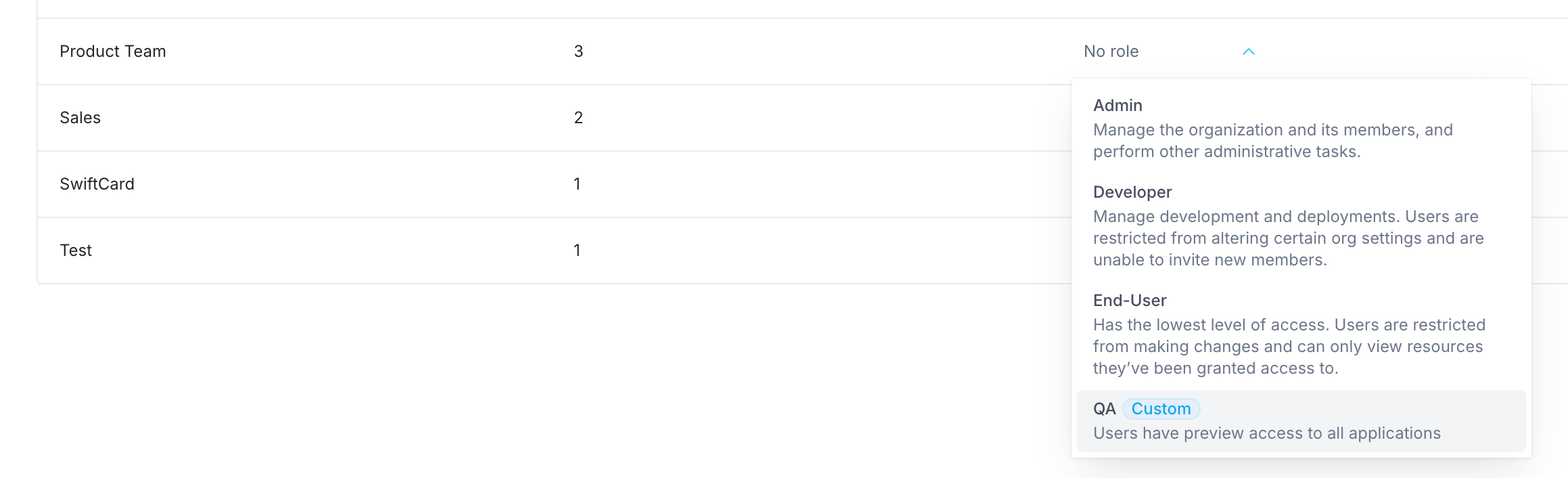
To assign an organization role to a group:
1. Click your avatar in the upper-left corner of the home page and click **Organization Settings**
2. Click [**Groups**](https://app.superblocks.com/groups)
3. Find the name of the group
4. Click into the **Role** selector and choose the role you want to assign to the group
 ## Removing org role from a group
To remove an organization role from a group:
1. Click your avatar in the upper-left corner of the home page and click **Organization Settings**
2. Click [**Groups**](https://app.superblocks.com/groups)
3. Find the name of the group
4. Click the × icon next to the role name
## Managing a group's access to a resource
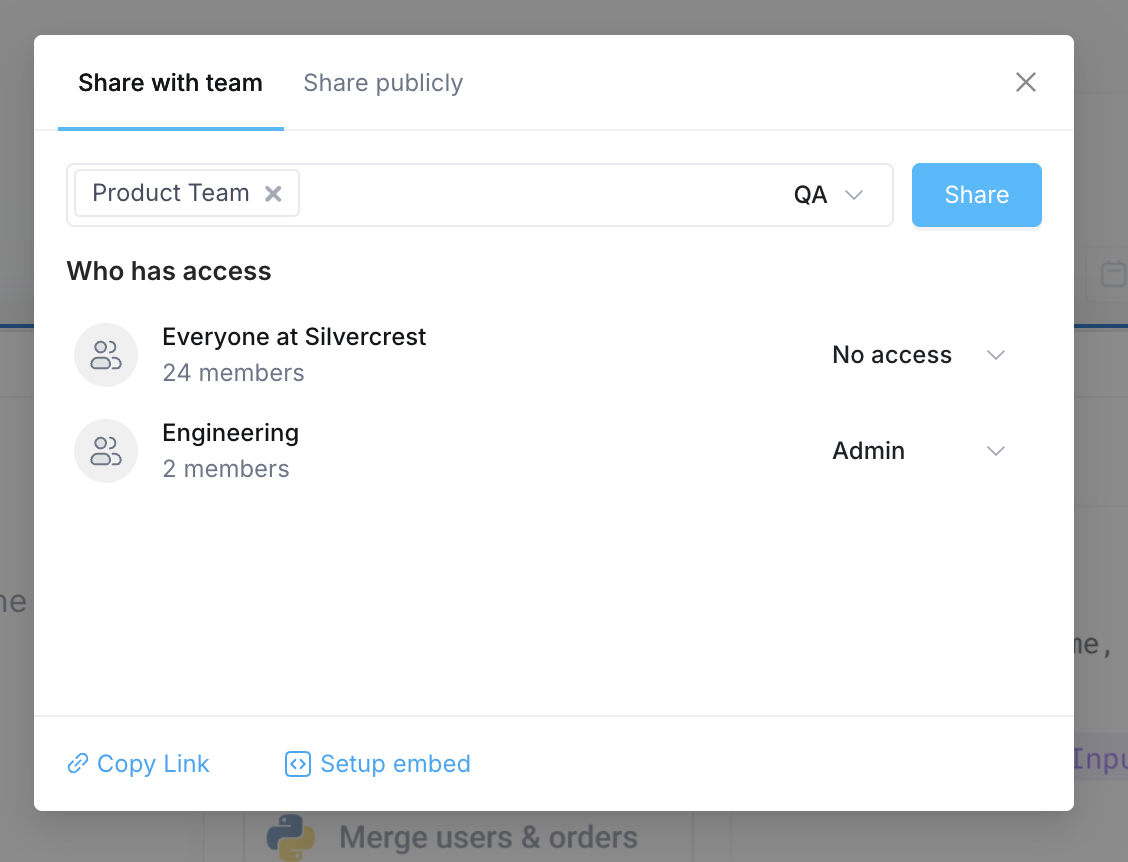
Groups can be granted access to individual resources as well by assigning the group a [resource role](/admin/org-administration/resource-roles). To share a resource with a group:
1. Navigate to the resource (Application, Workflow, Integration, etc) you want to grant access to
2. Click into the editor or configuration page for that resource
3. Find and click on the **Share** button in the upper right-hand corner of the page
4. In the dialog box that appears, search for the group you want to share the resource with
5. Select the **Resource role** you want to assign to the group
6. Click **Share**
## Removing org role from a group
To remove an organization role from a group:
1. Click your avatar in the upper-left corner of the home page and click **Organization Settings**
2. Click [**Groups**](https://app.superblocks.com/groups)
3. Find the name of the group
4. Click the × icon next to the role name
## Managing a group's access to a resource
Groups can be granted access to individual resources as well by assigning the group a [resource role](/admin/org-administration/resource-roles). To share a resource with a group:
1. Navigate to the resource (Application, Workflow, Integration, etc) you want to grant access to
2. Click into the editor or configuration page for that resource
3. Find and click on the **Share** button in the upper right-hand corner of the page
4. In the dialog box that appears, search for the group you want to share the resource with
5. Select the **Resource role** you want to assign to the group
6. Click **Share**
 ## How group roles interact with individual member roles
Roles and permissions are additive. If a person is given different levels of access through different avenues, such as a group membership and their individually assigned role, the user has the **sum of all access grants**.
For example, let's say an organization owner assigns a user the [built-in role](/admin/org-administration/org-roles#built-in-organization-roles) of End-User. They're then added to a group that has a [custom role](/admin/org-administration/org-roles/custom-roles) with all Integrations permission. This member will have management access to all Integrations, but won't be able to create Apps, Workflows, or Jobs, because of the permissions granted through the combination of their individually assigned role and the custom role.
If a member belongs to multiple groups, the members permissions will include the permissions associated with the role individually assigned to them, plus the permissions granted to each of their groups.
## How group roles interact with individual member roles
Roles and permissions are additive. If a person is given different levels of access through different avenues, such as a group membership and their individually assigned role, the user has the **sum of all access grants**.
For example, let's say an organization owner assigns a user the [built-in role](/admin/org-administration/org-roles#built-in-organization-roles) of End-User. They're then added to a group that has a [custom role](/admin/org-administration/org-roles/custom-roles) with all Integrations permission. This member will have management access to all Integrations, but won't be able to create Apps, Workflows, or Jobs, because of the permissions granted through the combination of their individually assigned role and the custom role.
If a member belongs to multiple groups, the members permissions will include the permissions associated with the role individually assigned to them, plus the permissions granted to each of their groups.