> ## Documentation Index
> Fetch the complete documentation index at: https://docs.superblocks.com/llms.txt
> Use this file to discover all available pages before exploring further.
# Manage environments & data tags
> Create data tags and control which data can be accessed in each environment
export const Alert = ({type, title, children}) => {
const getIcon = () => {
switch (type) {
case 'info':
return "data:image/svg+xml,%3Csvg xmlns='http://www.w3.org/2000/svg' width='20' height='20' viewBox='0 0 20 20' fill='none'%3E%3Cpath d='M10 0C4.477 0 0 4.477 0 10s4.477 10 10 10 10-4.477 10-10S15.523 0 10 0zm0 15c-.552 0-1-.448-1-1s.448-1 1-1 1 .448 1 1-.448 1-1 1zm1-3H9V6h2v6z' fill='%230099FF'/%3E%3C/svg%3E";
case 'success':
return "data:image/svg+xml,%3Csvg width='20' height='20' viewBox='0 0 20 20' fill='none' xmlns='http://www.w3.org/2000/svg'%3E%3Cpath fill-rule='evenodd' clip-rule='evenodd' d='M10 0C4.477 0 0 4.477 0 10s4.477 10 10 10 10-4.477 10-10S15.523 0 10 0zm4.293 6.293L9 11.586 5.707 8.293c-.391-.391-1.024-.391-1.414 0s-.391 1.024 0 1.414l4 4c.391.391 1.024.391 1.414 0l6-6c.391-.391.391-1.024 0-1.414s-1.024-.391-1.414 0z' fill='%230CC26D'/%3E%3C/svg%3E";
case 'warning':
return "data:image/svg+xml;charset=utf-8;base64,PHN2ZyB4bWxucz0naHR0cDovL3d3dy53My5vcmcvMjAwMC9zdmcnIHhtbDpzcGFjZT0ncHJlc2VydmUnIHdpZHRoPScxMDgwJyBoZWlnaHQ9JzEwODAnPjxyZWN0IHdpZHRoPScxMDAlJyBoZWlnaHQ9JzEwMCUnIGZpbGw9J3RyYW5zcGFyZW50Jy8+PHBhdGggZD0nTTEzLjc5NCAxMC43NSA4LjMgMS4yNWExLjUgMS41IDAgMCAwLTIuNiAwbC01LjQ5NCA5LjVBMS40OTQgMS40OTQgMCAwIDAgMS41IDEzaDExYTEuNDkzIDEuNDkzIDAgMCAwIDEuMjk0LTIuMjVNNi41IDUuNWEuNS41IDAgMCAxIDEgMFY4YS41LjUgMCAwIDEtMSAwek03IDExYS43NS43NSAwIDEgMSAwLTEuNS43NS43NSAwIDAgMSAwIDEuNScgc3R5bGU9J3N0cm9rZTpub25lO3N0cm9rZS13aWR0aDoxO3N0cm9rZS1kYXNoYXJyYXk6bm9uZTtzdHJva2UtbGluZWNhcDpidXR0O3N0cm9rZS1kYXNob2Zmc2V0OjA7c3Ryb2tlLWxpbmVqb2luOm1pdGVyO3N0cm9rZS1taXRlcmxpbWl0OjQ7ZmlsbDojZmY5ZjM1O2ZpbGwtcnVsZTpub256ZXJvO29wYWNpdHk6MScgdHJhbnNmb3JtPSd0cmFuc2xhdGUoLjAyIDE5LjMwNSlzY2FsZSg3Ny4xNCknLz48L3N2Zz4=";
case 'danger':
return "data:image/svg+xml,%3Csvg width='20' height='20' viewBox='0 0 20 20' fill='none' xmlns='http://www.w3.org/2000/svg'%3E%3Cpath d='M10 0C4.477 0 0 4.477 0 10s4.477 10 10 10 10-4.477 10-10S15.523 0 10 0zm5.707 4.293L10 9.586 4.293 4.293c-.391-.391-1.024-.391-1.414 0s-.391 1.024 0 1.414L8.586 11l-5.707 5.293c-.391.391-.391 1.024 0 1.414s1.024.391 1.414 0L10 12.414l5.707 5.293c.391.391 1.024.391 1.414 0s.391-1.024 0-1.414L11.414 11l5.707-5.293c.391-.391.391-1.024 0-1.414s-1.024-.391-1.414 0z' fill='%23F45252'/%3E%3C/svg%3E";
case 'note':
return "data:image/svg+xml,%3Csvg xmlns='http://www.w3.org/2000/svg' width='20' height='20' viewBox='0 0 20 20' fill='none'%3E%3Cpath d='M10 0C4.477 0 0 4.477 0 10s4.477 10 10 10 10-4.477 10-10S15.523 0 10 0zm0 15c-.552 0-1-.448-1-1s.448-1 1-1 1 .448 1 1-.448 1-1 1zm1-3H9V6h2v6z' fill='%230099FF'/%3E%3C/svg%3E";
default:
return "";
}
};
return
{title &&
{title}
}
{children}
;
};
Who can use this feature?
Users with the profiles:manage permission. This permission is included in the built-in Owner and Admin roles
Superblocks has three built-in **environments** that map to your development lifecycle:
| Environment | Description |
| -------------- | -------------------------------------------- |
| **Edit** | Where developers build your apps |
| **Preview** | Where changes are reviewed before going live |
| **Production** | Where your live applications run |
**Data tags** let you tag different data segments — such as **Staging**, **Production**, or **us-east** — and control which environments each tag is allowed in.
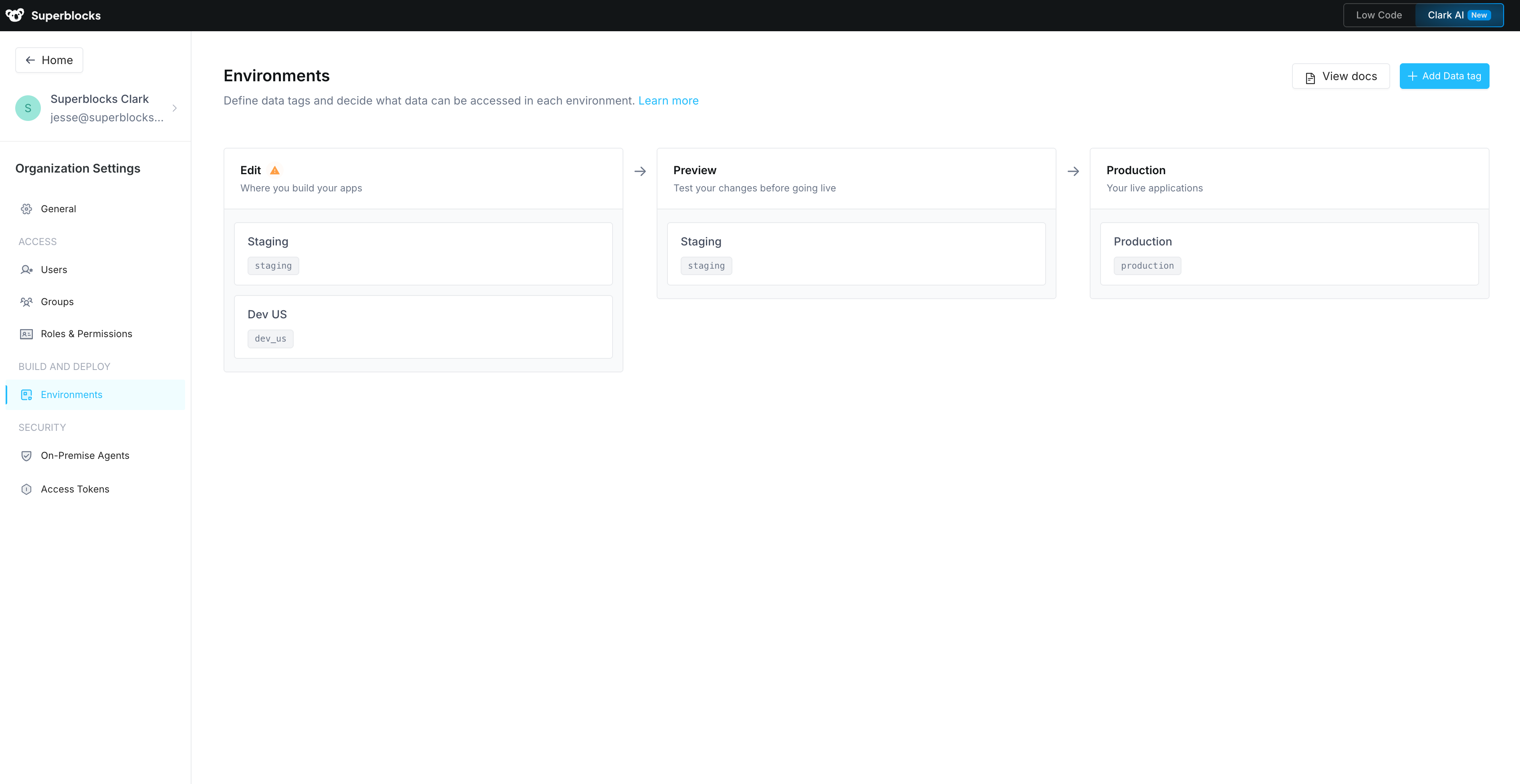 Once created, data tags are associated with [integration configurations](#configure-integration-credentials) and [data plane deployments](/enterprise/hybrid-architecture/deployment/multiple_environments), which are covered below.
Your Superblocks account comes with two built-in data tags, **Development** and **Production**.
## Create a data tag
Admins can create new data tags to represent different data environments, regions, or stages. To add a data tag:
1. Navigate to the **[Environments](https://app.superblocks.com/environments)** page under **Organization Settings**
2. Click **Add Data Tag**
3. Provide a unique name and key for your data tag
4. Select which environments (Edit, Preview, Production) this data tag is allowed in
5. Click **Create**
Once created, data tags are associated with [integration configurations](#configure-integration-credentials) and [data plane deployments](/enterprise/hybrid-architecture/deployment/multiple_environments), which are covered below.
Your Superblocks account comes with two built-in data tags, **Development** and **Production**.
## Create a data tag
Admins can create new data tags to represent different data environments, regions, or stages. To add a data tag:
1. Navigate to the **[Environments](https://app.superblocks.com/environments)** page under **Organization Settings**
2. Click **Add Data Tag**
3. Provide a unique name and key for your data tag
4. Select which environments (Edit, Preview, Production) this data tag is allowed in
5. Click **Create**
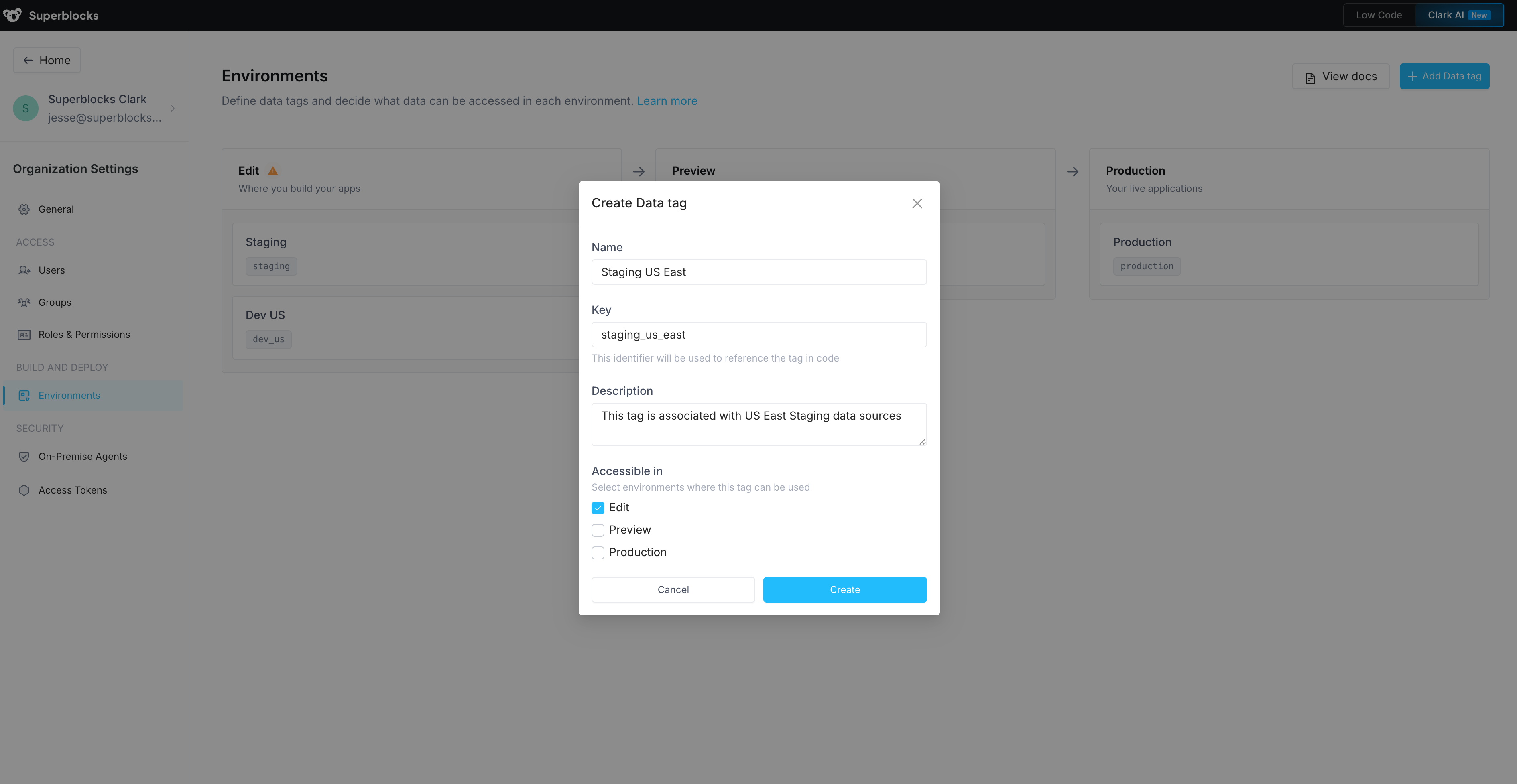
Each data tag has a unique alphanumeric key. The key can be customized when creating the data tag but cannot be changed after creation to prevent references from breaking.
### Environment assignment
When creating or editing a data tag, you decide which environments it can be used in. This gives admins control over data access:
* A tag allowed only in **Edit** and **Preview** keeps that data source out of production
* A tag allowed only in **Production** ensures production credentials are never used during development
* A tag allowed in all three environments can be used anywhere
Once you've created a data tag, you can start:
* [Configuring integration credentials](#configure-integration-credentials)
* [Using data tags](/development-lifecycle/build/data-tags) in Applications
* [Deploying the Superblocks data plane to multiple environments](/enterprise/hybrid-architecture/deployment/multiple_environments)
## Configure integration credentials
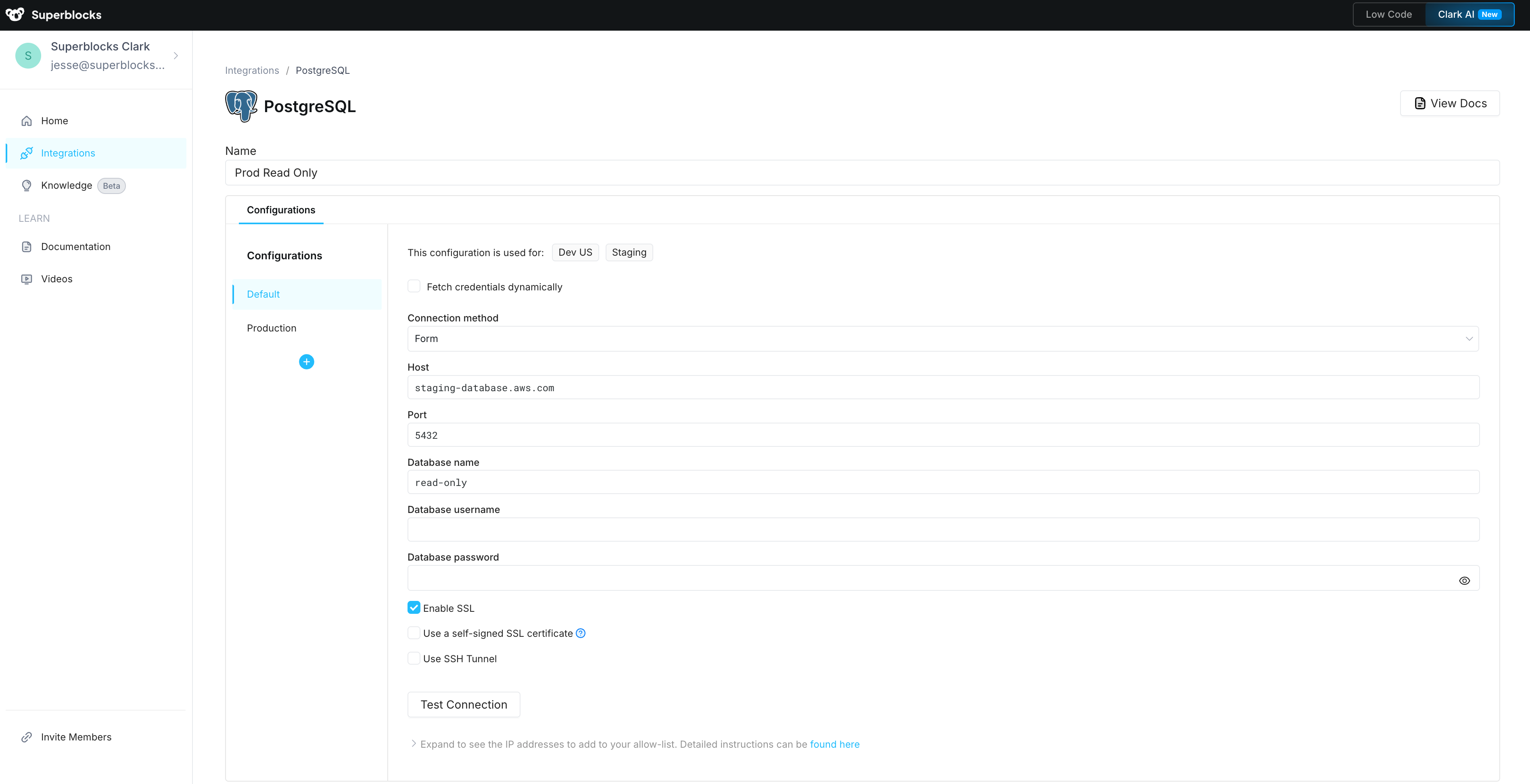
In Superblocks, integrations can have multiple configurations to connect to different database instances or API servers. Each configuration is linked to one or more data tags.
When you create a new integration, Superblocks automatically generates two configurations:
| Configuration | Data tags included | Description |
| ---------------------------- | ------------------------------------------------------------------------ | -------------------------------- |
| **Non-Production** (Default) | All data tags where **none** of their allowed environments is Production | Safe for development and testing |
| **Production** | All data tags where **at least one** allowed environment is Production | Isolated production credentials |
You can add additional configurations as needed.
To update or add configurations:
1. Navigate to [Integrations](https://app.superblocks.com/integrations) and search for your integration or create a new one
2. To add a configuration, click the ➕ icon for "Add new configuration" and select the data tag(s)
3. Fill out the configuration form with values specific to the selected data tags
4. Click **Test Connection** to verify connectivity
5. **Create** or **Save** your changes
 ## Using data tags
For details on how to use data tags in your Applications, see [Using data tags](/development-lifecycle/build/data-tags).
## Using data tags
For details on how to use data tags in your Applications, see [Using data tags](/development-lifecycle/build/data-tags).
Data tags were previously called profiles. The core concept is the same — admins now have more control over which data tags are allowed in each environment.